
How to Set Up Conversational Analytics in Google Data Studio
 Benjamin Mangold
Conversational Analytics in Google Data Studio is a faster way to get answers from your data. Instead of building charts and reports manually, you can ask your BigQuery data questions in plain language. Google's AI agent powered by Gemini will analyze and answer you questions.
In this tutorial, I'll walk you through setting up a BigQuery Agent in Google Cloud and then using it in Data Studio. This is helpful if you're already exporting your Google Analytics data to BigQuery and want a an easier way to explore and analyze the data.
What's Covered
To set up Conversational Analytics, you'll need a Google Cloud project with BigQuery enabled and an active billing account. We'll walk through checking your billing setup, enabling the necessary APIs if prompted, creating a new agent, selecting your BigQuery data source, and then testing it out before moving to Data Studio.
You'll also learn about optional agent settings like adding multiple data sources, giving the agent specific instructions about your data, and saving verified queries for faster, more consistent answers.
One thing to keep in mind is you might encounter temporary errors when setting up or first using the agent in Data Studio. If this happens, I suggest waiting and then trying again. I found this worked in a couple of cases where troubleshooting didn't lead to any anything working.
Multi-Day Analysis with BigQuery Agents
In my video, I've covered the steps to add a single table to the BigQuery Agent. This means you will be able to perform analysis for a single day, but what if you want to analyze data for multiple days?
When Google Analytics sends data to BigQuery, each day is a separate table, so we need a way to combine the tables. To do this we can use a View. To create this, navigate to 'BigQuery' in Google Cloud and select 'Studio'.
Next, click the blue plus sign at the top of the interface to create a new query.
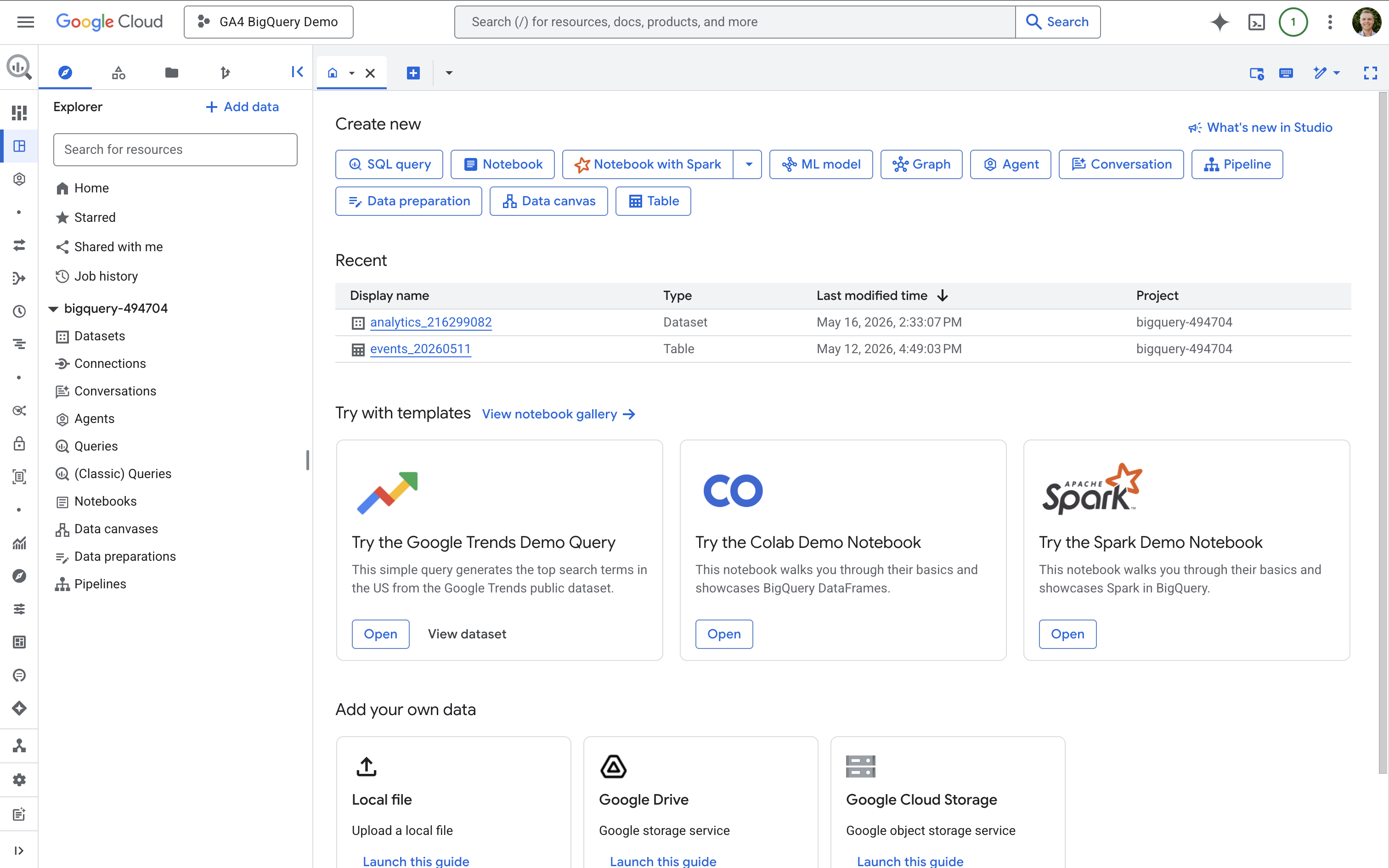
Then you'll need to enter a query that gets all of the tables from your dataset. I've included my query below, so you can adjust this based on the name of your dataset and BigQuery project ID. Otherwise, you can open Cloud Assistant (the AI chat built into Google Cloud) and enter the following prompt:Create a BigQuery view in my current dataset that unions all tables starting with events_*. First, drop any existing view that might match this prefix to avoid wildcard errors. Name the new view all_events_union and make sure to exclude any intraday tables from the results.
Now you can enter the result as your query and click 'Run'.
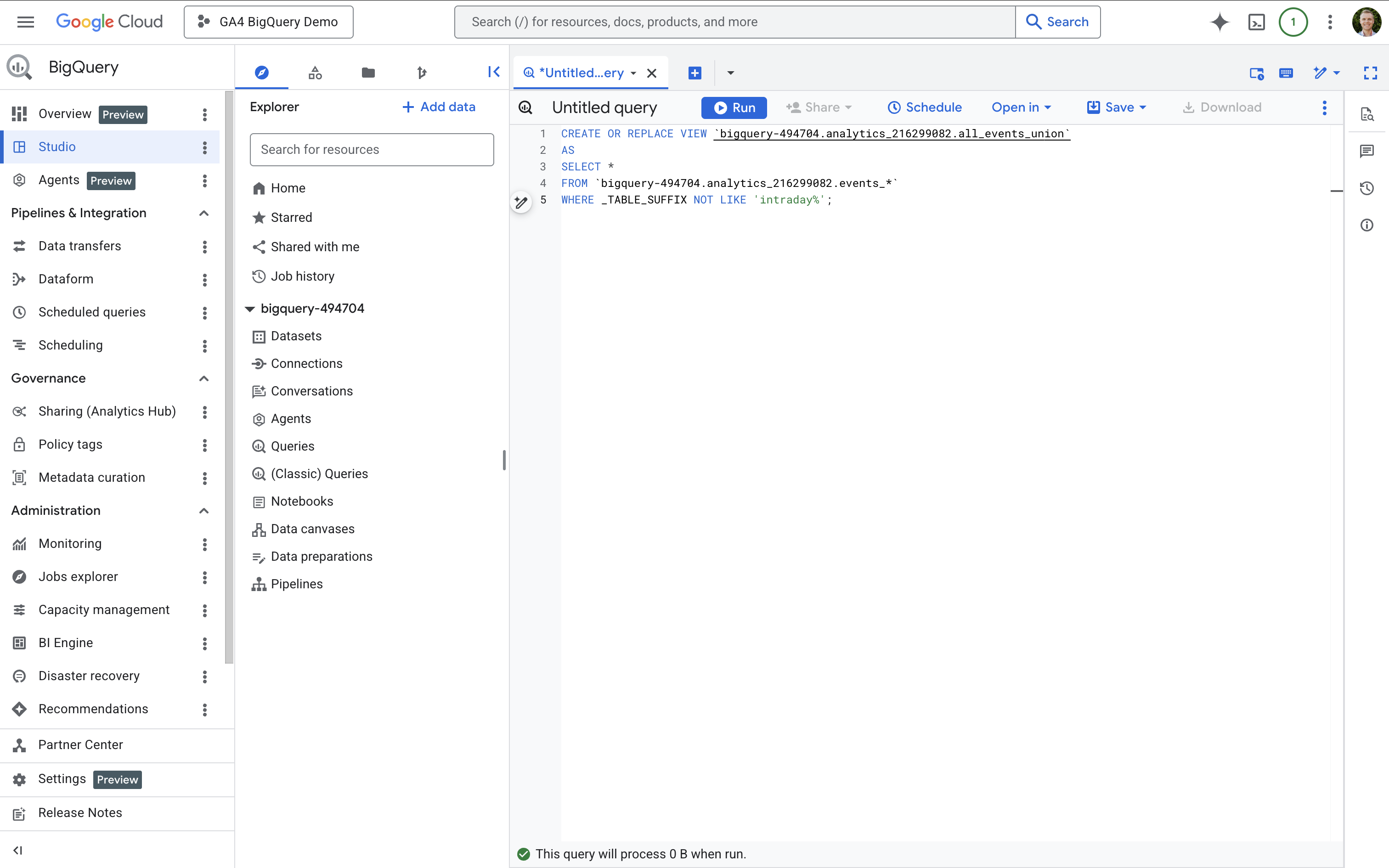
Here's the query I used:
CREATE OR REPLACE VIEW `bigquery-494704.analytics_216299082.all_events_union`ASSELECT *FROM `bigquery-494704.analytics_216299082.events_*`WHERE _TABLE_SUFFIX NOT LIKE 'intraday%';
This will create a View called all_events_union which you can now use as the source for your BigQuery Agent.
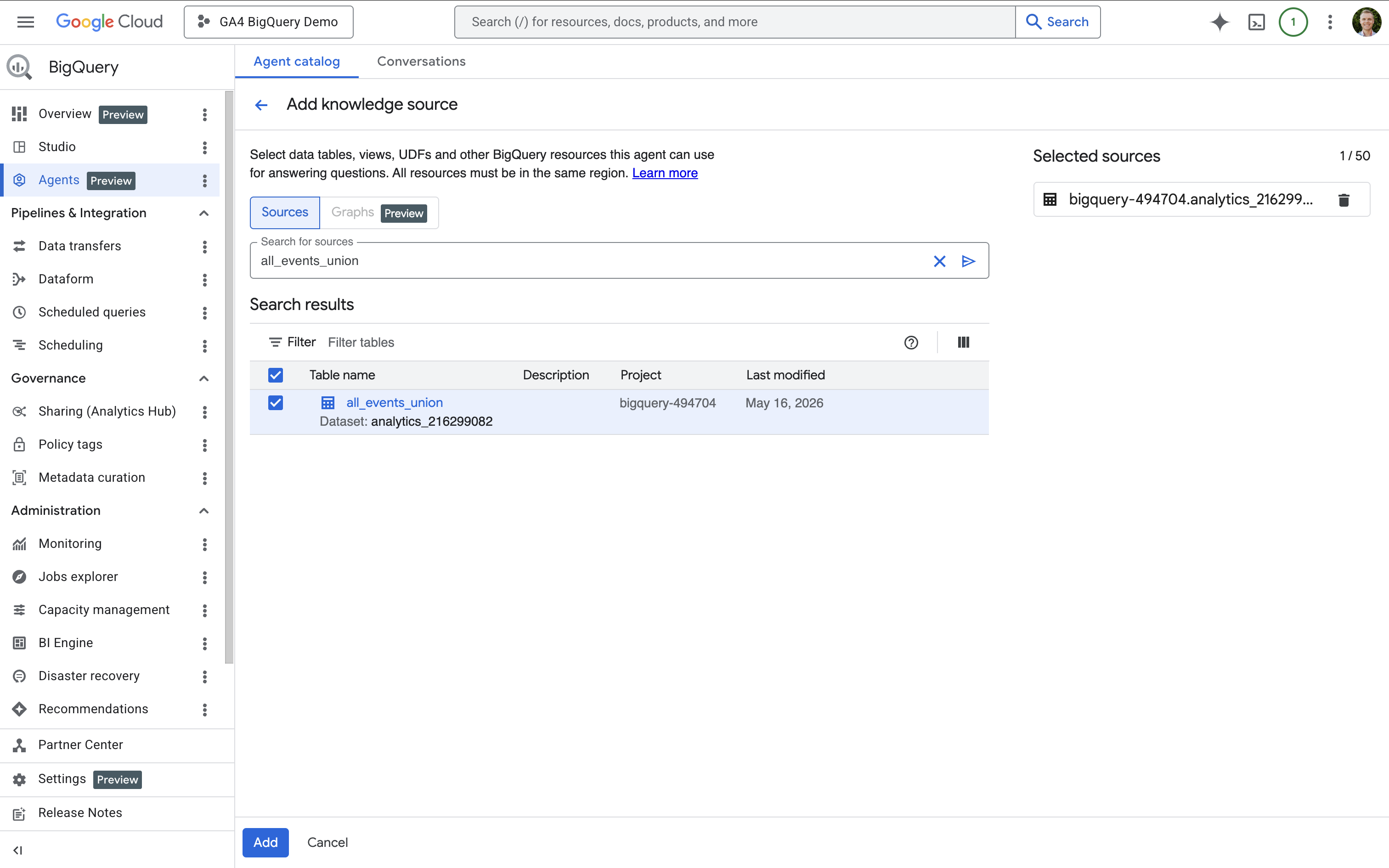
Tip: I suggest searching for all_events_union as it might not show as a recent table when adding the source. If this doesn't work, I've also found searching for the name of the dataset can work.
Looking for an easier option?
If you're looking for an easier way to start chatting with your data without setting up BigQuery, you can also check out Analytics Advisor, which is built directly into Google Analytics.