
Fix the “No Google Tag Found in This Container” Warning in Google Tag Manager
Benjamin Mangold
Are you seeing the message “No Google tag found in this container” in Google Tag Manager?

Well, the good news is that it’s usually easy to fix this and prevent the warning.
In this guide, you’ll learn what the warning actually means, why it appears, and how to fix it properly. I’ll also show you a reliable way to avoid this issue in the future by using variables, so your setup stays consistent and easier to manage.
You can also follow along in my tutorial on YouTube:
Table of contents
- Understand what the warning is telling you
- Confirm whether the issue is in the container or on the site
- Identify the two most common causes
- Use variables to avoid mismatched IDs
- Create the base Google tag
- Repeat the process for Google Ads
- Verify other Google tags in the container
- Preview, test, and publish
Step 1: Understand what the warning is telling you
You’ll see this warning when you’re creating a GA4 event tag or a Google Ads tag and Google Tag Manager can’t find a matching Google tag in the same container.
You can think of the Google tag as your foundation. It loads the Google tagging library, and then other Google tags, like GA4 events or Google Ads conversions, reuse those settings.
So when GTM says “No Google tag found in this container”, it’s really saying “I don’t see a Google tag in this container that matches the ID you’ve entered.”
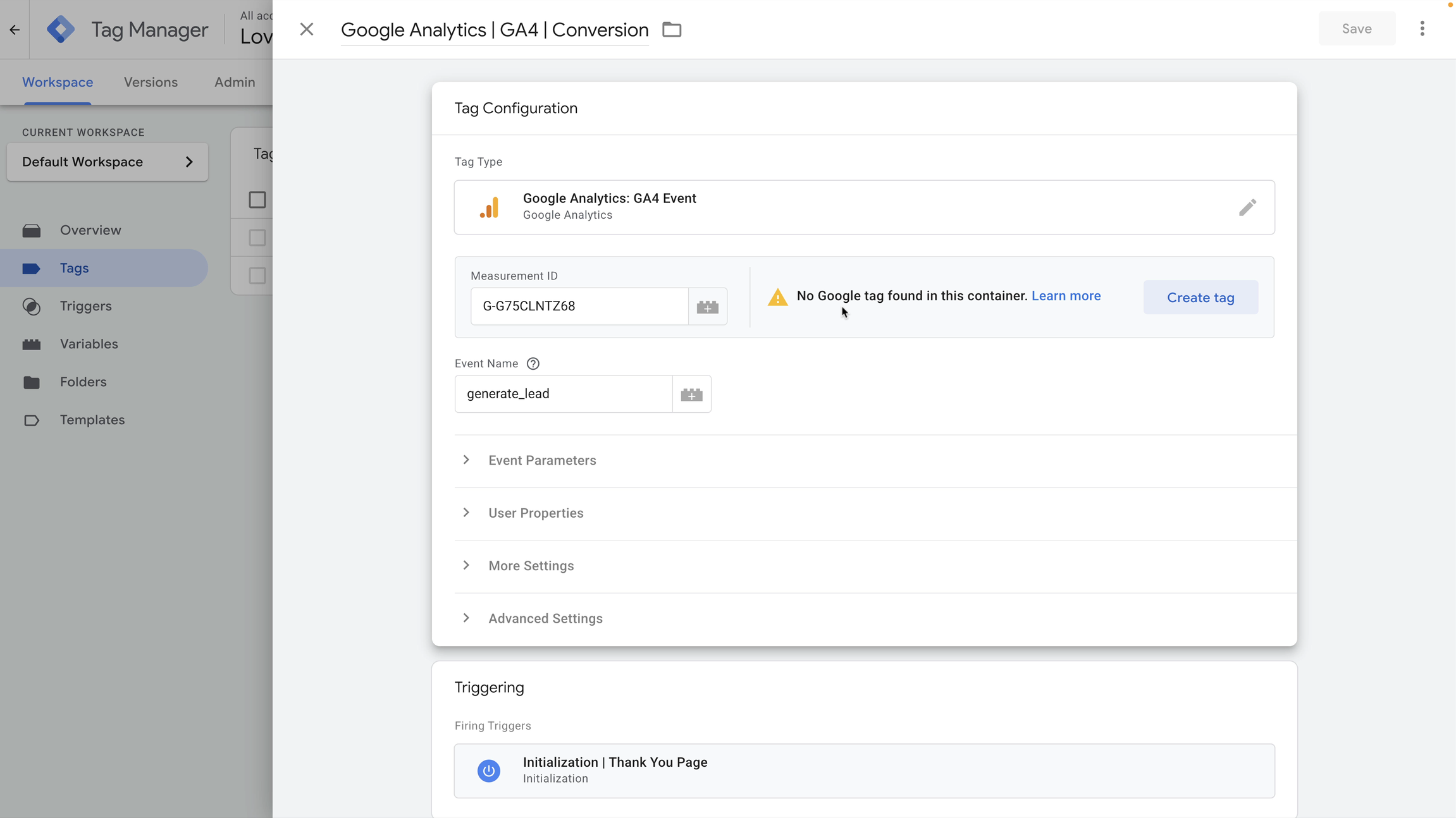
Important: This is a configuration warning. If your IDs happen to match, your tags can still fire. However, leaving the warning unresolved makes your setup harder to maintain and increases the risk of issues later.
Step 2: Confirm whether the issue is in the container or on the website
Google Tag Manager only checks what exists inside the container. It does not look at scripts that might be installed directly on your website.
So if Google Analytics or Google Ads is already hard-coded outside GTM, you will still see this warning. GTM simply can’t see tags that live elsewhere.
Before making changes, confirm whether your tracking is meant to be managed in GTM or outside it.
Step 3: Identify the two most common causes
In almost every case, the warning comes down to one of these:
- There is no Google tag in the container yet.
- The ID in your Google tag doesn’t match the ID used by your GA4 or Google Ads tag.
This usually happens when you’re working with multiple accounts or when an ID is copied incorrectly.
Step 4: Use variables to avoid mismatched IDs
Instead of pasting IDs directly into multiple tags, store each ID in a constant variable and reuse it.
This ensures every tag uses the same value and removes the risk of subtle typos.
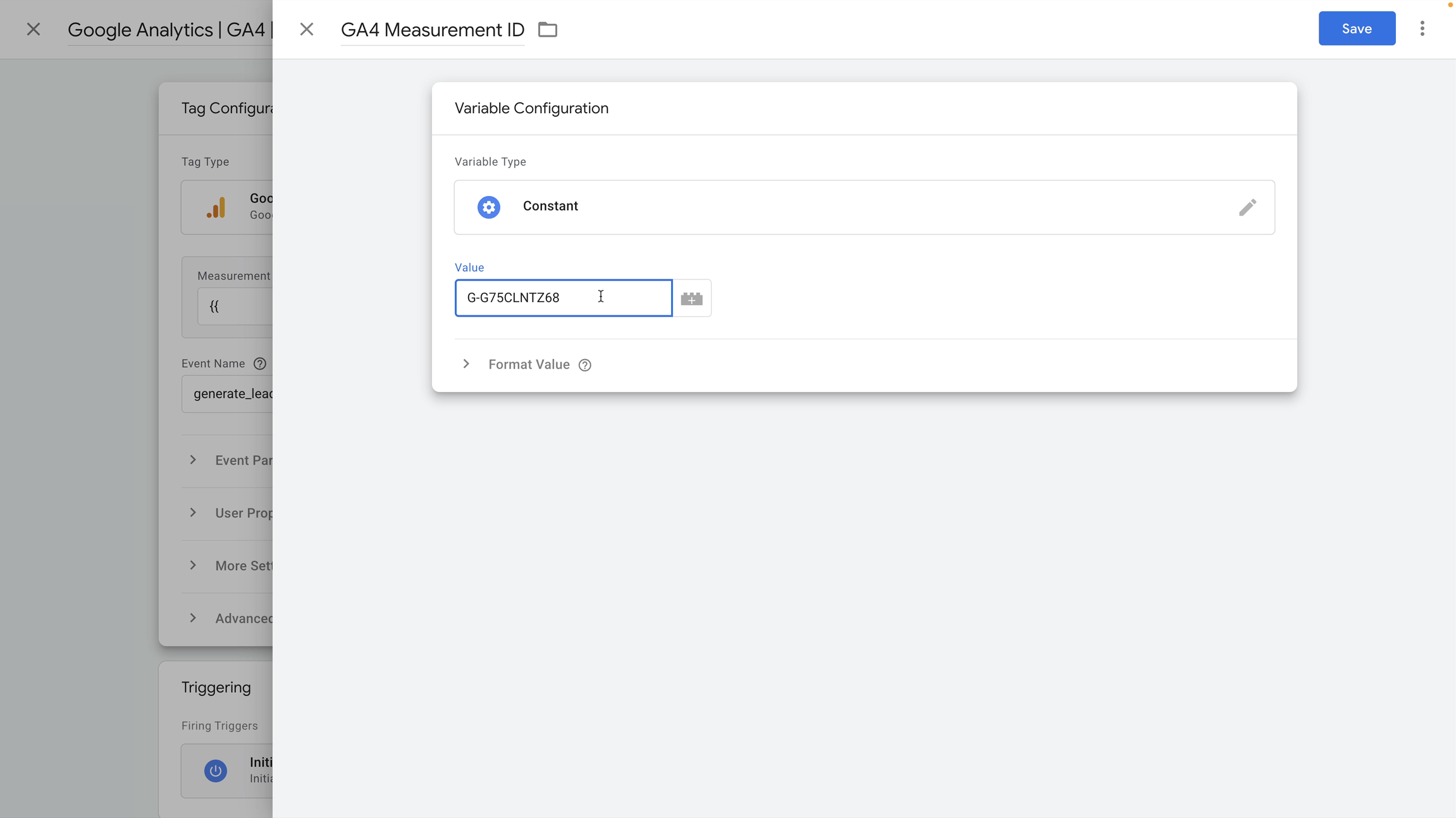
To create a constant variable for a GA4 measurement ID:
- Cut the measurement ID from your GA4 event tag.
- Open the field again and enter two opening curly braces.
- Select 'New Variable'.
- Name it GA4 Measurement ID.
- Select 'Constant' and paste the ID.
- Save the variable.
Step 5: Create the base Google tag
Creating the variable alone won’t remove the warning. You also need a Google tag in the container that uses that same ID.
Create a new tag, select 'Google tag' as the tag type, and replace the Tag ID with your variable.
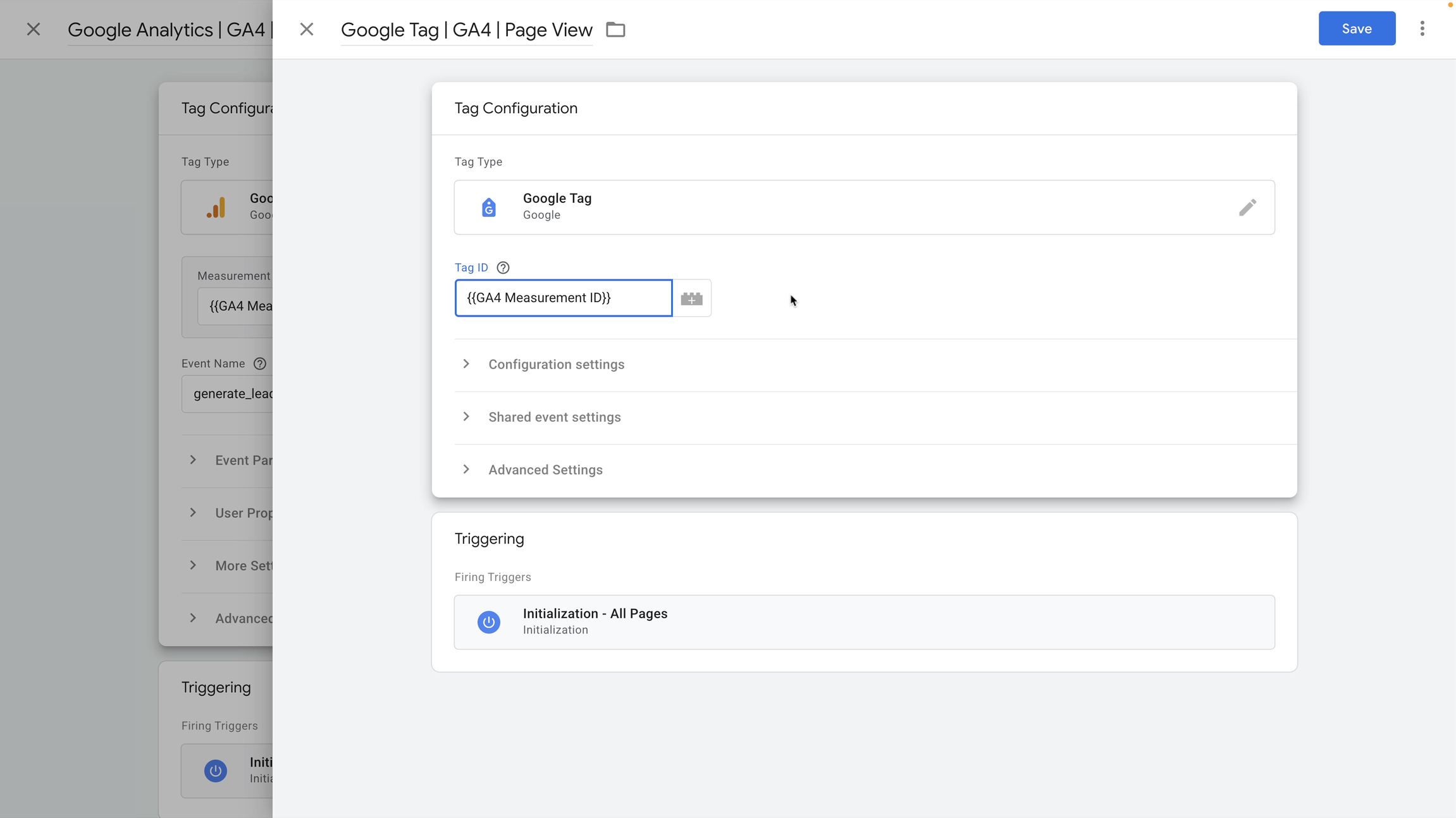
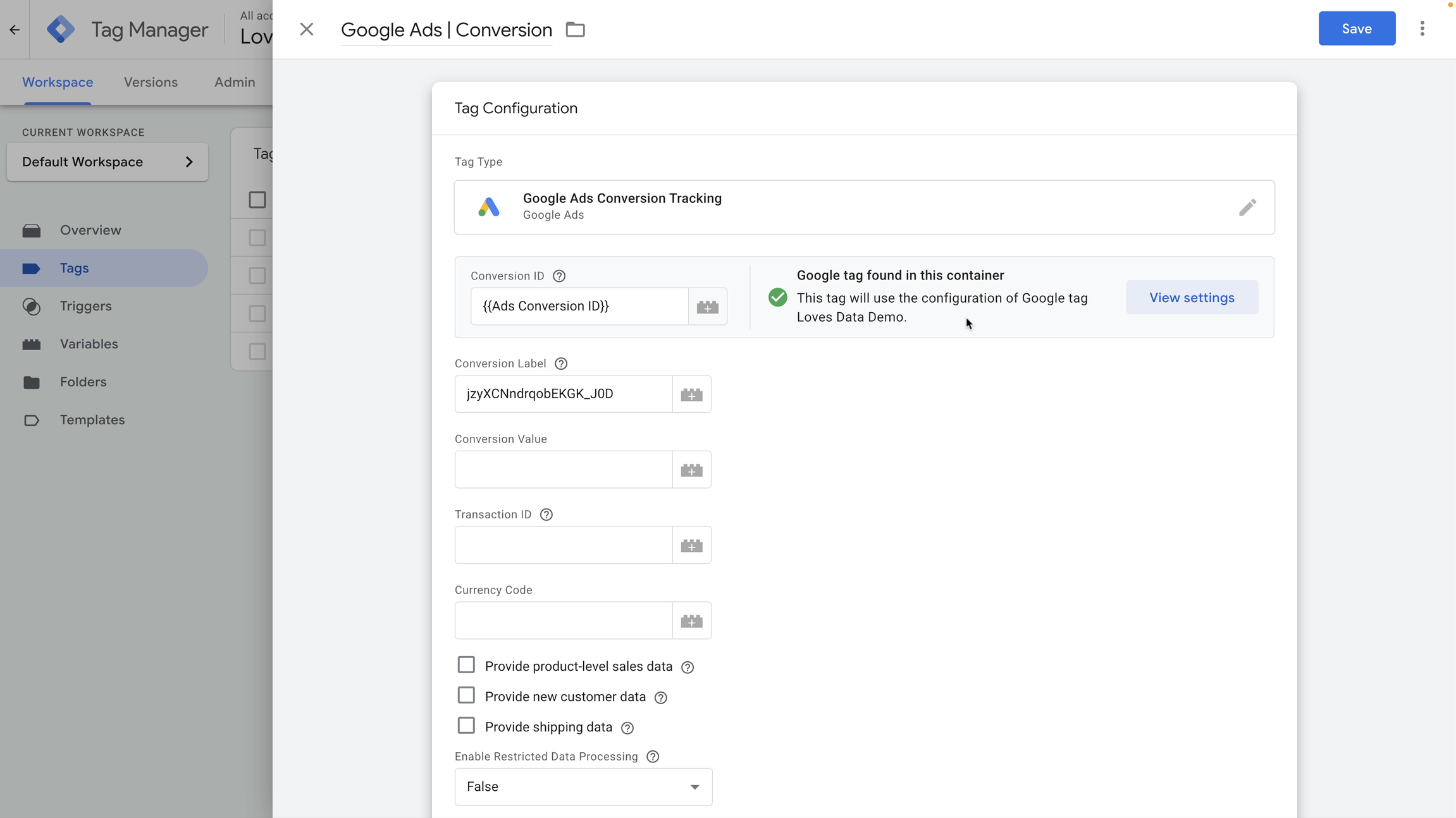
Once the base tag exists and uses the same ID, the warning disappears and you’ll see “Google tag found in this container.”
Step 6: Repeat the process for Google Ads
The same approach works for Google Ads conversion tags.
Create a constant variable for the conversion ID, then create a Google tag that references that variable.
One thing to watch out for: Google Ads conversion IDs and Google tag IDs look similar, but they aren’t identical. Keep the AW- prefix and remove any extra values that don’t belong to the Google tag ID.
Step 7: Verify other Google tags in the container
Before publishing, search your container for existing Google tags.
Use the search box and enter Google tag. Review the results and confirm the IDs belong to the accounts and properties you expect.
Step 8: Preview, test, and publish
Finally, use Google Tag Assistant (preview mode) to test your changes.
I recommend checking the following:
- The warning no longer appears.
- GA4 events show in DebugView.
- Google Ads conversions fire as expected.
When everything looks good, publish the container.
Final note
Fixing the “No Google tag found in this container” warning is usually a two-minute job once you know where to look.
Use constant variables for your IDs, create one base Google tag per ID, test using Preview mode, and you’ll end up with a cleaner, more reliable GTM setup.
If you want to build confidence with Google Tag Manager and avoid issues like this altogether, you can explore my step-by-step GTM training on Loves Data.