
Google Analytics Task Assistant: Why You Should Check It Today
 Benjamin Mangold
If you're using Google Analytics, there's a good chance you're not using every available feature. Maybe you've never set up Google Signals. Maybe you haven't connected Search Console yet. Or perhaps there's an integration sitting there that you just haven't gotten around to configuring yet.
That's why Google built Task Assistant.
It's a simple checklist inside Google Analytics that shows you the setup options that matter most for your property. And it automatically updates based on what you've already configured, so you're not looking at a generic to-do list. You're looking at configuration options that are relevant to your implementation.
We're going to walk through what it does and how to use it and you can follow along in this tutorial:
Where to find Task Assistant
Once you've opened Google Analytics look for the check-mark icon on the bottom-left corner of the interface. It will say 'Tasks' when you hover over it. Click this and Task Assistant will open.
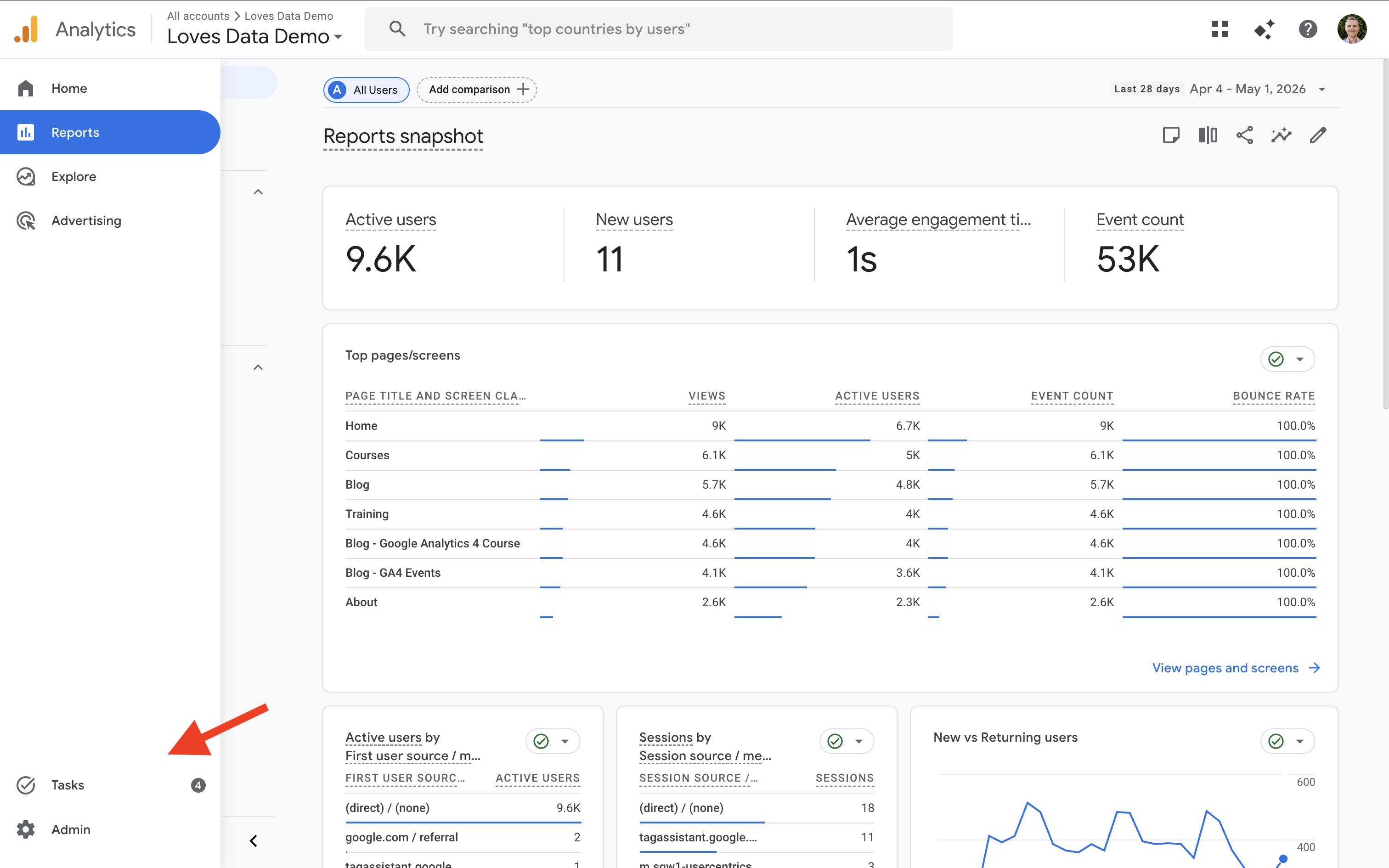
Important: You need marketer, editor, or administrator access to see and access Task Assistant. If you only have analyst or viewer access, you won't see the Tasks icon. So if you're looking for it and can't find it, you should check your permissions first.
How Task Assistant is organized
At the top of the Task Assistant page, you will see the number of remaining tasks to complete for the property. Traveling down, you will see tasks grouped into the following categories:
- Get started for data collection, including enabling Google Signals, configuring key events, and more
- Connect your accounts for linking Google Ads, Search Console, and other platforms
- Enhance your reporting for reporting features and configuration options
- Optimize your advertising for advertising-related setup, including using audiences and configuring conversions in Google Ads
- Add first-party data for improved reporting, including collecting User-IDs and user-provided data
- Fix data issues for data collection and other related issues
Google puts the most important tasks first. So if you see items under 'Get started', I recommend reviewing these first. There's no point in trying to implement more advanced features if data isn't being collected into the property yet.
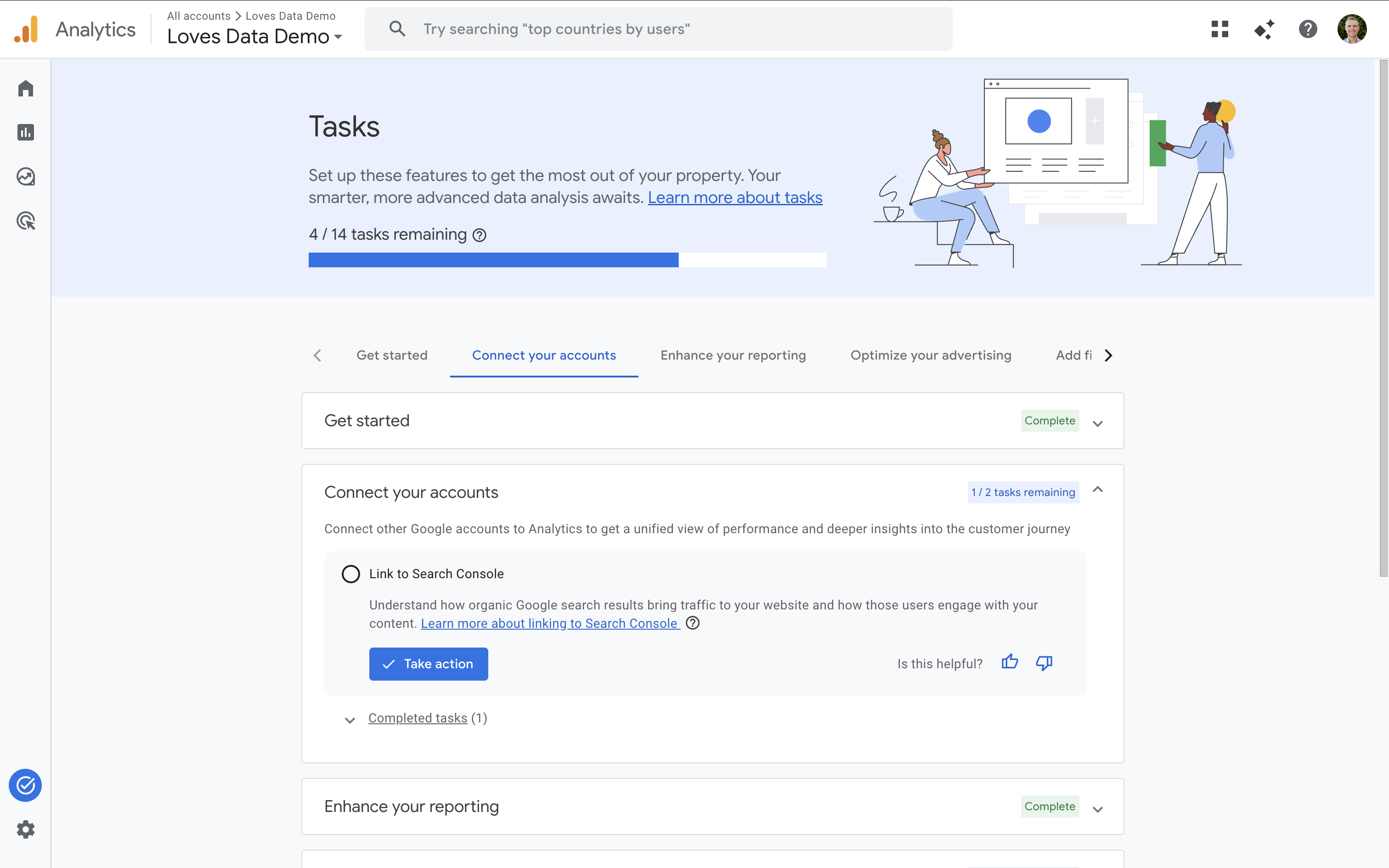
For each category, you'll see a 'complete' label (if every task is done in the category) or a number showing how many tasks still need to be completed.
How to work through a task
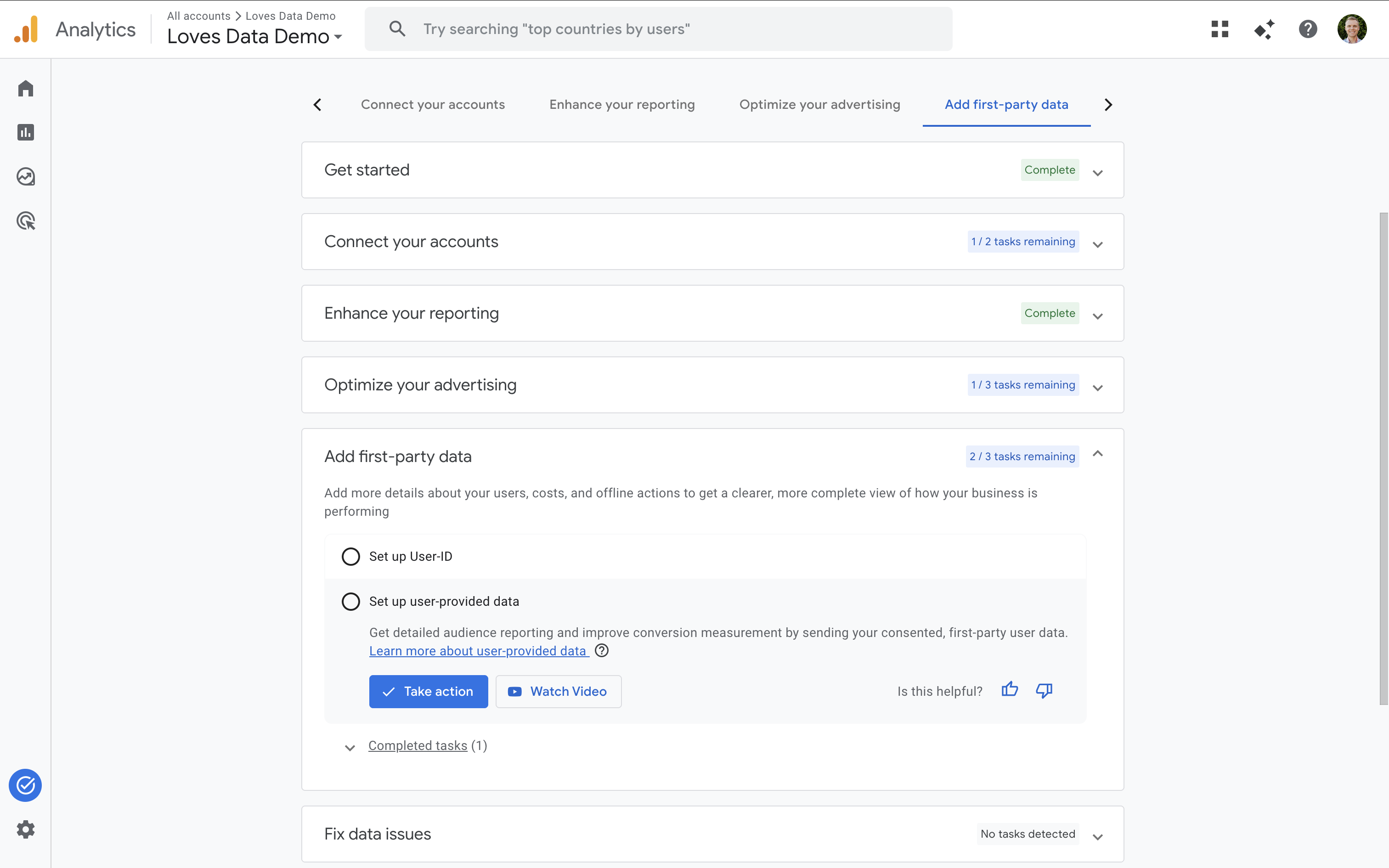
Completing tasks means you'll need to configure something in your property. For example, let's say you're not collecting user-provided data yet. In this case you would select 'Set up user-provided data' under the 'Add first-party data' category. You would then see the following:
- A short summary explaining what the feature does and why it matters
- A link to Google's support documentation
- Buttons to 'Take action' and to 'Watch video'
If you click 'Take action', you should be taken directly to the place in Google Analytics where you can configure that feature. Or if you click 'Watch video', you will be taken to YouTube to watch a short tutorial.
Once you've actually set up the feature in your property, Task Assistant automatically marks the task as complete. You don't need to manually check off tasks.
Don't stop at Task Assistant
Task Assistant is a useful addition for making sure you've covered the essential setup steps, but it's not a complete audit of your Google Analytics implementation.
Think of it as a solid starting point.
Working through Task Assistant will put your property in a much better position for accurate data and improved reporting. Then when you're ready to go deeper (like reviewing your event tracking, data collection strategy, and broader implementation) you'll also want to use a comprehensive checklist.
The main thing is to start by checking Task Assistant. See what's setup and what's not in your property. Whether you're setting up a new property from scratch, auditing an existing implementation, or taking over an account from someone else, it's a quick way to make sure you haven't missed something important.
If you're new to Google Analytics or want more detailed setup guidance beyond what Task Assistant covers, I've put together a full Google Analytics checklist that goes deeper into implementation, reporting, and measurement strategy.