
Do You Really Need the Google Tag Manager noscript Container Tag?
Benjamin Mangold
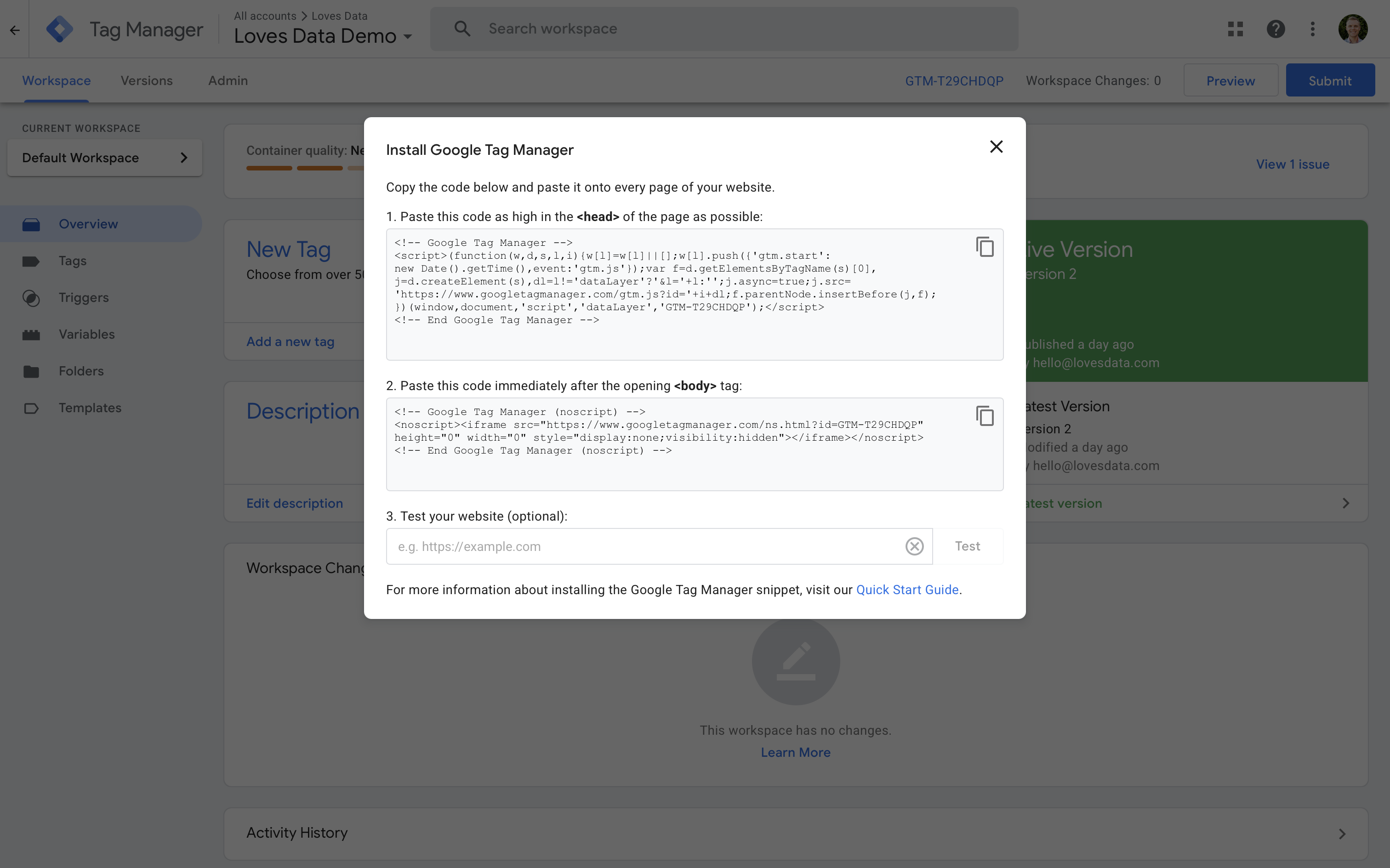
If you’ve installed Google Tag Manager (GTM) before, you’ve probably seen the extra noscript container code that Google provides alongside the main JavaScript container.
It’s easy to assume that adding this tag will somehow improve tracking accuracy or act as a fallback if something goes wrong. Especially because it’s included in Google’s installation instructions and it looks important.
However, the GTM noscript container tag is rarely used, and in most implementations, it won’t impact your tracking at all.
In this guide, we’re going to look at what the GTM noscript container is, why it’s not commonly used, and the situations where you might want to use it.
Table of contents
- What is the GTM noscript container tag?
- Why the noscript container isn’t commonly used
- Why it doesn’t automatically improve tracking accuracy
- When it does make sense to use the noscript container
- How to add the GTM noscript container correctly
- Final thoughts
What is the GTM noscript container tag?
The GTM noscript container is a fallback that will only load if JavaScript is disabled in someone’s browser.
It looks something like this:
<!-- Google Tag Manager (noscript) -->
<noscript><iframe src="https://www.googletagmanager.com/ns.html?id=GTM-T29CHDQP"
height="0" width="0" style="display:none;visibility:hidden"></iframe></noscript>
<!-- End Google Tag Manager (noscript) -->
When JavaScript is enabled in the browser (which it normally is), this code doesn't do anything. The browser skips it.
However, if JavaScript is disabled, the browser loads the hidden iframe. The iframe can then load a very limited version of your GTM container.
Why the noscript container isn’t commonly used
In practice, the GTM noscript container is rarely loaded.
This is because of two key reasons. First, the vast majority of users have JavaScript enabled in their browsers. And secondly, most modern websites depend on JavaScript to function, so if people disable JavaScript this can result in a poor user experience as they visit different websites.
Even users who are privacy-focused typically block specific scripts rather than disabling JavaScript completely. As a result, the number of sessions where the noscript container actually loads is extremely small. And for most websites, you could add the noscript container and never see it fire a single hit.
Why it doesn’t automatically improve tracking accuracy
One of the most common misunderstandings is that adding the noscript container will improve accuracy by collecting more data. This isn't the case though.
Adding the noscript container does not help with ad blockers. It does not bypass browser privacy features or consent selections. It won't load if JavaScript is enabled but blocked selectively. And it won't fill in any gaps in data.
So while it looks like it could be an automatic fallback, that's not how it works.
When it does make sense to use the noscript container
All of that being said, there are situations where the GTM noscript container can be useful.The most common use cases are:
1. Verify Google Search Console with GTM
The number one reason to add the noscript container to your website is that it's required if you want to verify ownership in Google Search Console using GTM. Personally, I would use one of the other verification options over adding the noscript tag.
2. Highly regulated environments
Some government, healthcare, or enterprise environments disable JavaScript entirely for specific user groups. In these cases, a basic page view or conversion hit via the noscript container may be better than nothing.
3. Legacy or extremely simple websites
If a site is mostly static HTML and doesn’t rely on JavaScript for core functionality, the noscript container can provide minimal visibility into traffic.
4. Specific compliance or documentation requirements
Some organizations include the noscript container to meet internal standards or external audit requirements, even if it rarely fires.
Outside of these scenarios, most marketing and analytics implementations won’t benefit by adding the noscript container in any meaningful way.
How to add the GTM noscript container correctly
If you do decide to use the GTM noscript container, you should install the code immediately after the opening <body> tag on all of the pages of your website.
For example:
<body><!-- Google Tag Manager (noscript) -->
<noscript><iframe src="https://www.googletagmanager.com/ns.html?id=GTM-T29CHDQP"
height="0" width="0" style="display:none;visibility:hidden"></iframe></noscript>
<!-- End Google Tag Manager (noscript) -->
<!-- Existing body code here --> </body>
You should not:
- Place it in the
<head> - Wrap other elements inside the
<noscript>tag - Expect full GTM functionality inside the iframe
Inside GTM, you’ll also need to ensure that any tags you expect to fire without JavaScript are compatible with the noscript version of your container. This means you will need to use the 'Custom Image' tag type.
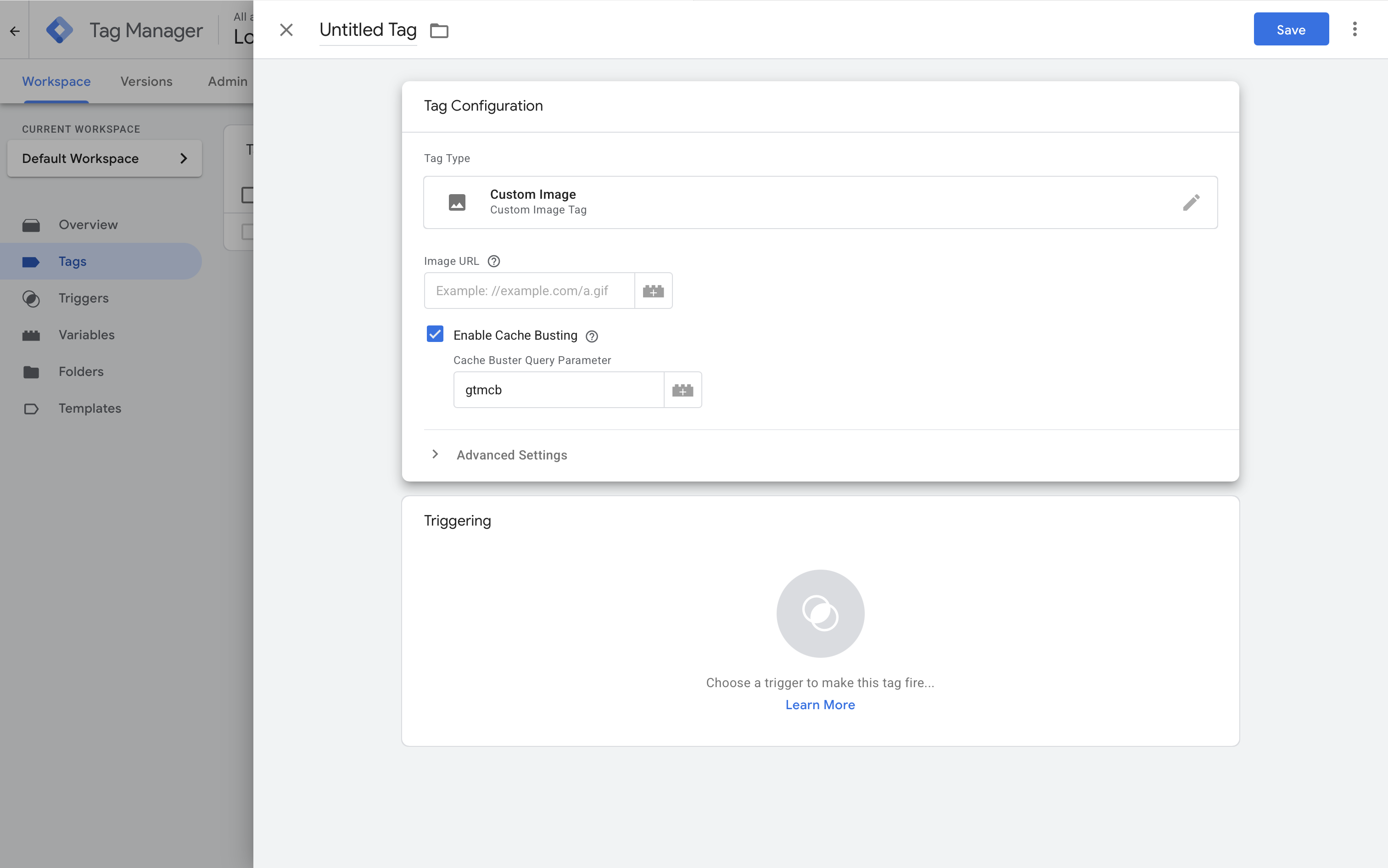
It's also worth highlighting that most tags won't be compatible with the 'Custom Image' tag type by default.
Final thoughts
Adding the GTM noscript container tag to your website isn't an automatic fix for users who have JavaScript disabled. It won't automatically load basic tracking or solve other accuracy or tracking issues.
On most websites, the noscript container rarely loads. When it does load, you will need to ensure you have a 'Custom Image' tag configured so that a basic pixel hit is sent to your desired platform.