
How to (Actually) Install Google Tag Manager on Google Sites
 Benjamin Mangold
Google Sites doesn't have a built-in Google Tag Manager integration, and the workaround you'll find in most tutorials )using the built-in 'Embed' option) doesn't actually work. The code ends up inside a sandboxed iframe and never loads on your site.
The method that does work is to use Cloudflare to inject your GTM container code across all the pages of your site. It's not officially supported by Google, so you'll need to test it carefully and keep an eye on it over time.

Before you go any further, it's also worth considering whether you need GTM at all. If your main goal is to add Google Analytics or Google Ads tags to Google Sites, the built-in Google Analytics integration is the simpler and more reliable option. I'll cover that at the end of this post.
You can also watch the video below to follow along:
Table of Contents
- Should you use GTM or the built-in integration?
- Step 1: Enable the Cloudflare proxy for your domain
- Step 2: Create a Cloudflare Worker
- Step 3: Add the GTM injection code to your Worker
- Step 4: Add a Worker route for your site
- Step 5: Test that GTM is loading
- Why the Embed option doesn't work
- Using the built-in Google Analytics integration
Should you use GTM or the built-in integration?
Take a moment to decide whether GTM is the right choice before you get started. There are three things worth keeping in mind.
First, there is no native GTM integration for Google Sites. The Cloudflare method we're going to cover is a workaround, and it's not an officially supported. Second, because it relies on Cloudflare modifying page responses, it could stop working if Google changes how Google Sites handles traffic. Finally, you will need a custom domain that is already set up through Cloudflare. If your site is using the default sites.google.com URL, this method won't work.
If you're mainly trying to add Google Analytics or Google Ads, it's worth knowing that Google Sites has a built-in integration that handles this directly. You can also link Google Analytics to Google Ads, which means you may be able to cover both platforms without needing GTM at all.
However, if you need the flexibility of managing multiple tags in one place, the Cloudflare method is an option. If you're not already familiar with GTM, our comprehensive GTM course walks you through tag management fundamentals.
Step 1: Enable the Cloudflare proxy for your domain
To use this method, your custom domain needs to be connected to Cloudflare and your Google Sites CNAME record needs to be proxied through Cloudflare. This is what allows Cloudflare to modify your page responses before they reach the visitor.
In Cloudflare, navigate to your domain's DNS settings and locate the CNAME record you're using for Google Sites. Edit the record and enable the proxy (the orange cloud icon). Then save your changes.
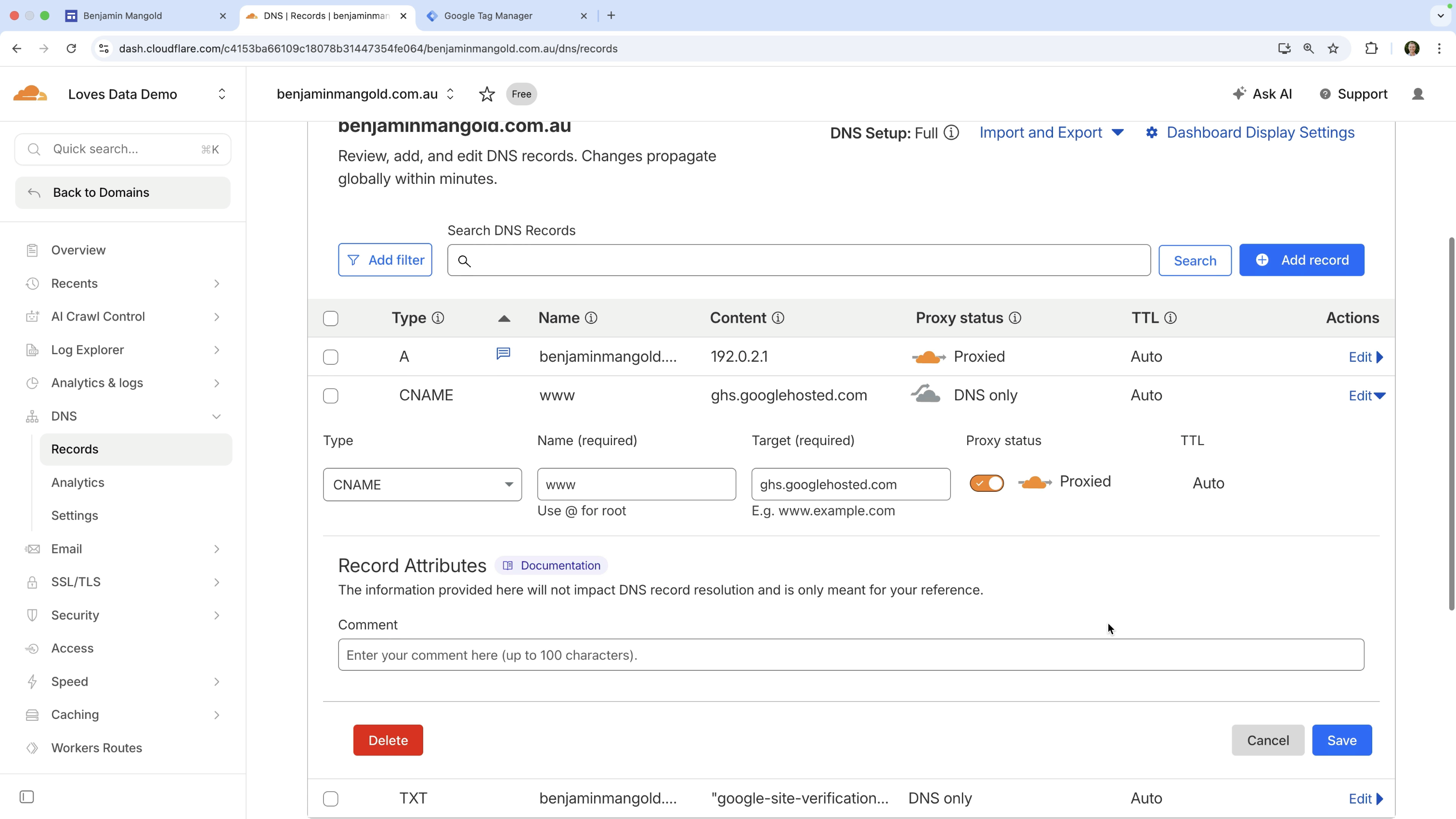
Once the proxy is active, Cloudflare can apply a Worker to your site's traffic, which is what we'll set up in the next step.
Step 2: Create a Cloudflare Worker
A Cloudflare Worker is a small piece of code that runs on Cloudflare's servers. We're going to use it to inject the Google Tag Manager container code into the pages on Google Sites before they load.
To create a Worker, navigate to your 'Account Home' in Cloudflare. Select 'Compute' on the left, then choose 'Workers and Pages'. Click 'Create Application', select 'Start with Hello World', give your Worker a name, and click 'Deploy'.
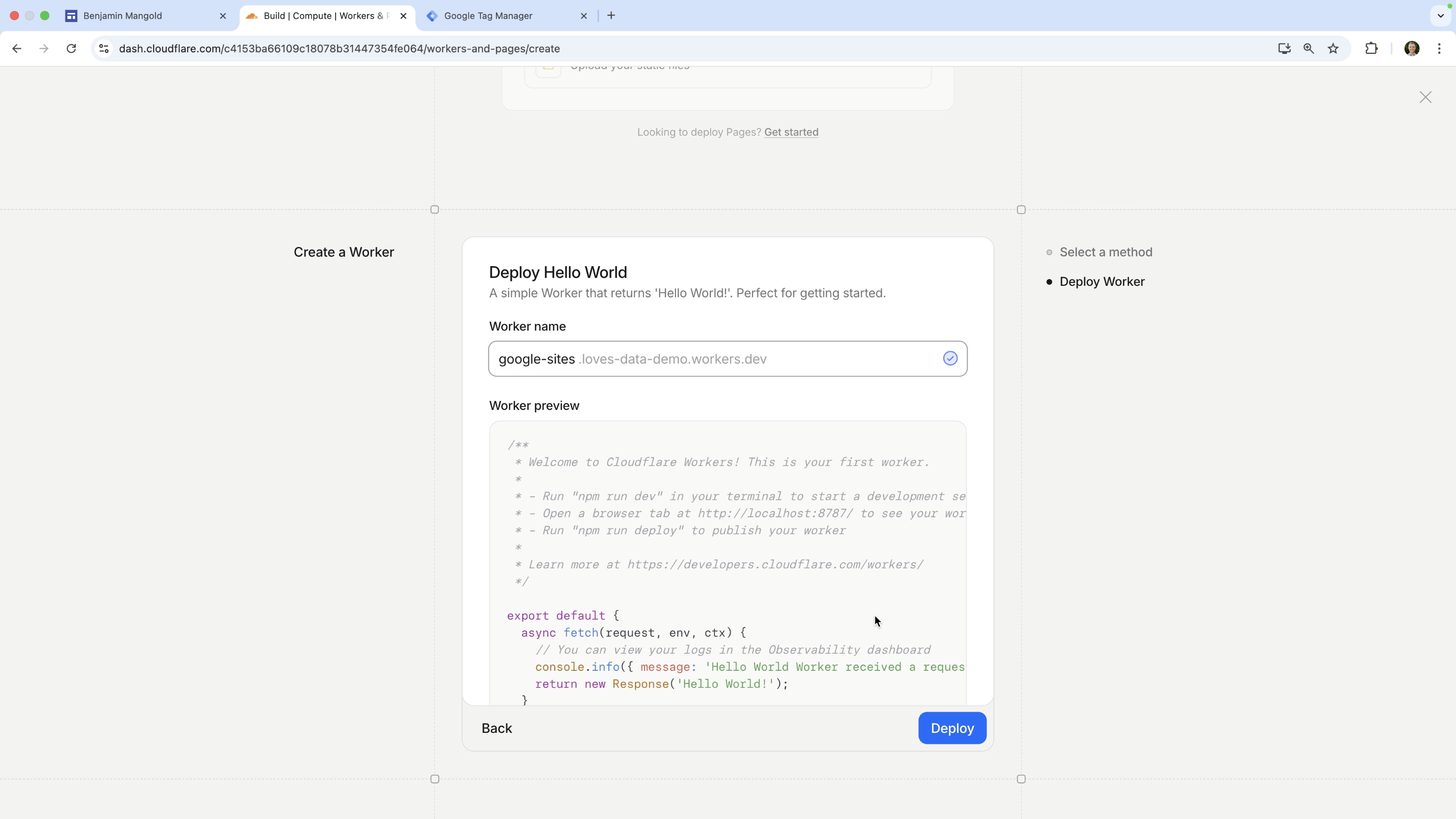
This creates a basic Cloudflare Worker with default code that you'll replace in the next step.
Step 3: Add the GTM injection code to your Worker
Once your Worker is created, click 'Edit Code' in the top right corner. Select all of the default code and delete it.
Next, add the following code for your Cloudflare Worker.
Important: You will need to change GTM-CONTAINER to your Google Tag Manager container ID.
addEventListener('fetch', event => {event.respondWith(handleRequest(event.request));});async function handleRequest(request) {const response = await fetch(request);const contentType = response.headers.get('content-type') || '';if (!contentType.includes('text/html')) {return response;}const newResponse = new HTMLRewriter().on('head', new HeadHandler()).transform(response);const modifiedResponse = new Response(newResponse.body, newResponse);modifiedResponse.headers.delete('Content-Security-Policy');return modifiedResponse;}class HeadHandler {element(element) {element.prepend(`<!-- Google Tag Manager --><script>(function(w,d,s,l,i){w[l]=w[l]||[];w[l].push({'gtm.start':new Date().getTime(),event:'gtm.js'});var f=d.getElementsByTagName(s)[0],j=d.createElement(s),dl=l!='dataLayer'?'&l='+l:'';j.async=true;j.src='https://www.googletagmanager.com/gtm.js?id='+i+dl;f.parentNode.insertBefore(j,f);})(window,document,'script','dataLayer','GTM-CONTAINER');</script><!-- End Google Tag Manager -->`, { html: true });}}
To get your container ID, open Google Tag Manager and copy the ID shown at the top of your container. It will look something like GTM-ABC123. Replace GTM-CONTAINER in the code with your actual container ID, then click 'Deploy'.
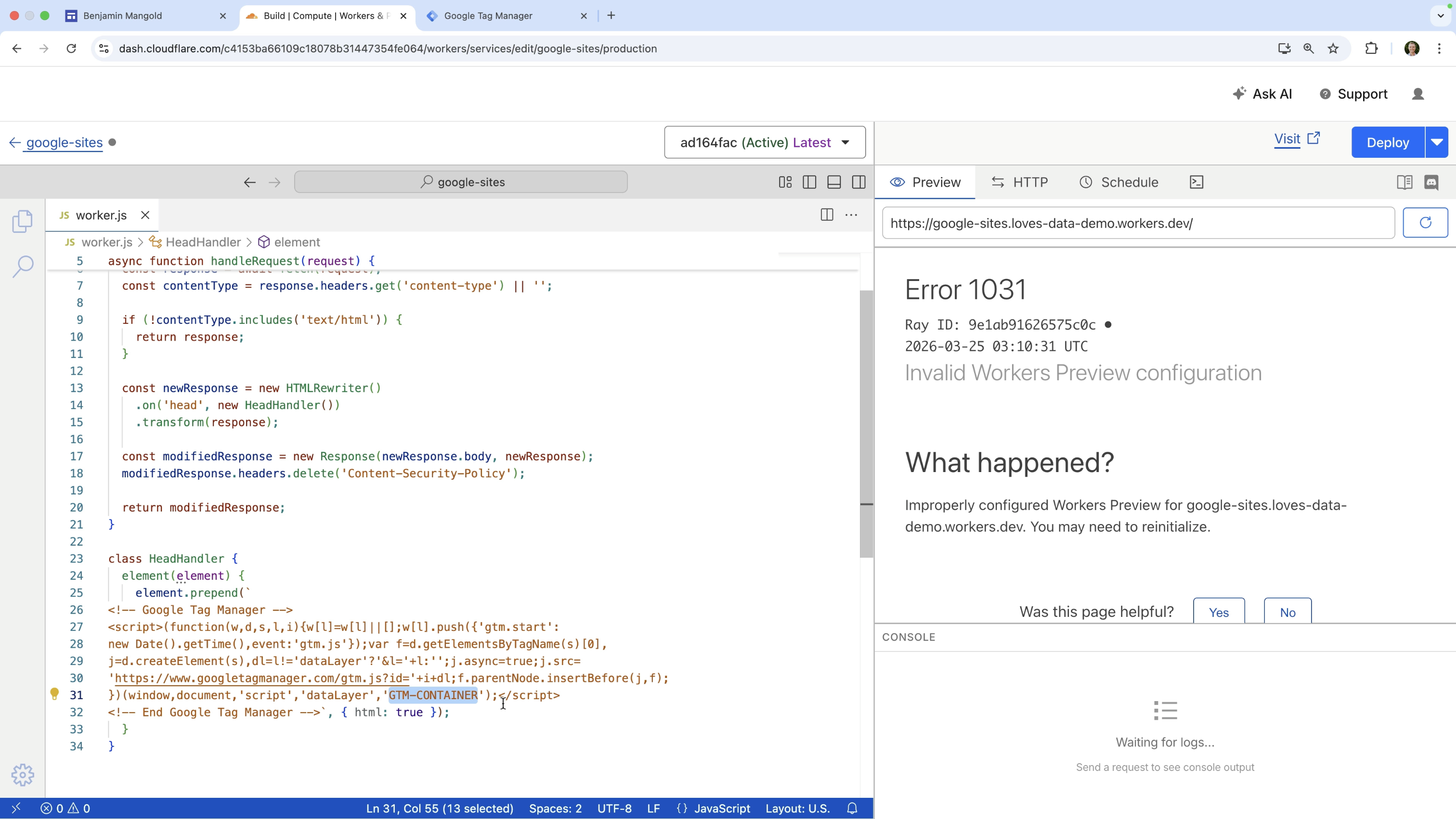
Note: Some features on your Google Sites page, like embedded content, may not work as expected once Cloudflare is proxying and modifying responses. Test your site thoroughly after setting this up.
Step 4: Add a Worker route for your site
Creating the Cloudflare Worker isn't enough on its own. You also need to tell Cloudflare which requests the Worker should apply to.
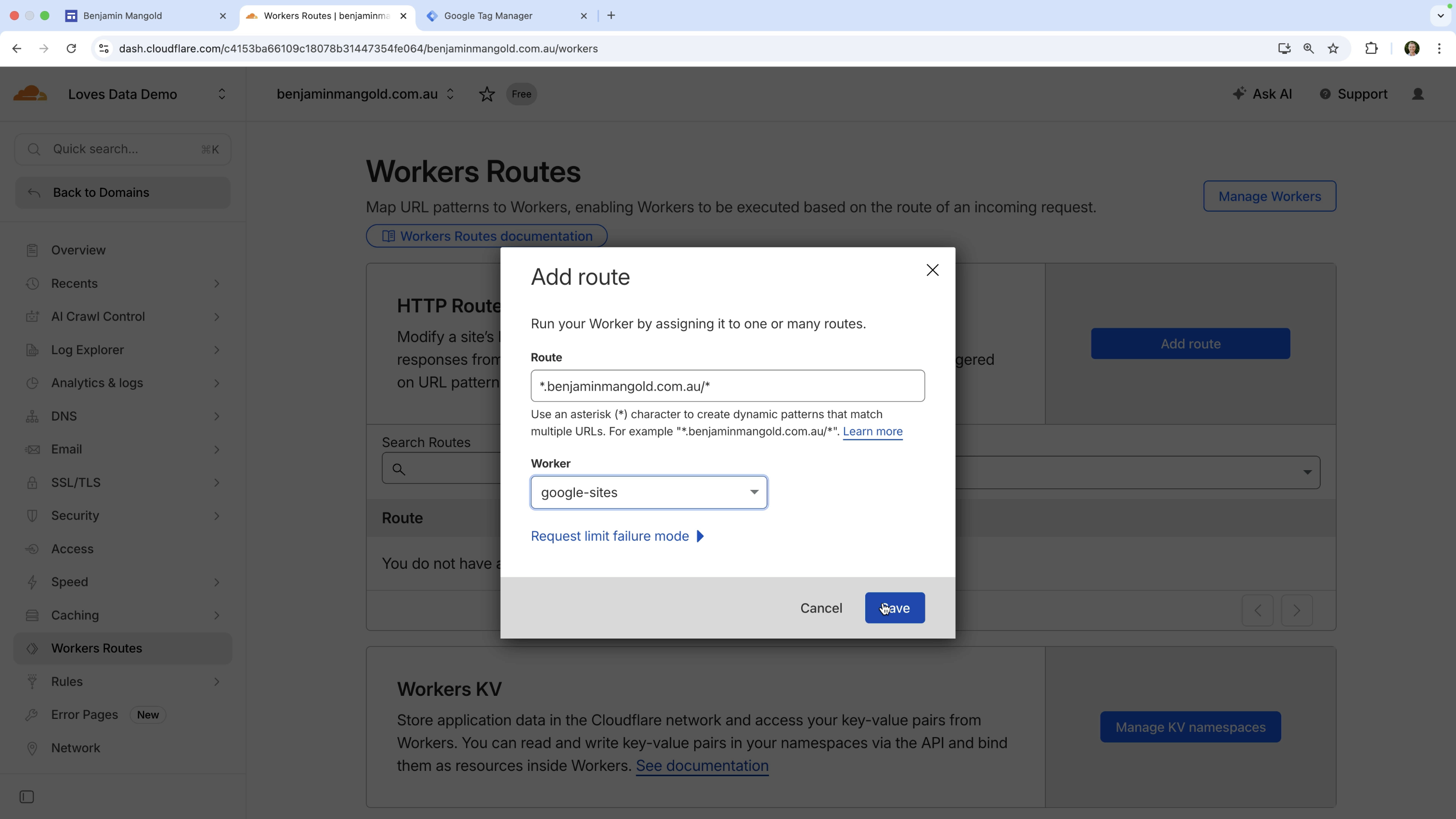
Navigate back to your domain in Cloudflare. Select 'Domains' and then 'Overview', then select your domain. Choose 'Workers Routes' on the left and click 'Add Route'.
To apply the Worker to all pages on your site, use a route pattern in this format:
*.yourdomain.com/*
If you're using a root domain rather than a subdomain, adjust the pattern to match your setup. The goal is to make sure the Worker runs on every page so the GTM container code is injected sitewide. Select your Worker from the dropdown, then click 'Save'.
Step 5: Test that GTM is loading
With the Worker and route in place, it's time to confirm everything is working. Open your GTM container and click 'Preview'. Enter your website URL and click 'Connect'.
Your site will load alongside Tag Assistant. If the setup is working correctly, Tag Assistant will show that your Google Tag Manager container has loaded.
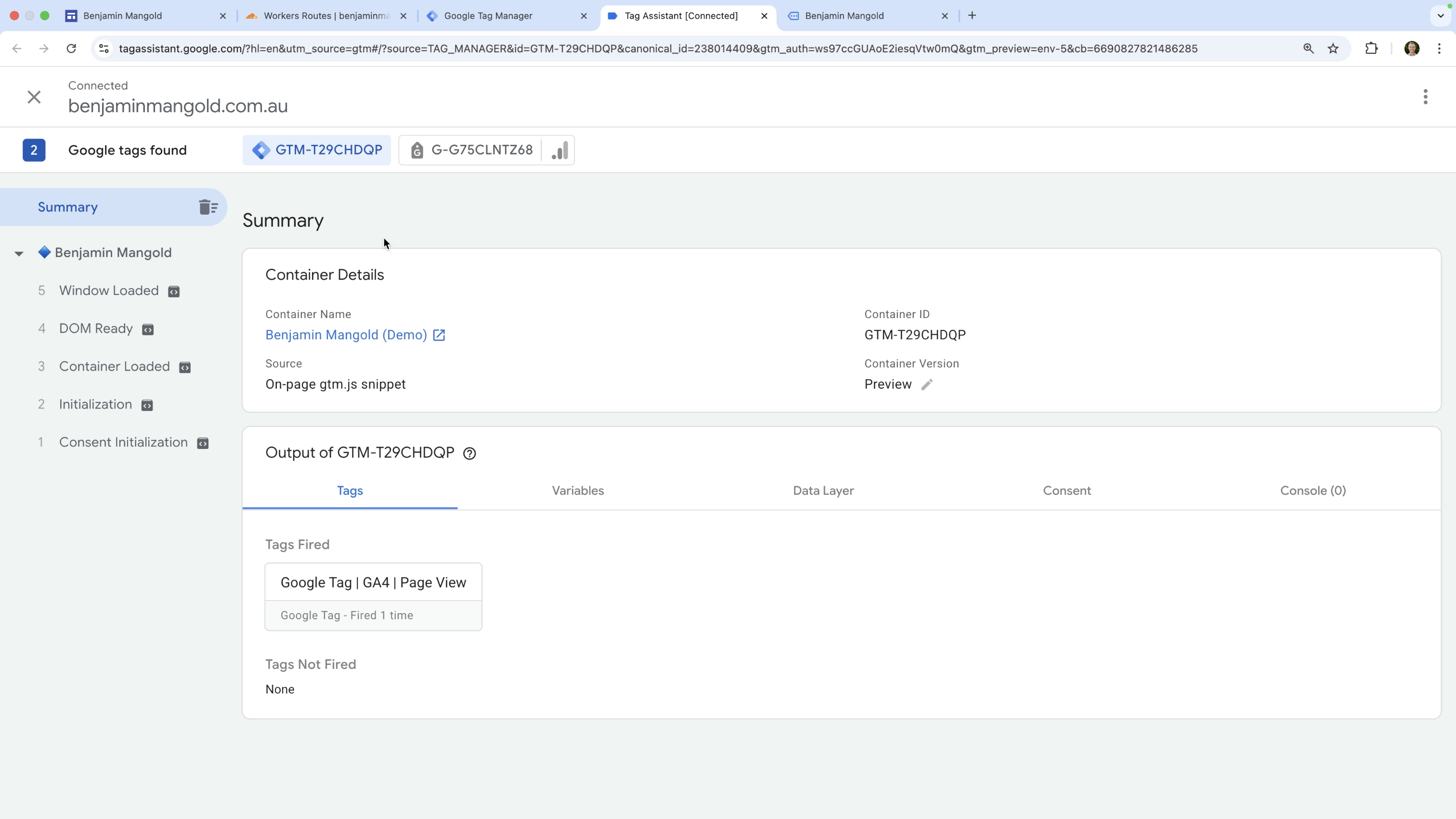
This is the key confirmation that GTM is running on your Google Sites pages via the Cloudflare Worker.
Why the Embed option doesn't work
If you've searched for how to add GTM to Google Sites before, you've probably come across tutorials recommending the 'Embed' option. Here's why that approach doesn't work.
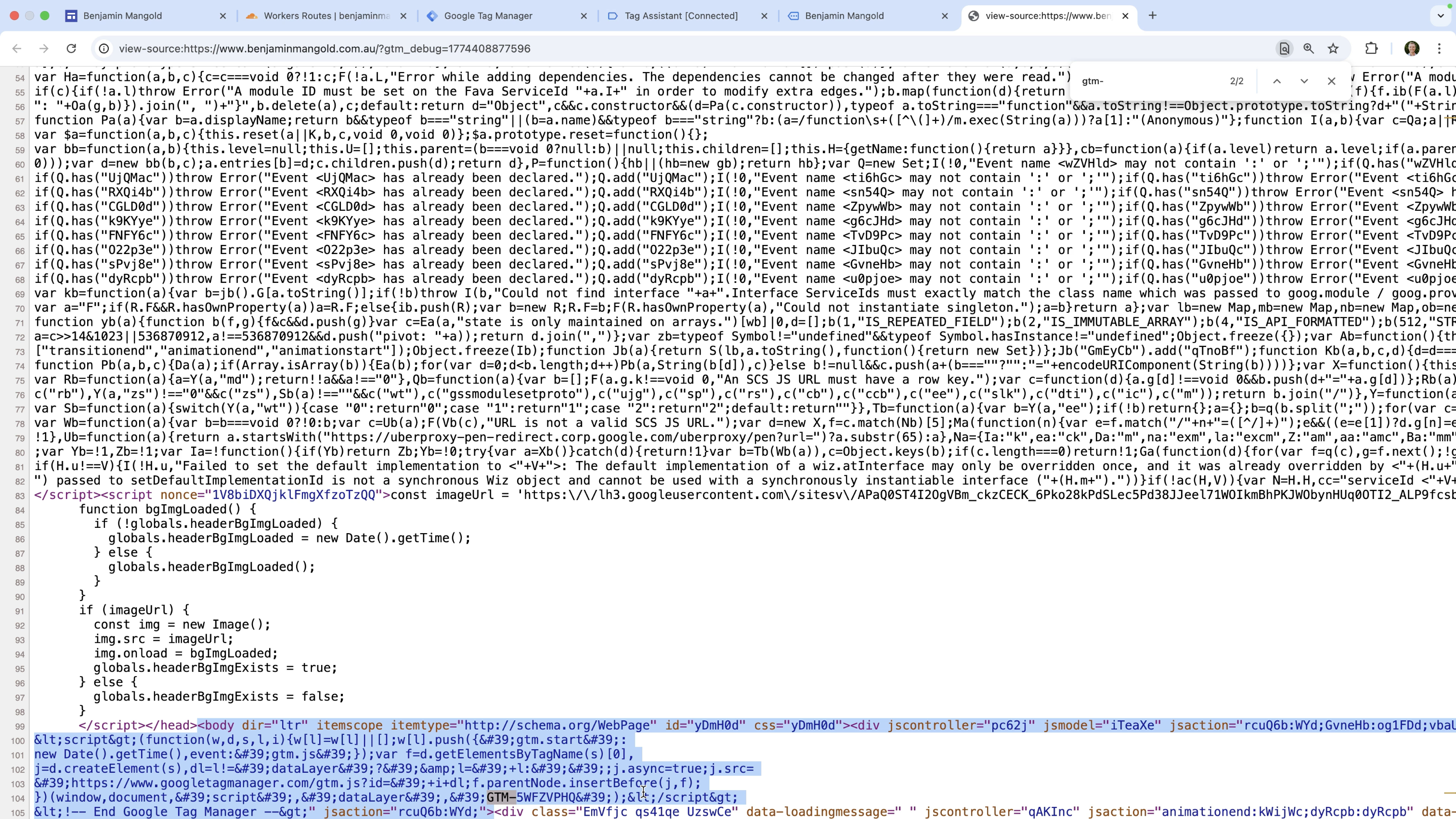
When you use the Embed option (navigating to a page in Google Sites, selecting 'Embed', choosing 'Embed Code', and pasting in the GTM snippet) the code isn't added directly to your page. Google Sites encodes it and loads it inside a sandboxed iframe on a separate domain.
This means GTM is isolated from your site. It can't access the page context it needs to function, so your tags won't fire.
You can confirm this yourself. After publishing a page with the embed method, right-click the live page and select 'View Page Source'. Search for your container ID and you'll see the code has been encoded and placed inside an iframe rather than integrated into the page directly.
Using the built-in Google Analytics integration
Because the Cloudflare method isn't officially supported, it's worth knowing about the alternative option.
Google Sites has a built-in Google Analytics integration that lets you add GA4 directly without any third-party tools. To use it, navigate to your site settings by clicking the configuration icon, then select 'Analytics' on the left. Paste your GA4 Measurement ID and ensure the integration is enabled.

This is the most reliable way to add Google Analytics to Google Sites. If you also need Google Ads, you can link Google Analytics to Google Ads to share data between the two platforms.
One important thing to flag is if you switch from one installation method to another, make sure you're only using one method at a time. Having Google Analytics installed twice on the same site can cause duplicate data and reporting issues.
Summary
The Cloudflare Worker method is the only practical way to install Google Tag Manager on Google Sites. It works by proxying your traffic through Cloudflare and injecting the GTM container code before pages are delivered to visitors.
This means it's a workaround, not a native integration. You should test it thoroughly when you set it up and check that it continues to work after any significant changes to Google Sites or your Cloudflare configuration.
If your goal is simply to add Google Analytics, the built-in integration inside Google Sites is the simpler and more stable option.