
How to use the Google Knowledge Graph to Stand Out in Search Engine Results
Loves Data
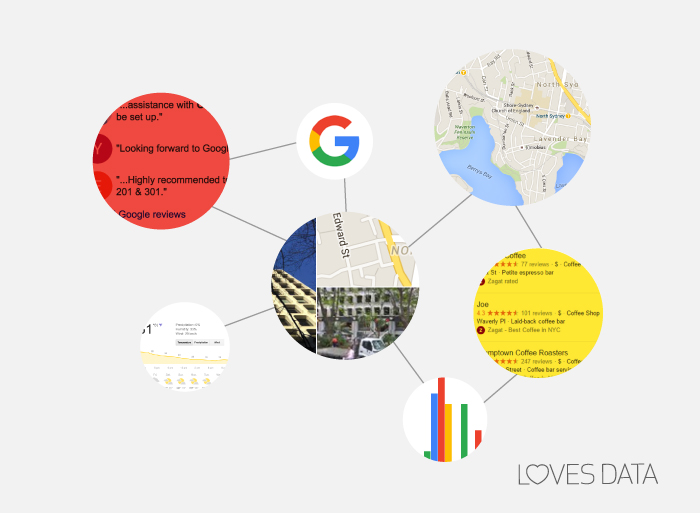
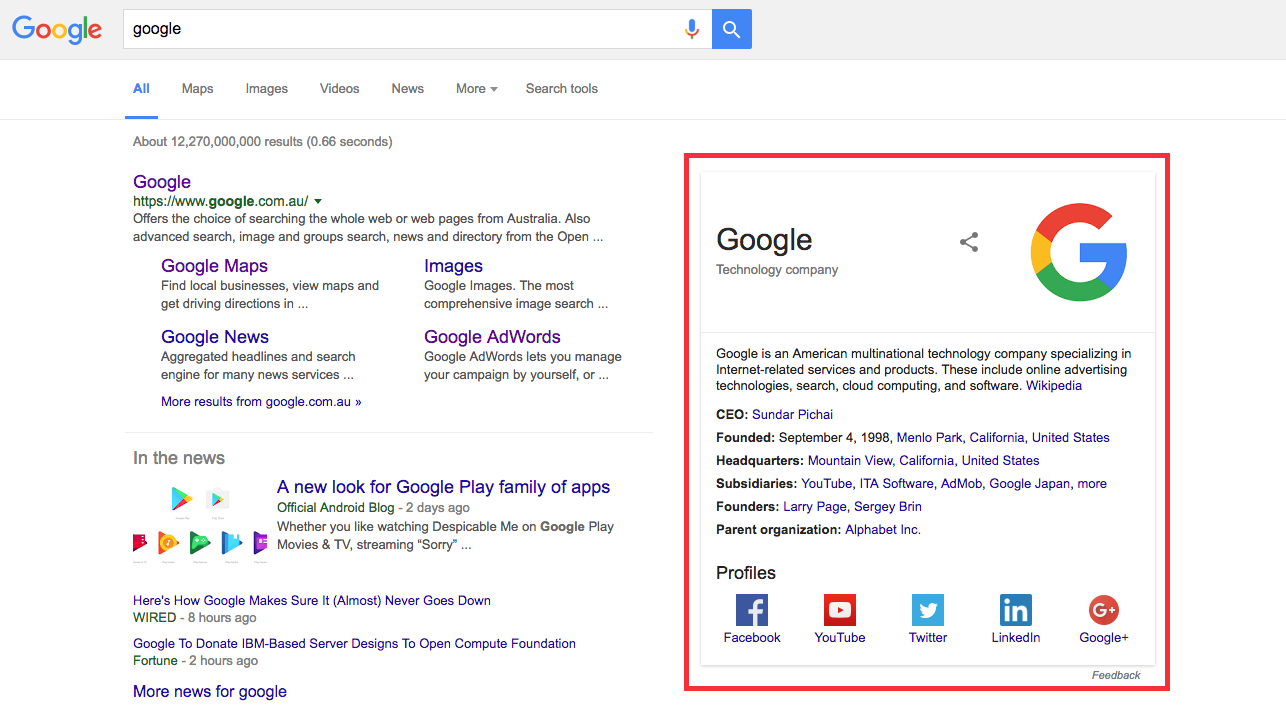
The Google Knowledge Graph is pretty much a massive database, packed to the rafters with knowledge about a vast range of topics. It works to enhance people's searching experience using semantic-search information from content-heavy authorities such as Wikipedia, CIA World Factbook and Freebase. This information is then displayed at the top of search engine results pages (SERP), for example: It’s a way of showing that things people search for aren’t just a bunch of numbers or letters but actual objects that deserve an understanding. As the marketer, you can help Google expand their knowledge of ‘everything,’ by following our optimisation techniques and creating quality content that suits your target audience. As the user, it helps you find information quickly and easily – you don’t even need to click through to a website! It’s the perfect response to Google’s mission statement “organise the world's information and make it universally accessible and useful.”
Here are four ways to get your information on the Google Knowledge Graph.
1. Add schema.org structured data
Google’s given users the ability to customise Google Knowledge Graph by altering their structured data on their official website. Having structured data allows search engine bots to crawl and index your site. Structured data markup allows you to use some of Google’s search features such as Google Knowledge Graph and enhanced presentation in SERPs. Schema.org is a project from Bing, Yahoo! and Google which involves the creation and support of common schemas for structured data markup on web pages. For example, this image from Google Developer Console shows the schema.org structured data that you or your company can add to your website to indicate which logo you wish Google to display on search results.
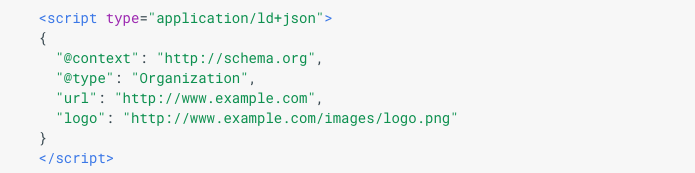
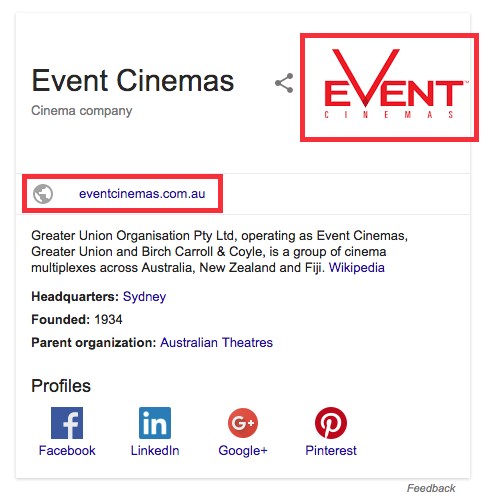
To implement this, replace the “http://www.example.com” with your site’s homepage and “http://www.example.com/images/logo.png” with the link of your official logo. Here’s an example of how the logo and URL schema.org might look like on a Google Knowledge Graph.
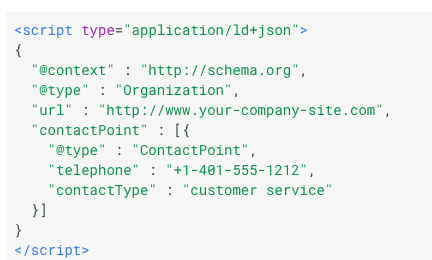
You’re also able to structure your company contact numbers including customer service, technical support, billing support, bill payment and emergency number. Below is an example of how you can use structured data to display your company’s phone and customer service number in SERPs.
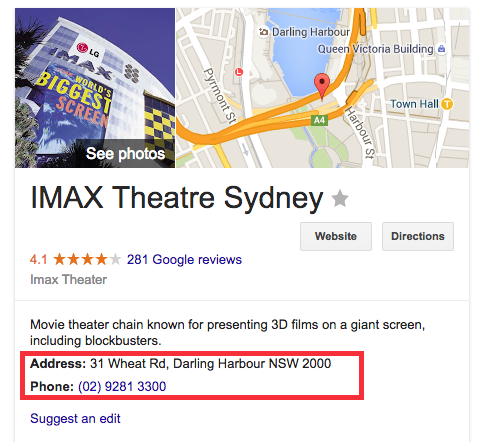
This is how it will look in SERPs:
Social profile links can also be influenced using schema.org structured data. You can do this by replacing the URL with your company’s homepage and links to your social pages. If you’re an individual and need a personal profile, check out the Google Developers Console. For example,
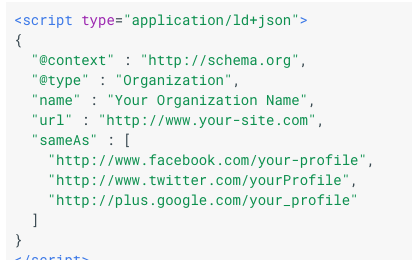
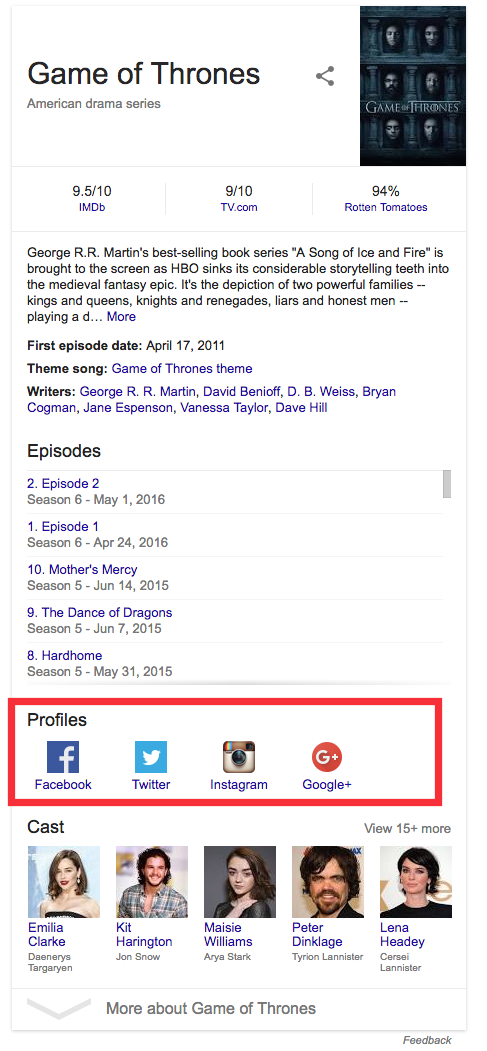
And it should look like this: Keep in mind that Google will only show verified social profiles. Your account needs to be verified by social platforms (aka have a blue tick on Instagram and Facebook) in order for the social profile to appear on the Google Knowledge Graph. Unfortunately, you’re only able to be verified if you’re a known social presence, e.g. a famous company or celebrity.
2. Create a Wikipedia profile
Before you read any further, here's a quote from the Wikipedia page, 'An article about yourself isn't necessarily a good thing.'
An article about yourself is nothing to be proud of. The neutral point of view (NPOV) policy will ensure that both the good and the bad about you will be told, that whitewashing is not allowed, and that the conflict of interest (COI) guideline limits your ability to edit out any negative material from an article about yourself.
However, it will add value to your site and appearance in SERPs, if you follow our instructions listed below. Here's an example on how Google displays Wikipedia content on the Google Knowledge Profile.
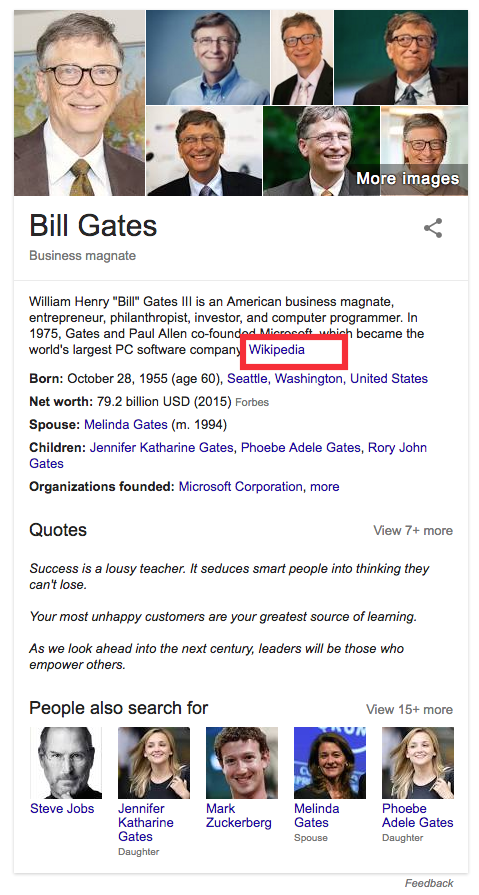
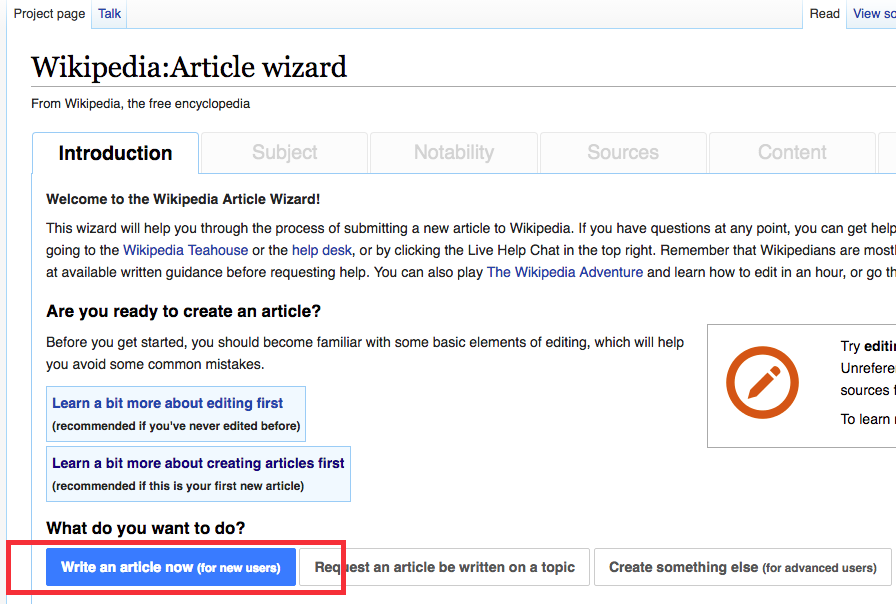
To create a Wikipedia profile, you need to be logged in or create an account in Wikipedia. This can be done by clicking the necessary button on the right-hand side of the Wikipedia site. Once you’re logged in, the first thing to do would be to search for your company or yourself on Wikipedia to check if there is an existing profile.
Before creating any Wikipedia articles, it’s essential that you read Wikipedia’s policies, “How to Edit Wikipedia Articles and Your First Article pages to get an idea on how to write an article about your company. Once you’ve read all the policies and support articles, you’re ready to write your first article.
3. Create a Wikidata item
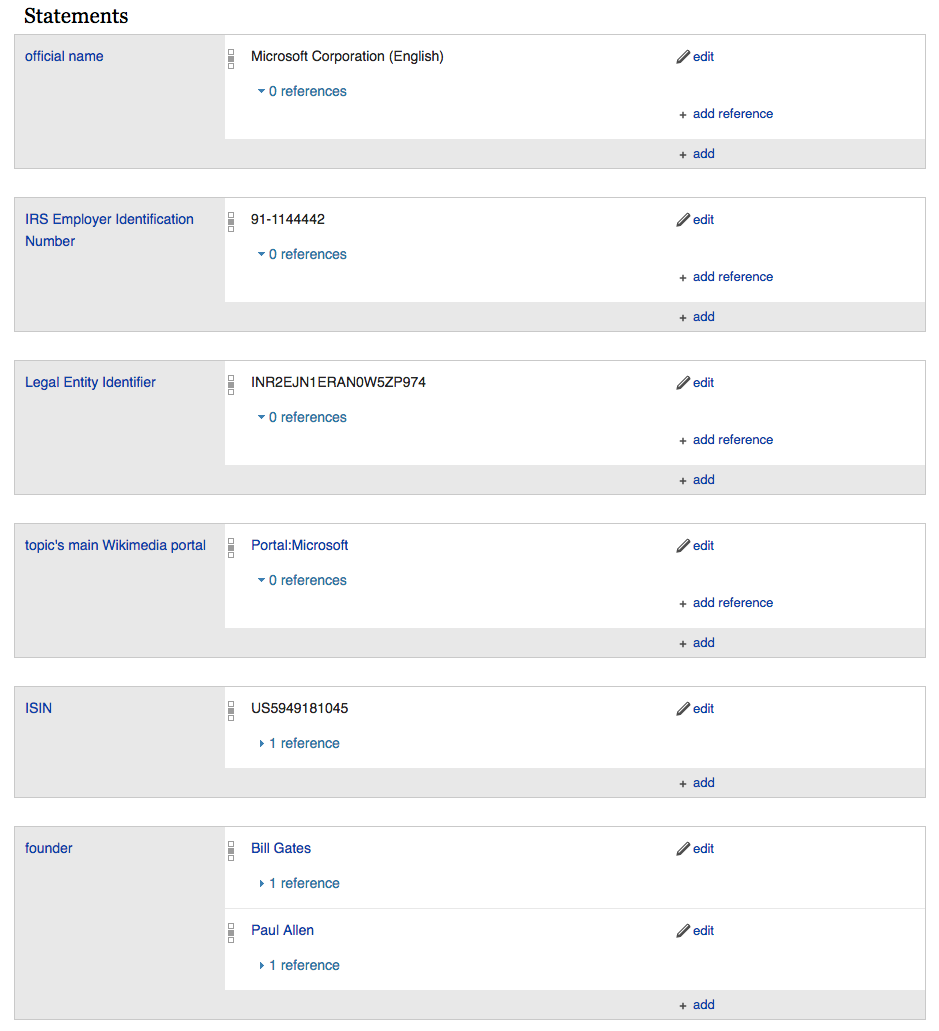
Wikidata operates as an essential storage for structured data and is one of the main sources that Google uses to pull data into their Knowledge Graph. Here’s how you can create a Wikidata item: 1. Create a new Wikidata item 2. Use Wikipedia to import your data into Wikidata. 3. For inspiration, look at Wikidata items of some famous companies, brands and celebrities and fill out anything that you may need for yourself. Here’s what Microsoft’s Wikidata item looks like.
4. Add social links to your Wikidata.
4. Add your business to the Location Knowledge Graph
To ensure you’ve set up your Google Knowledge Graph correctly, you’ll need to establish that all of your social platforms have the name, address and phone number in the same format. Even a space, comma or full stop can lead to Google reading it as different entities. To expand the reach of your business and influence the information on the Google Knowledge Graph, best practice is to optimise your profile on Google My Business and Google+ Local.
Let us know if this article helped you or your company earn a Google Knowledge Graph card.