
Key Events in GA4: Conversions in Google Analytics
Loves Data
If you’re using Google Analytics 4 (GA4), you’ll see Key Events appearing throughout your reports. These are the actions that matter most on your website – things like purchases, form submissions, or bookings. By marking important interactions as Key Events, you can connect how people find you with the actions they take, and measure what really drives value for your business or organization.
In this post, you’ll learn what Key Events are, how they compare to other events, how to configure them, and where to find them in your reports. We’ll also cover setup options with Google Tag Manager, troubleshooting tips, and answers to common questions.
You can also follow along with our walk through:
What Are Key Events in Google Analytics 4?
In GA4, all user actions are captured as events. But not all events are equal – some are more important than others. That’s where Key Events come in. They let you highlight your most valuable actions so they’re easy to see in your reports. They let you track macro conversions and micro conversions in Google Analytics.
Examples include:
- Submitting a form
- Signing up for a newsletter
- Creating an account
- Booking a demo
- Clicking a phone number
- Downloading a file
- Completing a purchase
Once you've configured Key Events, you will see conversion metrics in your GA4 property, including the total number of Key Events, along with 'Session Key Event Rate' and 'User Key Event Rate'. These metrics let you report on how often people complete valuable actions on your website, which channels drive them, and how effective your website is at generating results.
Why Did Google Replace Conversions with Key Events?
Google made this change to simplify the terminology across its platforms. It helps make a clearer distinction between how actions are reported in Google Analytics versus Google Ads. Here’s the difference:
- In Google Analytics, these important actions are now called Key Events.
- In Google Ads, they are still called Conversions when imported from Google Analytics.
This change provides consistency across tools while improving how marketers and analysts report on performance.
How Are Key Events Different from Other Events?
All events in GA4 represent user activity. The difference with Key Events is that they’re given special treatment in reports. Once an event is marked as a Key Event, it shows up in metrics like 'User Key Event Rate' and 'Session Key Event Rate'. Here's how these metrics are calculated:
- Key Events =
Total number of key events triggered - User Key Event Rate =
Users with a Key Event ÷ Total Users - Session Key Event Rate =
Sessions with a Key Event ÷ Total Sessions
These metrics replace the old conversion rates you might remember from earlier versions of GA4.
How to Set Up Key Events in Google Analytics
There are two main ways to mark an action as a Key Event in GA4:
Option 1: Mark an existing event
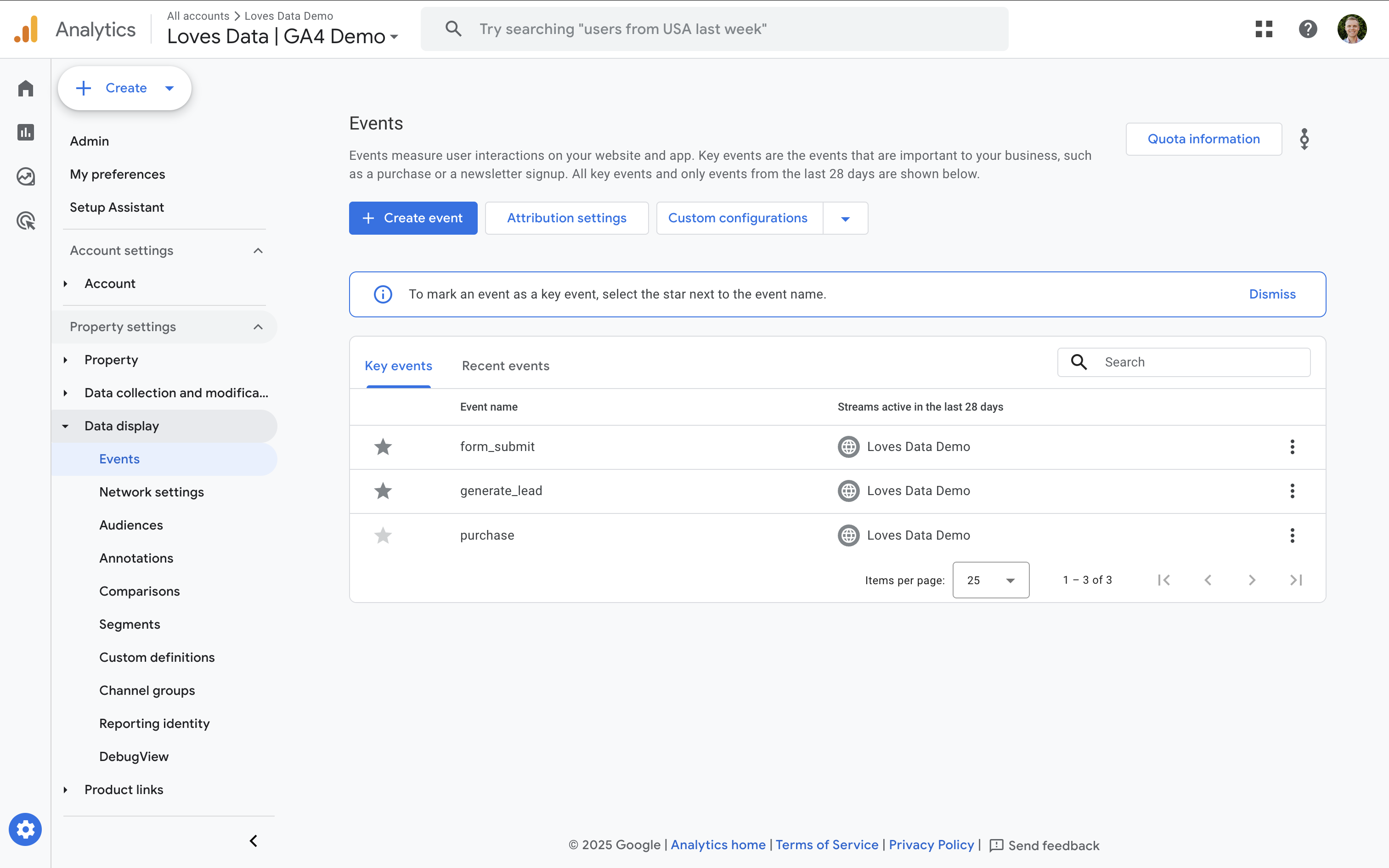
- Navigate to ‘Admin’ and select ‘Events’ under ‘Data Display’.
- Open the ‘Recent Events’ tab.
- Find the event you want to track and click the star icon on the left. A filled star means it’s now a Key Event.
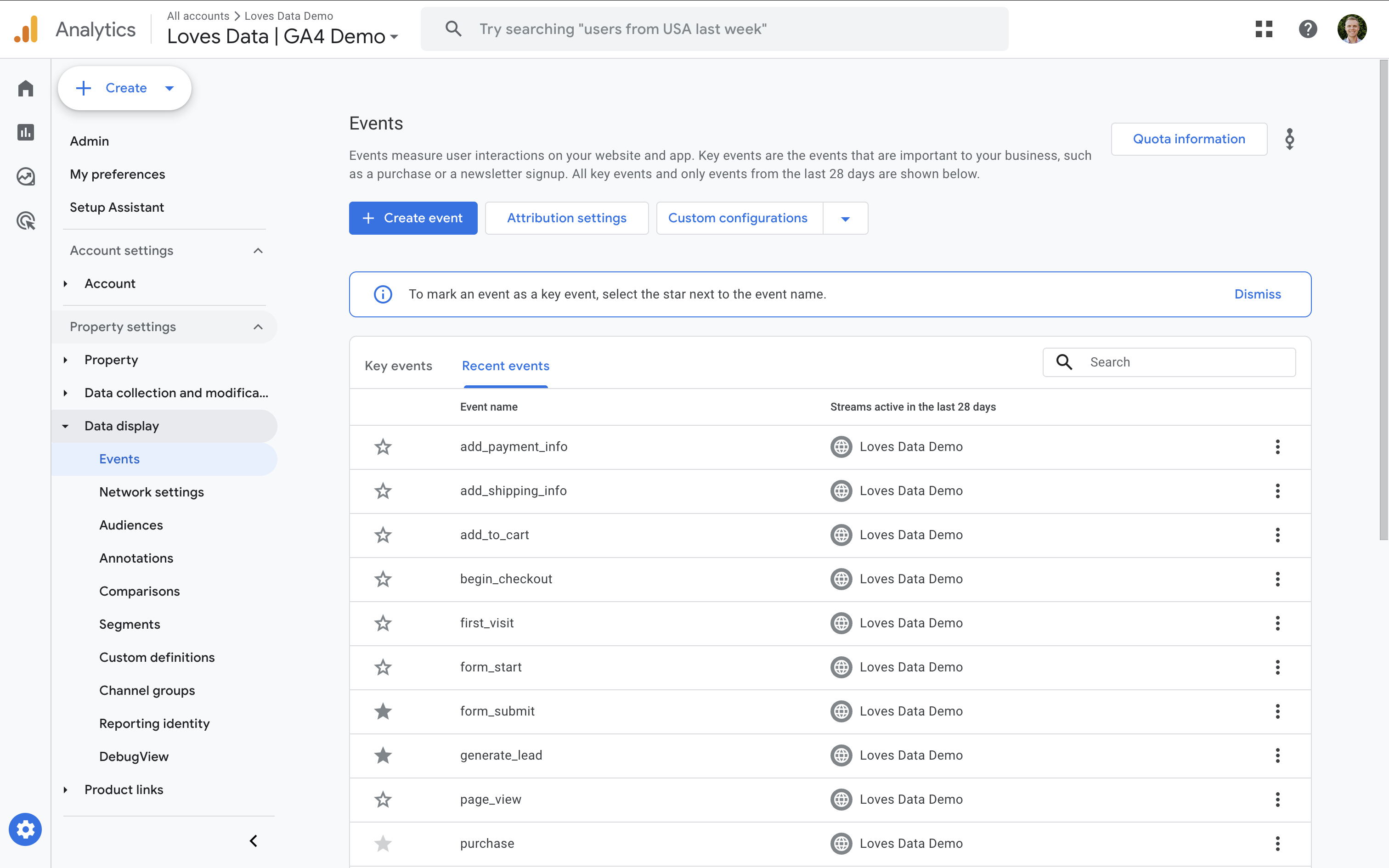
Tip: If you need to remove a Key Event later, just click the star again, and it will go back to being a regular event.
Option 2: Create a new event
If the event you want to track doesn’t exist yet (for example, when someone views a “thank you” page), you can create it manually:
- Navigate to ‘Admin’ and select ‘Events’ under ‘Data Display’.
- Click ‘Create Event’.
- Give your event a clear name, such as 'generate_lead'.
- Enable the ‘Mark as key event’ option.
- Define the matching conditions (for example, when someone views a page on your website where the URL contains 'thank-you').
- Save your new event.
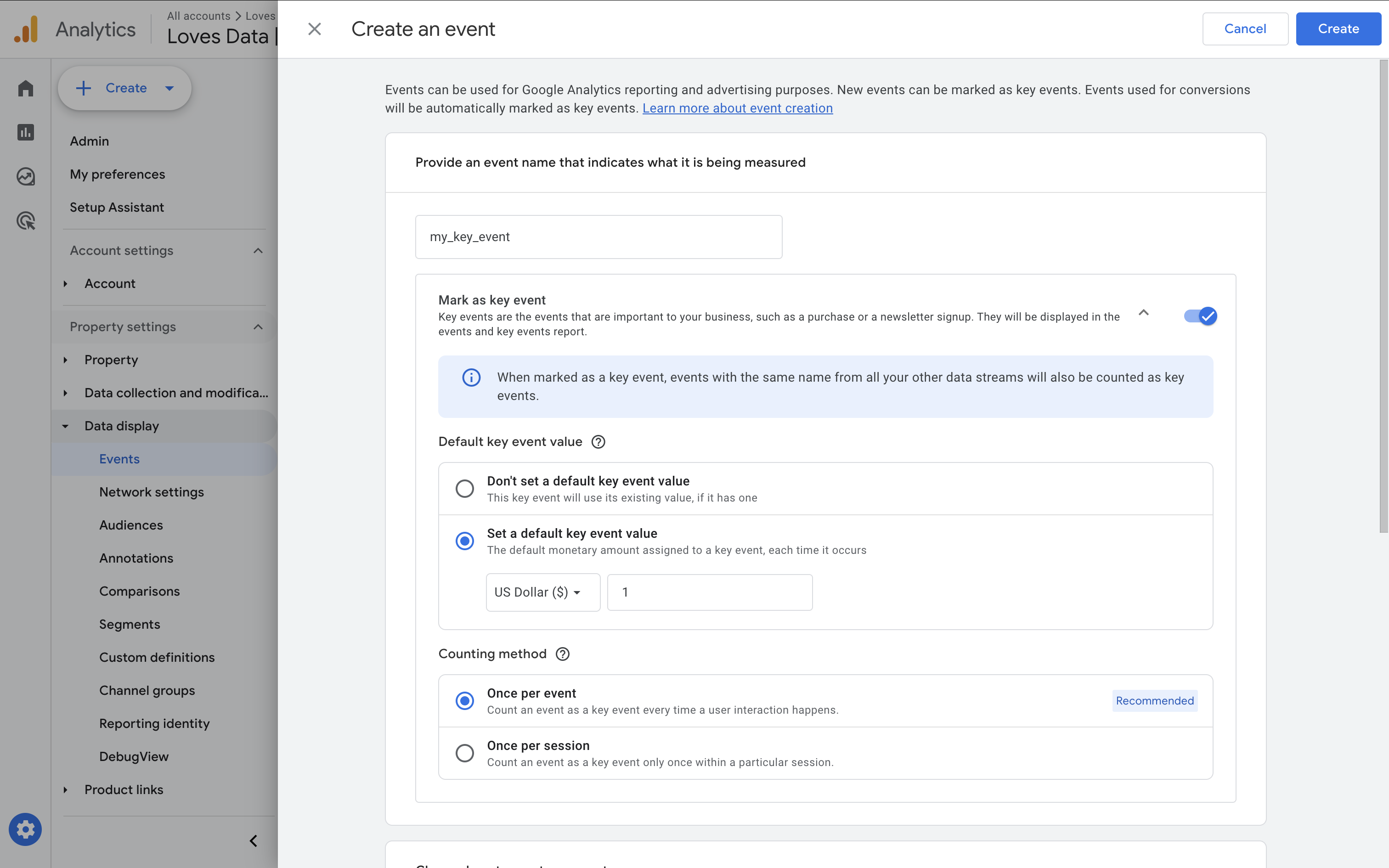
Once people start triggering the event, it will automatically appear as a Key Event in your reports.
Using Google Tag Manager for Key Events
For custom actions that GA4 doesn’t track automatically – like button clicks or custom form submissions – you can use Google Tag Manager (GTM). Here’s how:
- In GTM, create a new GA4 Event tag and enter an event name (for example, 'generate_lead').
- Add any event parameters you want to send, such as form type or button text.
- Create a trigger for the action you want to measure – for example, a click on a specific button or a "thank you" page view.
- Test in Preview mode to make sure your tag fires correctly.
- Publish your changes in GTM.
- In GA4, mark the new event as a Key Event (using the steps from above).
Once configured, you’ll see your GTM-based events appearing in GA4 reports as Key Events.
Do I Need to Reconfigure My Existing Conversions?
No, you don’t need to do anything if you previously marked Conversions in your GA4 property.
Google has automatically updated all of your existing Conversions and renamed them as Key Events. You can review them by navigating to 'Admin' and selecting 'Events' under 'Data Collection' in your GA4 property.
However, if you want to add or remove any Key Events, you can do this manually using the steps we previously covered.
Where Will I See Key Events in Reports?
Key Events appear throughout your reports. You’ll see them in:
- Acquisition reports – to compare which channels bring in the most valuable users.
- Engagement reports – to see how often people take important actions.
- Exploration reports – to build custom reports combining 'Key Events' with dimensions like 'Landing Page' or 'Session Campaign'.
- Advertising reports – to measure campaign performance against your top interactions.
For example, in the ‘Traffic Acquisition’ report, you can use the Key Events columns to compare conversion performance across different traffic sources. Or in an Exploration report, you can combine Key Events with 'Landing Page' to identify which pages drive the most valuable actions.
Note: If you also use Looker Studio, you’ll see Key Event metrics instead of conversion metrics. If you’re still seeing older names, reconnect your GA4 data source to refresh the available fields.
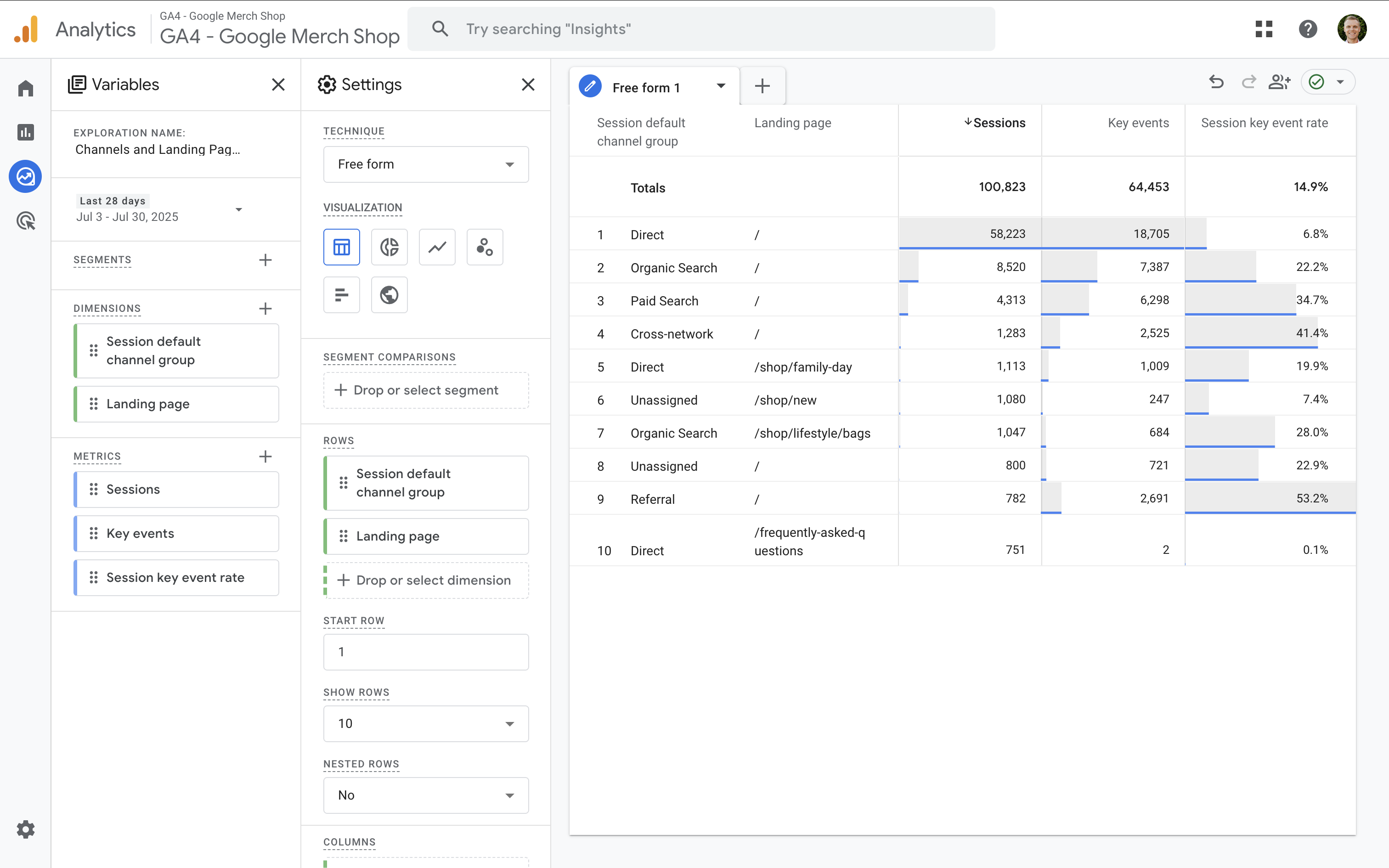
The example above combines the Default Channel Group and Landing Page dimensions with Key Event metrics.
Troubleshooting and Tips
- If your event doesn’t show in the GA4 Realtime reports or DebugView, check that your GTM tag is firing and your measurement ID is correct.
- Standard reports take up to 24 hours to display new Key Events, even if you see them in the Realtime reports.
- Don’t mark generic events like 'page_view' as Key Events – always add conditions so you only measure specific interactions.
- Use clear, recommended event names (like 'generate_lead') to keep reports consistent.
FAQs
How many Key Events can I track?
You can mark up to 30 unique Key Events per property. You can check your usage in the 'Events' section of the Admin area.
Do I need to assign a value to each Key Event?
No, values are optional. You might add them if you want to compare channels by revenue or assign a symbolic value to leads. If you do assign values, make sure they align with your reporting goals.
Should I create events in GA4 or GTM?
Use GA4’s ‘Create Event’ option for simple, page-based conditions (like a thank-you page). Use GTM for custom interactions (like button clicks or form submissions) where you need more flexibility.
How do I test if my Key Events are working?
Use GTM Preview mode to confirm your tags and triggers. Then, in GA4, use the Realtime reports or DebugView to check that the events are arriving with the right names and parameters. Standard reports update within 12–24 hours.
Summary
Key Events in GA4 are the way to measure your most valuable website actions. By tracking the right actions, you’ll gain clearer insights into what’s driving results, which campaigns are working, and where improvements can be made.
Whether you set them up directly in GA4 or send them via Google Tag Manager, Key Events give you consistent, focused metrics across reports – so you can measure what matters and make better decisions with your data.