
Google Analytics Hostname Filters
 Benjamin Mangold
Google Analytics hostname filters help prevent unwanted website data from appearing in your reports. You can exclude selected hostnames or use an include filter to only include data from approved hostnames.
In this guide, you’ll learn how hostname filters work, how to identify the hostnames sending data to your property, and how to test an include filter before activating it.
What is a hostname filter?
A hostname identifies the website where an event was collected. For example, events collected on your website might have a hostname of example.com or www.example.com.
A hostname filter is a type of Google Analytics data filter that controls which website events are processed based on their hostname. You can use it to exclude events collected on selected hostnames or to only include events collected on specific hostnames.
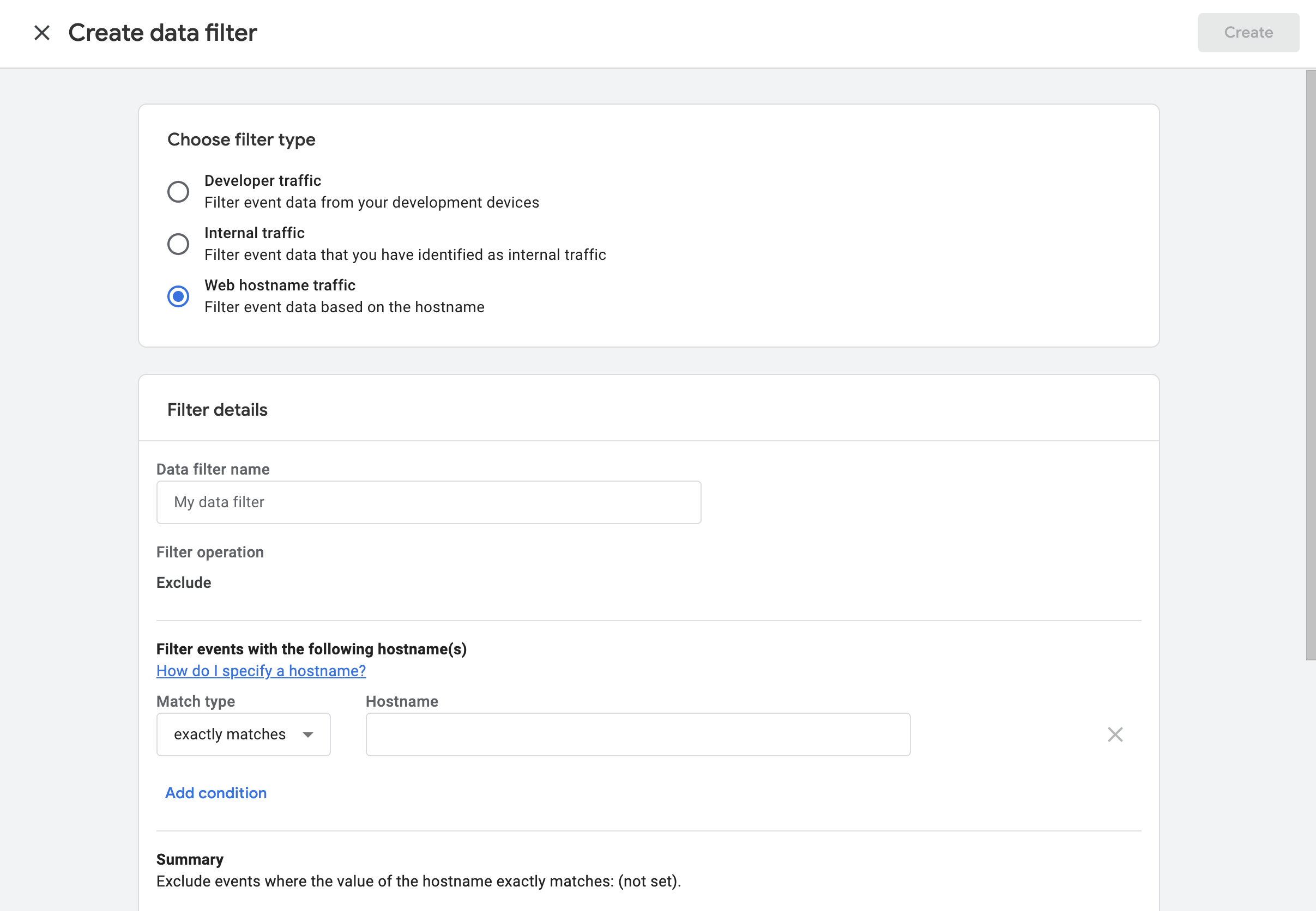
Hostname filters appear alongside the internal traffic and developer traffic filters in Google Analytics. You’ll find them under ‘Data filters’ in your property’s Admin area.
Why this matters
You might see an unfamiliar hostname in your reports if another website is accidentally or deliberately using your Google Analytics measurement ID. You might also have data from a staging site, test site, or another website you no longer want to measure. This unwanted data can affect your metrics and make it harder to understand how people are using your website.
You can control some of this in Google Tag Manager by only firing your Google tag on approved hostnames. However, this requires more advanced configuration and is prone to errors. You could also use report filters, comparisons, or explorations to exclude unwanted hostnames from your analysis, but you need to remember to apply them whenever you review your data.
A hostname filter provides a built-in way to control which website events are processed into your reports.
Should you exclude or include hostnames?
When creating a web hostname traffic filter, you can choose ‘Exclude’ or ‘Include only’.
An exclude filter blocks the hostnames you specify. This can be useful if you have identified one or two hostnames sending unwanted events to your property.
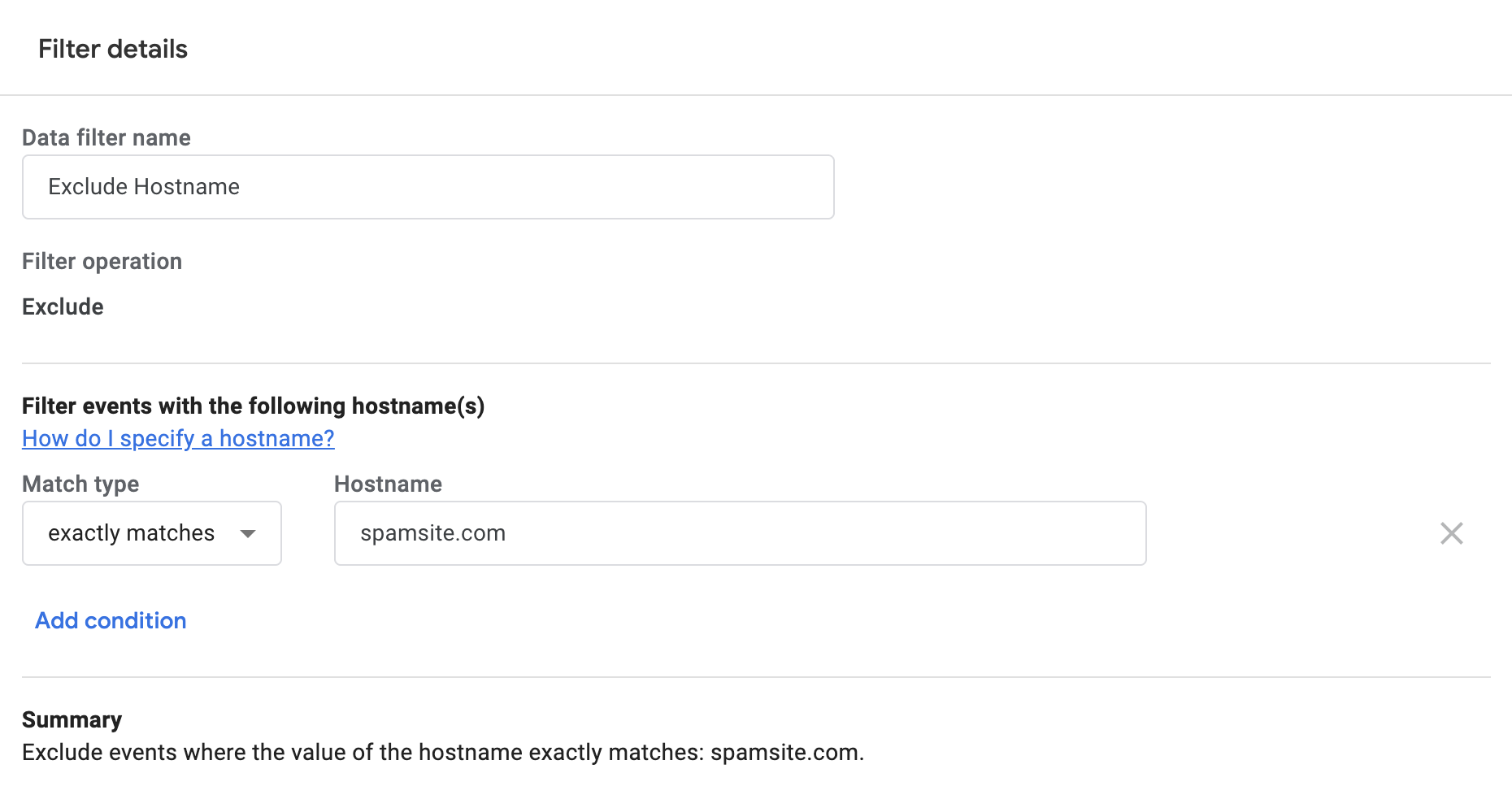
Once the filter is active, events collected on matching hostnames will not be processed or appear in your reports.
An include filter is generally the better choice if you know all the hostnames used for your websites. Using an include filter means you specify exactly which website data you want processed into your property. The filter then blocks website events from any other hostname.
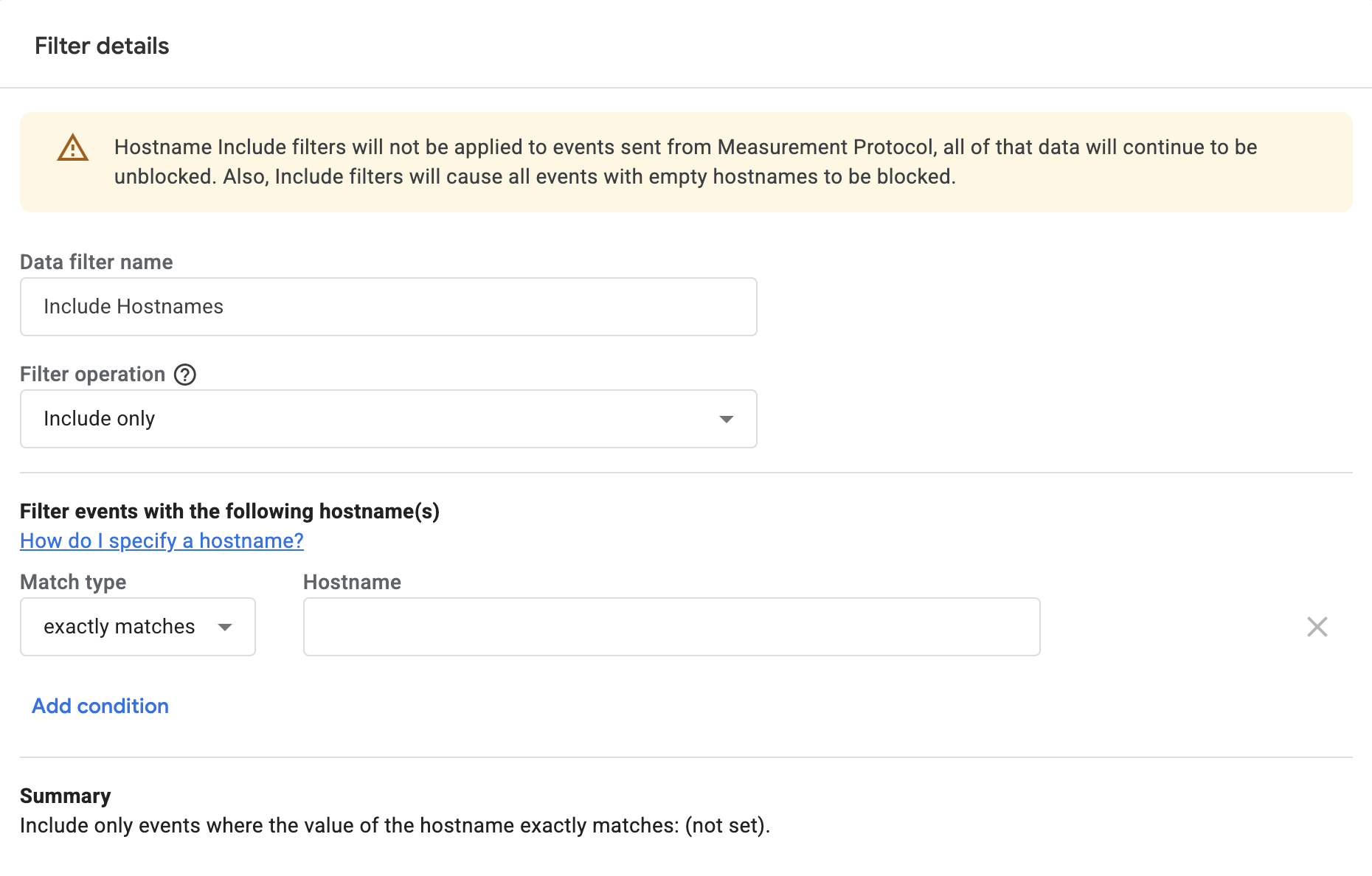
Important: Before creating an include filter, identify every hostname that should send data to your property. This can include your primary hostname, the www version, subdomains, and any payment or cross-domain hostnames that send events to the property.
Check your existing hostnames
Before configuring the filter, you can use the ‘Hostname’ dimension to check which ones are currently sending data to your property.
You can do this using an exploration:
- Navigate to ‘Explore’ in Google Analytics.
- Create a blank free-form exploration.
- Add ‘Hostname’ as a dimension.
- Add a metric such as ‘Event count’ or ‘Sessions’.
- Add ‘Hostname’ to the rows and your selected metric to the values.
- Review the report and identify the hostnames you want to include.
Google Analytics treats example.com and www.example.com as different hostnames. If both appear in your reports, you will need to include both. You should also include any subdomains and third-party hostnames you would like to continue tracking. Each of these should be added separately if you’re using exact matching in your filter.
Create an include filter for hostnames
You will need editor or administrator permission for the Google Analytics property to create a data filter.
You can watch the following video for a complete walkthrough, or use the steps below.
To create the include filter, follow these steps:
- Navigate to ‘Admin’.
- Under ‘Data collection and modification’, select ‘Data filters’.
- Click ‘Create filter’.
- Select ‘Web hostname traffic’.
- Enter a name for your filter, such as ‘Include Hostnames’.
- Select ‘Exclude’ and change it to ‘Include only’.
- Select a match type.
- Enter each of your approved hostnames.
- Set the filter state to ‘Testing’.
- Click ‘Create’.
The available match types are:
- Exactly matches: The complete hostname must match the value you enter.
- Begins with: The hostname must begin with the value you enter.
- Ends with: The hostname must end with the value you enter.
- Contains: The hostname can contain the value anywhere.
Currently, there’s no option to use regular expressions with hostname filters. This is something I’d like to see added, as it would give us more flexibility in how we match hostnames.
I generally recommend selecting ‘Exactly matches’ and adding each hostname separately. This gives you the most control.
For example, if people can access your website using example.com and www.example.com, add both hostnames to the filter. If you also collect data on shop.example.com, add that hostname separately.
Options such as ‘Ends with’ and ‘Contains’ can be useful, but they might match hostnames you did not intend to include or exclude.
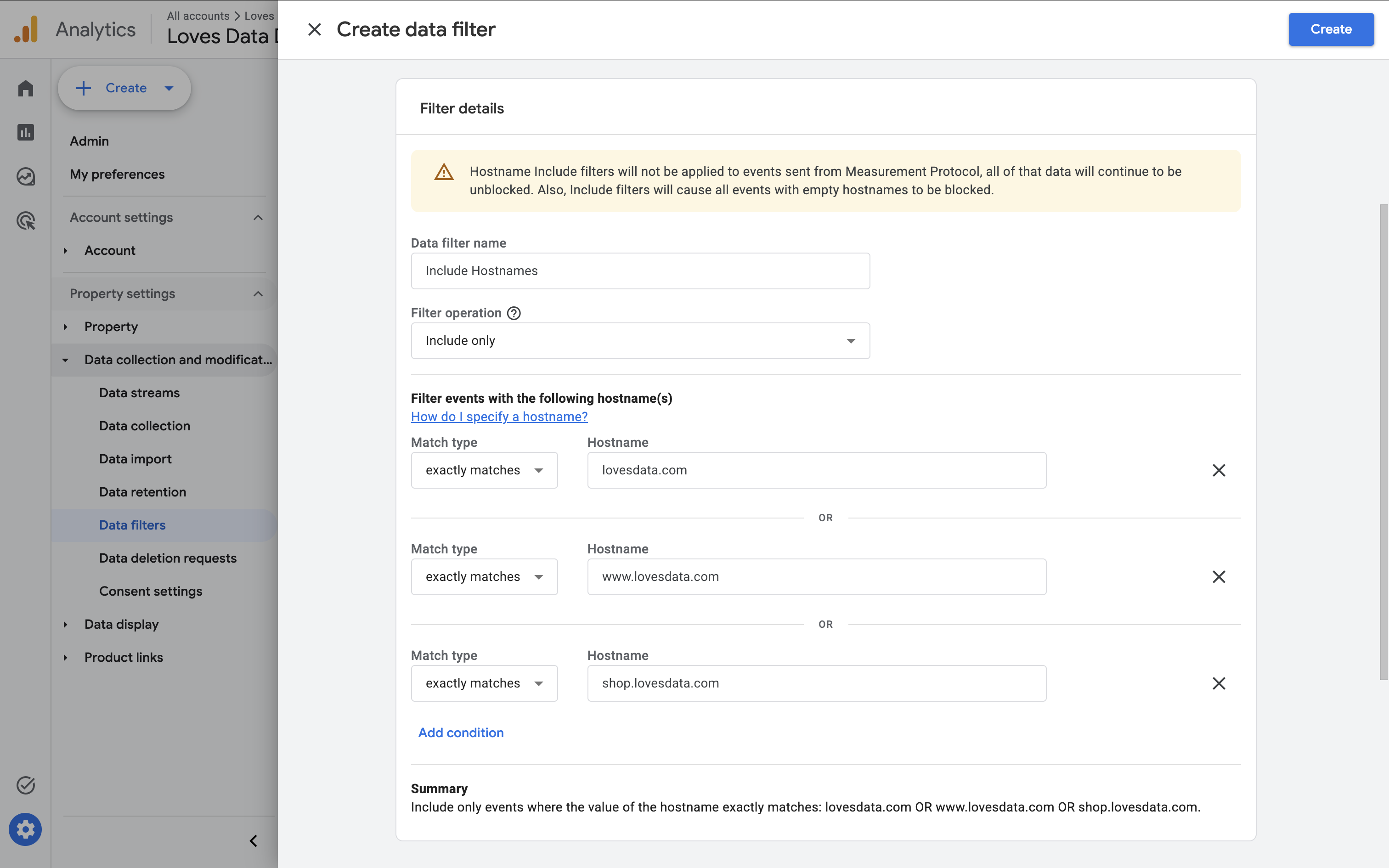
You can click the ‘How do I specify a hostname?’ link in the filter configuration for more information about the matching options.
Test your hostname filter before activating it
I recommend starting with the filter state set to ‘Testing’. This lets you check how the filter will work without permanently removing events from your property.
While the filter is being tested, use the ‘Test data filter name’ dimension in your reports or explorations. Events that would be affected by the filter are assigned the filter’s name, allowing you to confirm the configuration before activating it.
Tip: Leave the filter in the testing state for at least a few days. Allow enough time to capture traffic across your primary hostname, subdomains, payment hostnames, and any other websites that send data to the property.
Once you have confirmed that the filter is working correctly:
- Navigate to ‘Admin’.
- Under ‘Data collection and modification’, select ‘Data filters’.
- Open your hostname filter.
- Change the filter state from ‘Testing’ to ‘Active’.
- Save the filter.
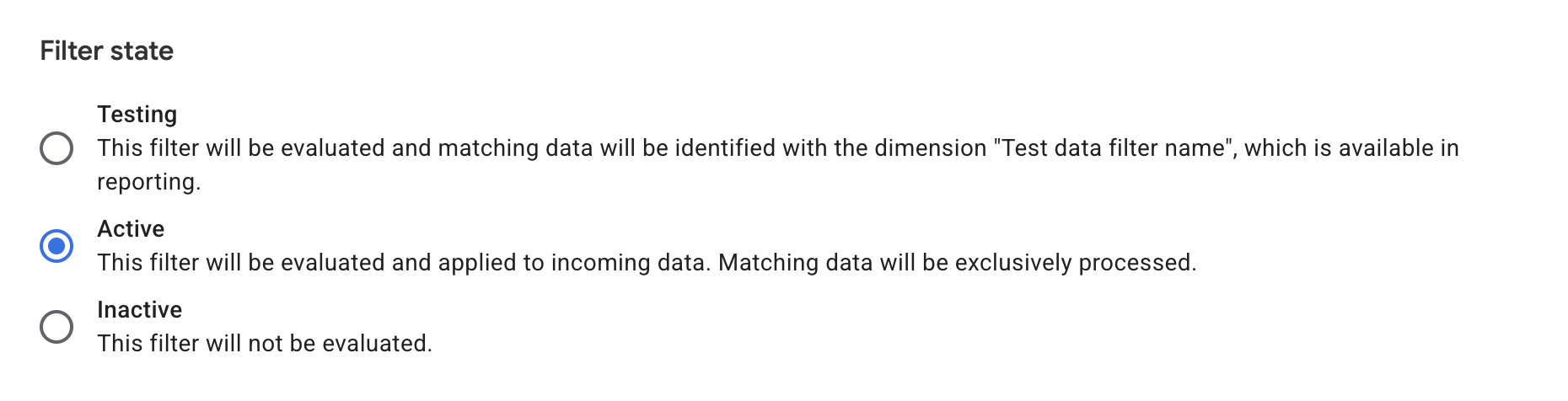
Important: An active data filter permanently affects incoming data. Events blocked by the filter are not processed and cannot be recovered later. The filter also does not change data collected before you activated it.
Common mistakes to avoid
The biggest risk with hostname filters is accidentally keeping data you do not want or removing data you need. The mistake to look out for depends on the type of filter you create.
Missing unwanted hostnames from an exclude filter
An exclude filter only blocks the hostnames you specify. If unwanted events are collected on another hostname that is not included in the filter, those events will continue to be processed into your reports.
This is why exclude filters work best when you only need to block a small number of known hostnames. If new unwanted hostnames regularly appear in your reports, an include filter will usually be easier to maintain.
Missing legitimate hostnames from an include filter
An include filter only keeps website events from the hostnames you specify. If you forget a legitimate hostname, events collected on that hostname will be filtered out once the filter is active.
Before activating an include filter, check for:
- The
wwwand non-wwwversions of your hostname. - Subdomains that send events to the property.
- Staging or testing hostnames you intentionally measure.
- Payment, booking, or other third-party hostnames that send events to the property.
- Other websites included in your cross-domain measurement setup that send events to the property.
Use the ‘Hostname’ dimension to review your existing data, and leave the filter in the ‘Testing’ state long enough to capture traffic from every part of your setup.
Important details and limitations
Measurement Protocol events are not filtered
Google says the include hostname filter is not applied to events sent using the Measurement Protocol.
The Measurement Protocol sends events directly to Google Analytics instead of collecting them through a Google tag running on a website. These events will not be blocked by the include hostname filter, even if their hostname is not on your approved list.
If you use Measurement Protocol, review the systems sending these events and protect your API secrets. Do not rely on the hostname filter to validate or block this data.
Events with an empty hostname are blocked
Events evaluated by the include filter are automatically blocked if they have an empty hostname. A missing hostname can indicate unwanted or abnormal traffic. However, it can also occur when a website event does not include the page_location parameter.
Check your implementation carefully if you intentionally send events without this parameter. Otherwise, legitimate events could be removed when you activate the filter.
Filters only affect new data
Hostname filters are not retroactive. Activating a filter will not remove unwanted events already collected in your property. For historical analysis, you can create a report filter, comparison, segment, or exploration that only includes your approved hostnames.
Frequently asked questions
What is a hostname filter in Google Analytics?
A hostname filter is a property-level data filter that controls incoming website events based on the hostname where they were collected. You can exclude selected hostnames or include only your approved hostnames.
Is an include filter better than an exclude filter?
An include filter is generally easier to maintain when you know all the hostnames that should send data to your property. It blocks website events from hostnames that are not included in your filter. An exclude filter is a better fit if you only need to block a handful of known hostnames.
Should I include both the www and non-www versions of my hostname?
Yes, if both versions send data to your property. Google Analytics treats example.com and www.example.com as different hostnames.
What happens to events without a hostname?
Events evaluated by the include filter are blocked if they do not have a hostname. This can include events that do not contain the page_location parameter.
Does the include filter block Measurement Protocol events?
No, Google says the include hostname filter does not apply to events sent using the Measurement Protocol.
Can a hostname filter clean up historical data?
No, data filters only affect events collected after the filter is activated. Use a report filter, comparison, segment, or exploration when analyzing historical data.
Can I use regular expressions in a hostname filter?
No, web hostname traffic filters do not currently support regular expressions. You can choose ‘Exactly matches’, ‘Begins with’, ‘Ends with’, or ‘Contains’. If you need to include several specific hostnames, add each one separately.
Conclusion
You can use an include hostname filter to stop unwanted website data from appearing in Google Analytics. Instead of maintaining a list of hostnames to block, you can specify the hostnames you trust, so in most cases an include filter is better than an exclude filter.
Before activating the filter, review your existing hostnames, include every hostname and subdomain you want tracked, and test the configuration carefully. Once you are happy it is working correctly, activate the filter to ensure you’re collecting the data you expect into your reports.
For additional technical details, see Google’s hostname filter documentation.