
How to Set Up Google Tag Gateway with Cloudflare
 Benjamin Mangold
If you’re using Google Analytics or Google Ads, you might have encountered cases where data isn’t making it into your reports. Browser restrictions, extensions and ad blockers can all affect the reliability of digital marketing measurement. Google Tag Gateway for advertisers is designed to make your Google tags and measurement signals more resilient.
Google Tag Gateway lets you load Google tags using your own website domain instead of a Google domain. In this guide, we’ll look at what it is, how it works, its benefits and limitations, and how to set it up, including using Cloudflare with Google Tag Manager. I’ll also share the results of my own testing, including an increase of almost 7% in reported users and how the gateway performed with five popular ad blockers.
Table of Contents
- What is Google Tag Gateway?
- Key benefits and limitations
- Should you use Google Tag Gateway?
- How Google Tag Gateway works
- Setting up Google Tag Gateway
- Case study: does Google Tag Gateway bypass ad blockers?
- Best practices and considerations
- Google Tag Gateway vs server-side GTM
- Conclusion
What is Google Tag Gateway?
Google Tag Gateway is a way to deploy a Google tag or Google Tag Manager container using your own first-party infrastructure and website domain. Normally, your website loads a Google tag from a Google-managed domain such as googletagmanager.com. With the gateway configured, the tag can instead load from a measurement path on your own domain.
Your content delivery network (CDN), load balancer or web server sits between the visitor’s browser and Google’s services. The browser requests the tag using your domain, and the gateway forwards the appropriate requests to Google. Some measurement requests can also be sent through your first-party domain.
This first-party delivery can improve signal measurement recovery because the requests use your domain instead of being sent directly to a separate Google domain. Google currently recommends Google Tag Gateway as its most durable tag configuration. It supports the Google tag used by Google Analytics and Google Ads, as well as Google Tag Manager containers.
It is important not to confuse first-party delivery with unrestricted tracking. Google Tag Gateway does not override consent choices, remove the need for a compliant consent setup or guarantee that every browser extension will allow measurement. It also does not turn Google Analytics or Google Ads into systems you host yourself. Requests are still forwarded to Google for processing.
Key Benefits and Limitations
One of the main benefits is improved measurement reliability. When the tag and eligible measurement requests use your own domain, they can be less vulnerable to restrictions that target requests to known third-party domains. This can help recover signals for Google Analytics reporting and Google Ads conversion measurement.
The Cloudflare integration is also straightforward compared with building a custom proxy or a full server-side Google Tag Manager implementation. If your website already uses Cloudflare as its CDN, Google Tag Gateway is free to use, and Cloudflare says requests routed through it do not count toward usage or billing for its CDN, WAF or Bot Management products.
There are limits to keep in mind:
- It is for Google tags. It does not automatically provide first-party delivery for unrelated third-party marketing tags.
- It is not an ad-blocking workaround. Some blockers can still identify and block the tag or its requests.
- It does not replace consent management. Review your Consent Mode configuration and make sure the gateway respects the choices made through your consent banner or consent management platform.
- It does not provide the same controls as server-side GTM. A server container can validate, transform, enrich and route requests in ways the CDN integration cannot.
- Not every request necessarily uses your domain. Some measurement requests can still be sent directly to Google endpoints because of regional requirements, product behavior or consent conditions.
- Results will vary. The uplift depends on your audience, browser mix, existing implementation, consent behavior and other factors.
Should You Use Google Tag Gateway?
Google Tag Gateway is most useful when you already use Google Analytics, Google Ads or a web Google Tag Manager container and want a relatively simple way to make Google tag delivery more resilient. It is especially straightforward if your website already uses one of the platforms with a built-in setup option.
The right choice depends on your current tagging setup and what you want to achieve:
| Your Situation | Recommendation | Why |
|---|---|---|
| You use Google Analytics or Google Ads and already use a supported CDN or platform | Consider enabling it | The built-in setup is relatively simple and can improve the resilience of eligible Google tag requests. |
| You use a client-side Google Tag Manager container with both Google and non-Google tags | Consider enabling it for your Google measurement | The gateway can improve delivery of the GTM container and supported Google measurement, but it does not make every third-party tag first-party. |
| You already have a GTM container installed directly on your website | Check how the container loads after setup | If the container still loads from googletagmanager.com, update the existing code to use your measurement path or configure Cloudflare to add the container automatically. |
| You cannot use a built-in integration | Evaluate the manual setup carefully | You will need to configure your CDN, load balancer or web server and update the applicable tag snippets. This requires more technical work and ongoing testing. |
| You need to transform data, control what is sent or support multiple vendors | Consider server-side GTM | Google Tag Gateway focuses on durable delivery. A server container provides substantially more control over processing and routing. |
| You expect to bypass every ad blocker or avoid consent requirements | Do not use it for that purpose | The gateway does not override consent and cannot guarantee that tags or requests will avoid blocking. |
For many websites already using Cloudflare, enabling the gateway is a low-complexity improvement worth testing. However, it should be treated as a measurement enhancement rather than a replacement for Consent Mode, a consent management platform or server-side tagging.
How Google Tag Gateway Works
In a standard setup, your website normally loads Google scripts directly from a Google domain such as googletagmanager.com.
After configuring Google Tag Gateway, the tag can instead load using a reserved measurement path on your own domain.
The process works like this:
- A visitor opens a page on your website.
- The browser requests the Google tag using the measurement path on your domain.
- Your CDN, load balancer or web server forwards the request to the appropriate Google endpoint.
- The tag runs in the visitor’s browser according to your tagging and consent configuration.
- Eligible measurement requests are sent through your first-party domain and forwarded to Google.
Here’s a diagram from Google showing how it works:
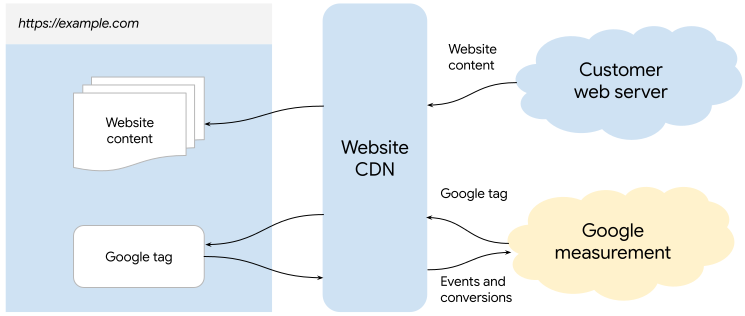
It is also worth keeping in mind that not every measurement request necessarily uses your first-party domain. Some requests can still be sent directly to Google depending on the product, region and consent configuration. For example, Google Analytics measurement data for users in the European Economic Area can be sent directly to regional Google endpoints. This is expected behavior and does not necessarily mean the setup has failed.
Setting Up Google Tag Gateway
Google provides built-in or guided setup options for Cloudflare, Akamai, Fastly, Amazon CloudFront, Google Cloud Load Balancer and Webflow. You can also configure Google Tag Gateway manually with compatible infrastructure.
The exact steps depend on the platform you use and whether you are configuring an individual Google tag or a Google Tag Manager container. In this guide, we’ll focus on Cloudflare and Google Tag Manager. You can also follow along with this video:
Before you begin, make sure your website is already using Cloudflare and that your Google Tag Manager container is installed on your website. You will also need permission to make the required changes in your Cloudflare account.
What If Google Tag Manager Is Already Installed?
You do not need to remove your existing Google Tag Manager container before configuring Google Tag Gateway. In fact, Google’s Cloudflare setup expects a container to already be installed.
However, after you enable the gateway, you should check how your existing container is loading. If the container continues to load directly from googletagmanager.com, you have two options:
- Keep the existing container code on your website and update it so it loads through your measurement path.
- Remove the independently installed container code and configure Cloudflare to add the container automatically.
We’ll look at both approaches below.
Whichever approach you use, make sure the same GTM container is not being loaded twice. Duplicate container installations can result in duplicate tags and measurement.
Configure Google Tag Gateway in Google Tag Manager
Start by opening the Google Tag Manager web container installed on your website.
- Navigate to ‘Admin’ and select ‘Google tag gateway’.
- Review the introduction and click ‘Continue’.
- Select ‘Cloudflare’ as your platform. You can also enter your website URL to check whether you are using a compatible platform.
- Click ‘Continue’.
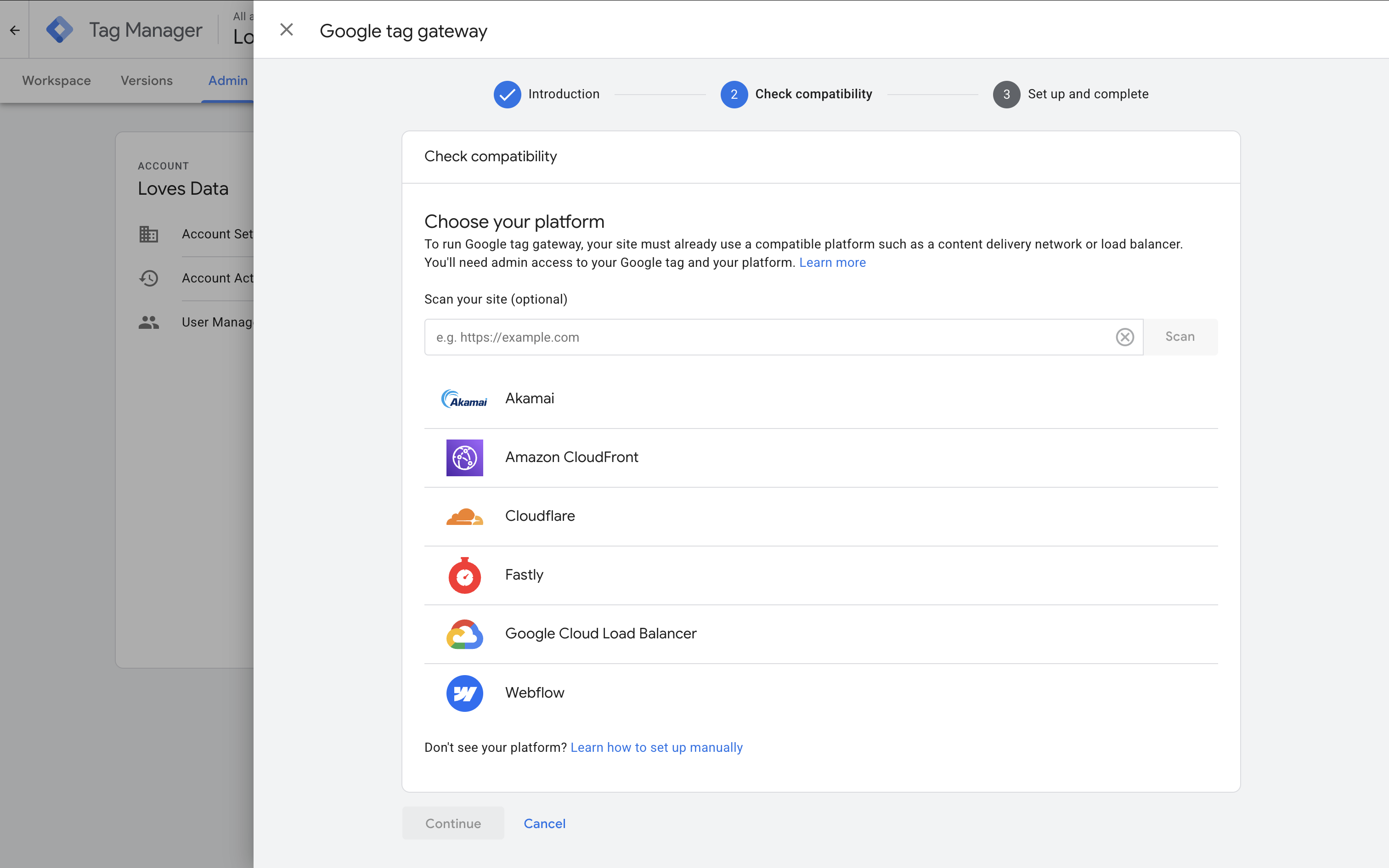
Next, you’ll see what will happen when you configure the gateway. Your container will be updated, your Cloudflare account will be connected, and your website domain will be activated.
Expand the first option to check the measurement path. Make sure this path is not already being used for a page, directory, redirect, script or other resource on your website. If it is, change it before continuing.
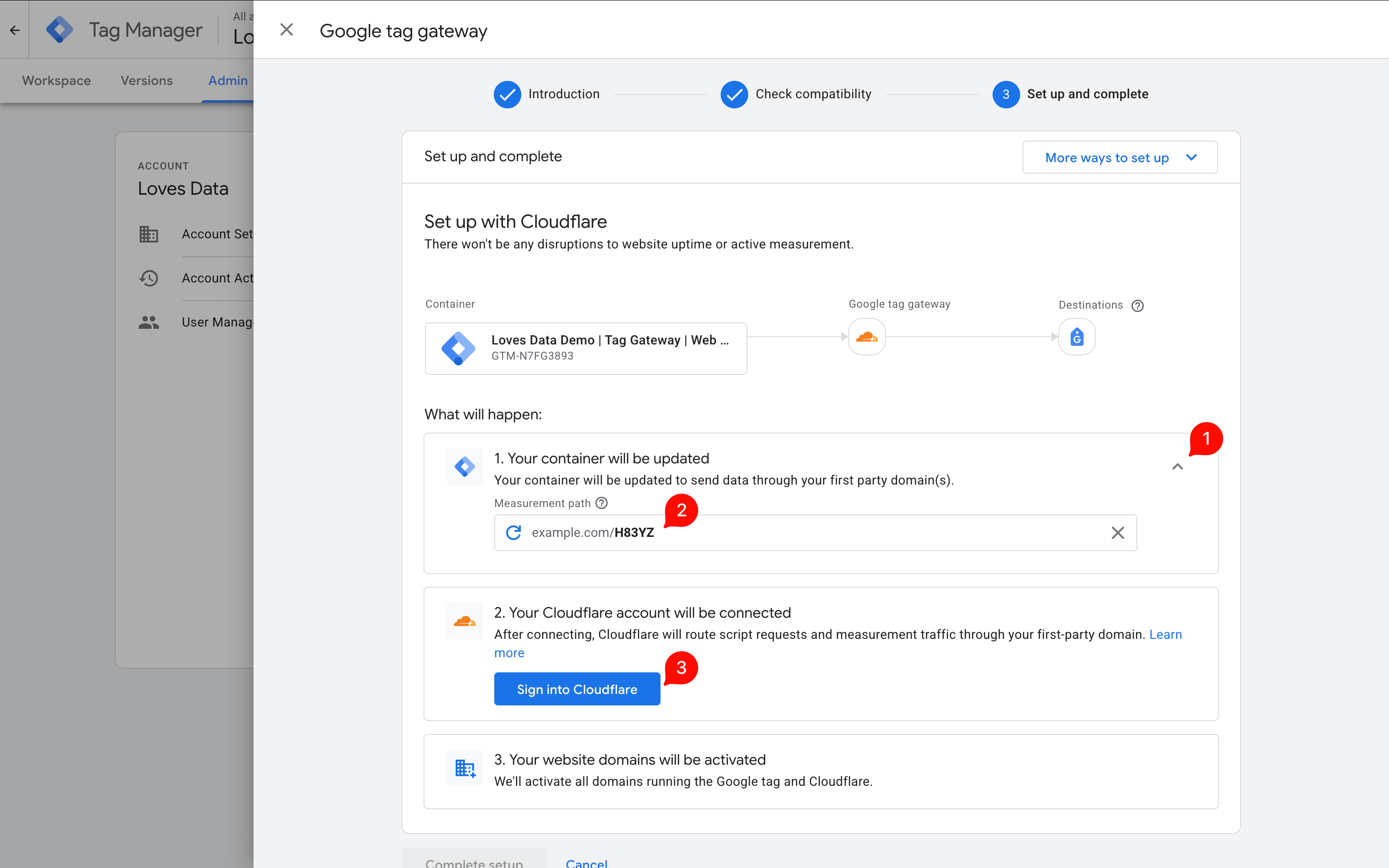
When you’re ready:
- Select ‘Sign into Cloudflare’.
- Sign in to your Cloudflare account and authorize Google to make the required changes.
- When you return to Google Tag Manager, select ‘Choose domains’.
- Select the domain where you want to enable Google Tag Gateway and click ‘Done’.
- Select ‘Complete Setup’.
Google Tag Manager should now show that Google Tag Gateway is active for your domain.
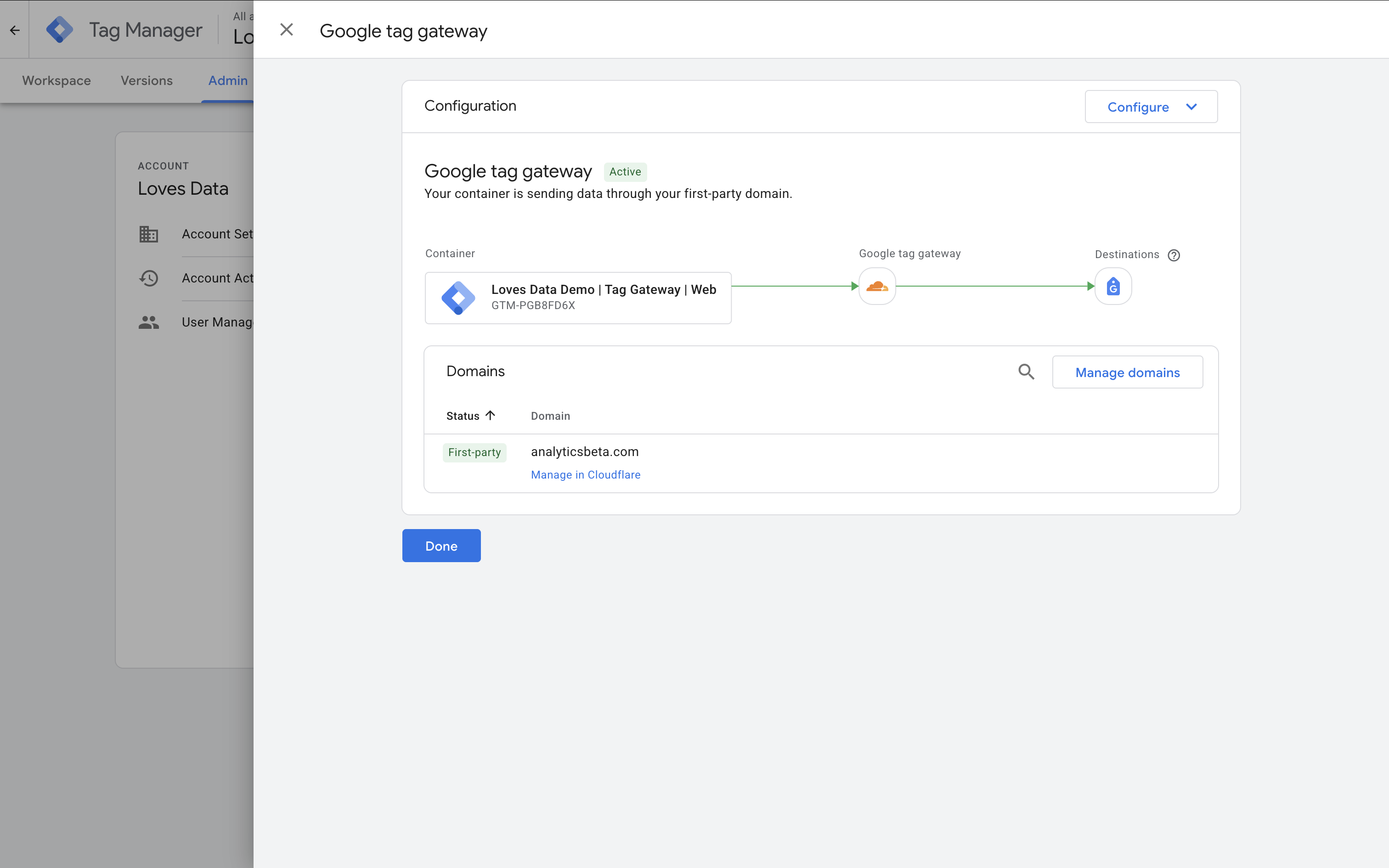
Check Where Your Google Tag Manager Container Loads From
Even though Google Tag Gateway is now active, I recommend checking how your Google Tag Manager container is actually loading.
Open your website, right-click on the page and select ‘Inspect’. Then navigate to the ‘Network’ tab and reload the page.
If you see the GTM container loading from an address containing googletagmanager.com/gtm.js, the container itself is still loading directly from Google.
You might also see requests using the measurement path you configured. However, if the GTM container is still loading directly from Google, you can either update your existing container code or use Cloudflare to add the container automatically.
Keep and Update the Existing GTM Container Code
If you prefer to keep the Google Tag Manager container code directly on your website, you can update the part of the snippet that loads the container.
The standard Google Tag Manager code includes a URL like this:
j.src='https://www.googletagmanager.com/gtm.js?id='+i+dl;Replace the Google Tag Manager URL with the measurement path you configured for Google Tag Gateway. For example:
j.src='/mvi5/?id='+i+dl;Note: /mvi5/ is only an example measurement path. Use the measurement path shown when you configure Google Tag Gateway for your website.
The important change is that the container now loads using your measurement path instead of loading directly from googletagmanager.com.
<!-- Google Tag Manager -->
<script>(function(w,d,s,l,i){w[l]=w[l]||[];w[l].push({'gtm.start':new Date().getTime(),event:'gtm.js'});var f=d.getElementsByTagName(s)[0],j=d.createElement(s),dl=l!='dataLayer'?'&l='+l:'';j.async=true;j.src='https://www.analyticsbeta.com/mvi5/?id='+i+dl;f.parentNode.insertBefore(j,f);})(window,document,'script','dataLayer','GTM-T334A0I');</script><!-- End Google Tag Manager -->Since this example uses a relative path, the code will use the domain of the website where it is installed. This means it will only work on a website where the same measurement path has been configured.
Let Cloudflare Add the GTM Container
The other option is to let Cloudflare add the Google Tag Manager container automatically.
This is easier because you do not need to manually edit the GTM loader in your website code. Cloudflare can add the associated tag and load it using the measurement path on your domain.
If you use this approach, make sure you do not also leave another independently installed copy of the same Google Tag Manager container on the page. After enabling the automated setup, check the page again to confirm that the container is only loading once.
For example, when Cloudflare adds the first-party loader, you can expect the request for the container to use your measurement path instead of seeing the normal gtm.js request from googletagmanager.com.
Letting Cloudflare handle the setup is easier, while updating your existing code lets you continue managing where the GTM container code is placed on your website.
Configure Google Tag Gateway From Google Ads or Google Analytics
You can also configure the gateway from the settings for an individual Google tag. You can access these settings from Google Ads or Google Analytics:
- Google Ads: Navigate to ‘Tools’, select ‘Data manager’, then select your Google tag and open its settings.
- Google Analytics: Navigate to ‘Admin’, select ‘Data streams’, choose your web data stream, then open the Google tag settings.
From the Google tag settings, select ‘Google tag gateway’ and follow the setup process for Cloudflare. You will be asked to authorize Cloudflare, select the domains you want to activate, and complete the setup.
Configure Google Tag Gateway in Cloudflare
You can also configure Google Tag Gateway directly in Cloudflare.
- Open the Google Tag Gateway page in your Cloudflare dashboard.
- Select your domain.
- Enable ‘Turn on and configure Google tag gateway’.
- Enter your Google tag ID or Google Tag Manager container ID.
- Choose an unused measurement path for the gateway.
- Save the configuration.
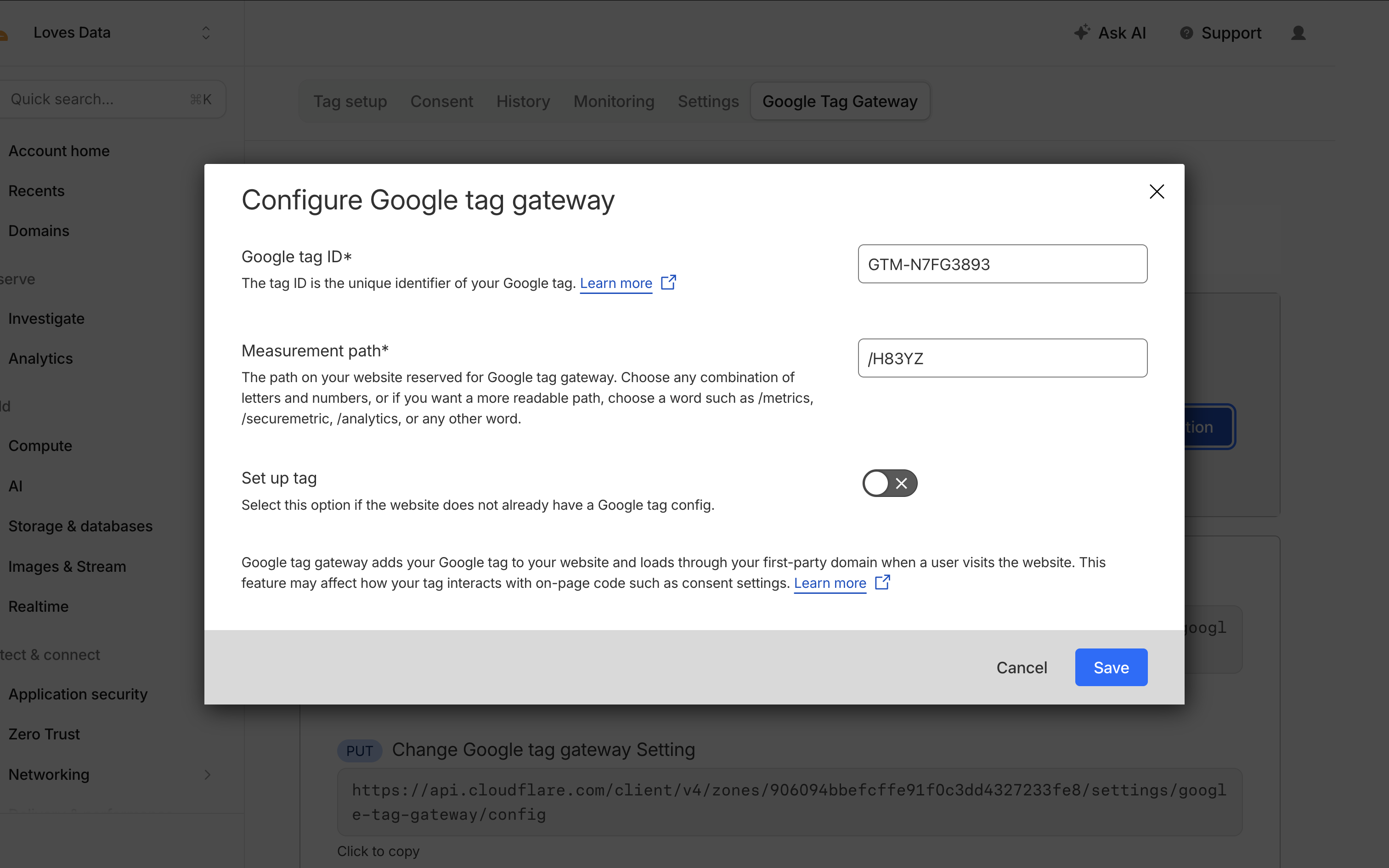
When configuring the feature in Cloudflare, you can also use Cloudflare to set up the associated Google tag automatically. If you already have the same Google Tag Manager container installed independently on your website, check the resulting implementation carefully so the container is not loaded twice.
Cloudflare configures Google Tag Gateway at the zone level. This means enabling it for a domain also applies to hostnames and subdomains within that zone. You cannot currently enable or disable it independently for individual subdomains. If tags should only fire on particular hostnames, use trigger conditions in Google Tag Manager.
Manual and Self-Service Setup
If you cannot use one of the built-in integrations, Google also provides a self-service setup option.
A manual implementation is more involved. You need to configure your CDN, load balancer or web server to forward the measurement path to Google, and you need to update the applicable Google tag or Google Tag Manager scripts so they use that path.
If the script source is not updated in a manual implementation, the browser will continue loading the tag directly from Google and bypass the measurement path.
You can find the latest Google Tag Gateway setup instructions here.
Validate the Setup
Once everything is configured, use both your browser’s developer tools and Tag Assistant to verify the implementation.
First, open the ‘Network’ tab in your browser’s developer tools and reload your website. Check that your Google Tag Manager container is loading using the measurement path on your domain instead of directly from googletagmanager.com.
You should also see eligible measurement requests using your domain. Remember that not every request will necessarily use the measurement path, so seeing some requests sent directly to Google does not automatically mean there is a problem.
Next, use Tag Assistant:
- Make sure the GTM container has at least one tag that fires.
- Open Tag Assistant, enter your website URL and click ‘Connect’.
- Navigate through your website to trigger your tags.
- Return to Tag Assistant and check the source information for your tag. When the gateway is being used, Tag Assistant can show that the tag was loaded by Google Tag Gateway along with your measurement path.
- You can also navigate to ‘Output’ and select ‘Hits Sent’ to confirm that eligible hits are being routed through your measurement path.
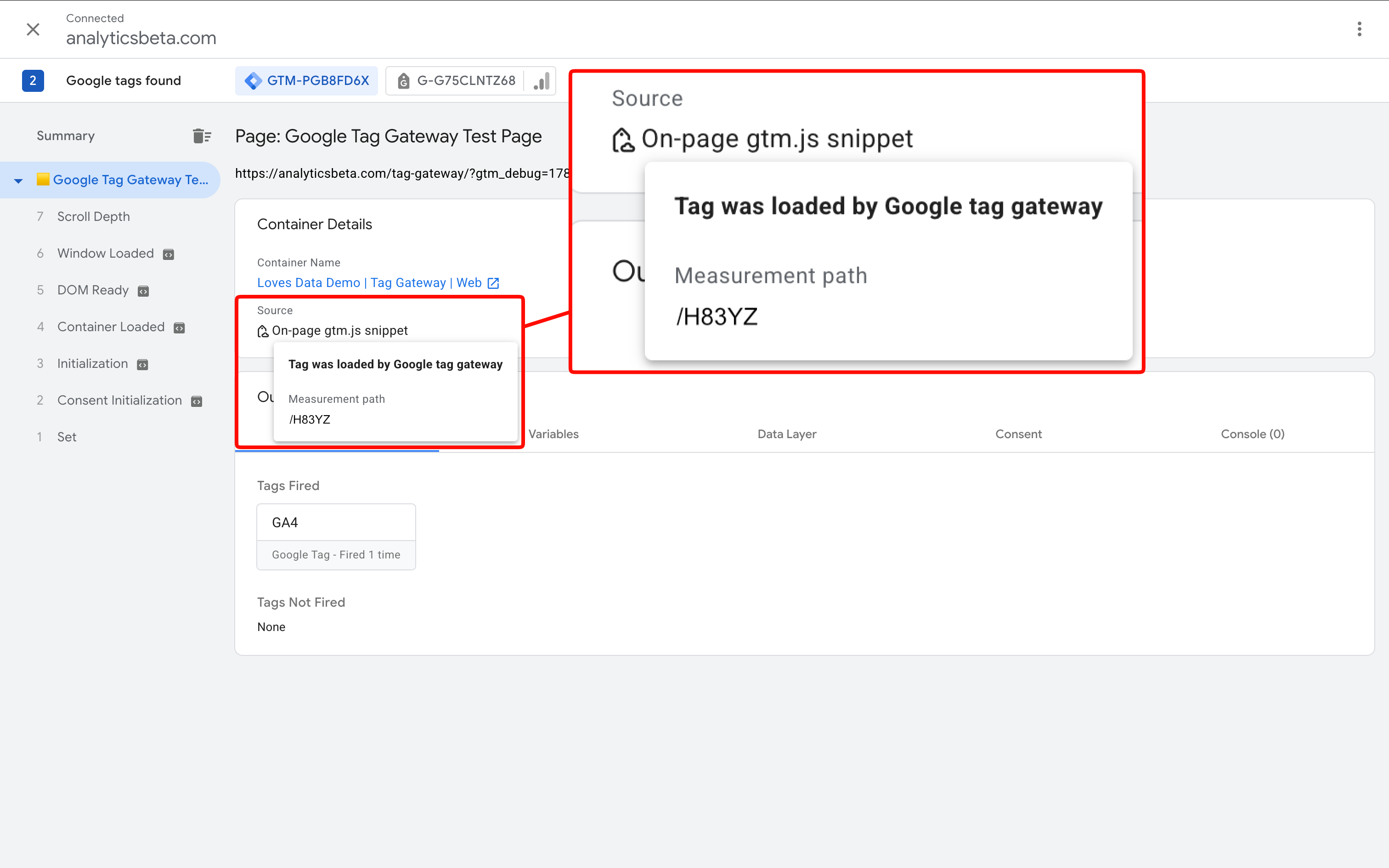
Finally, check your Google Analytics and Google Ads diagnostics after data has had time to process. This can help you catch unexpected changes to measurement after enabling the gateway.
Case Study: Does Google Tag Gateway Bypass Ad Blockers?
In August 2025, I tested Google Tag Gateway with Adblock Plus, uBlock Origin Lite, DuckDuckGo Privacy Essentials, AdBlocker Ultimate and Ghostery. I compared a standard setup with two gateway configurations: one using the default GTM container code and another with the container code updated to use the first-party domain.
| Browser Extension | Standard Setup | Gateway: Default Snippet | Gateway: First-Party Snippet |
|---|---|---|---|
| Adblock Plus | GTM loaded and GA4 recorded | GTM loaded and GA4 recorded | GTM loaded and GA4 recorded |
| uBlock Origin Lite | Blocked | Blocked | Blocked |
| DuckDuckGo Privacy Essentials | Blocked | Blocked | Blocked |
| AdBlocker Ultimate | Blocked | Blocked | Blocked |
| Ghostery | Blocked | Blocked | Blocked |
In my test, Google Tag Gateway did not bypass any extension that blocked the standard setup. Adblock Plus allowed both the standard and gateway configurations, while uBlock Origin Lite, DuckDuckGo Privacy Essentials, AdBlocker Ultimate and Ghostery continued to block measurement.
DuckDuckGo Privacy Essentials produced a particularly interesting result. The gateway request returned a successful 200 response, but the extension still reported it as blocked. The GTM scripts did not load and GA4 measurement remained blocked.
These findings should not be treated as a universal result. Browser extensions and their filter lists change regularly, and results can vary depending on the browser, extension version, measurement path and implementation. This test reflects the extension versions available in August 2025. Google Tag Gateway can improve measurement resilience, but it should not be treated as a reliable way to bypass ad blockers.
Did Google Tag Gateway Increase Reported Users?
In a separate real-world comparison, I observed an increase of almost 7% in reported users after enabling Google Tag Gateway. This result is consistent with the gateway recovering measurement signals that might otherwise have been missed. However, it does not mean that the gateway bypassed the ad blockers tested above, and the same uplift should not be expected on every website.
Treat this as one practical case study rather than a universal benchmark. If you enable the feature, annotate the implementation date and compare a sufficiently long period before and after the change. Consider changes in traffic sources, consent rates, browsers, devices and marketing activity before attributing an uplift entirely to the gateway.
Best Practices and Considerations
- Choose an unused path. The measurement path must not conflict with an existing page, directory, redirect, script or application route on your website.
- Use the path configured for your website. Do not copy an example measurement path from a tutorial. Use the path shown when you configure Google Tag Gateway.
- Check where GTM loads from. After setup, use your browser’s developer tools to confirm whether the container is loading through your measurement path or directly from Google.
- Avoid duplicate containers. If you use Cloudflare to add your GTM container automatically, make sure you do not also load a second copy independently.
- Do not rely on obscurity. A random-looking path may avoid simple path-based filter rules, but sophisticated blockers can identify requests in other ways. It is not a substitute for consent or compliant measurement.
- Review Consent Mode. Enabling the gateway can affect tag firing behavior. Test each consent state and confirm tags do not fire in ways that contradict the visitor’s choice.
- Expect some direct Google requests. Not every measurement request will necessarily use your first-party domain.
- Test before and after launch. Use Tag Assistant and browser developer tools, then check Google Analytics and Google Ads diagnostics after data has had time to process.
- Check subdomains. Cloudflare’s configuration is zone-wide. Use GTM triggers if different hostnames need different tag behavior.
- Be careful with manual implementations. Self-service setups require additional configuration, including forwarding requests correctly and handling regional information as required by Google.
How Does Google Tag Gateway Compare to Server-Side GTM?
Google Tag Gateway and server-side Google Tag Manager can both use first-party infrastructure, but they solve different problems.
Google Tag Gateway focuses on durable delivery of Google tags and eligible measurement requests. Server-side GTM gives you a server container where you can inspect, validate, transform, enrich and route incoming requests.
The Cloudflare gateway integration is usually faster to implement and requires less maintenance. Server-side GTM is more flexible, but it requires hosting, configuration and ongoing management. It can also support broader use cases and destinations beyond the Google tags covered by the gateway.
These options are not mutually exclusive. Google provides an implementation path for using Google Tag Gateway together with server-side GTM and recommends combining first-party script delivery with server-side tagging for applicable implementations.
Comparison: Google Tag Gateway vs Server-Side GTM
| Feature | Google Tag Gateway for advertisers | Server-Side GTM |
|---|---|---|
| Primary purpose | First-party delivery of Google tags and eligible measurement requests | Process and route measurement requests through a managed server container |
| Setup complexity | Low with a supported integration | Higher; requires hosting and configuration |
| Uses your domain | Yes | Yes, when a custom domain is configured |
| Custom request handling | Limited | Yes; validate, transform, enrich and filter requests |
| Third-party destinations | Not the main use case | Supported through server-side tags and templates |
| Hosting and maintenance | Minimal with a supported integration | Requires a server environment and ongoing management |
| Can work together | Yes. Google provides an implementation path for using Google Tag Gateway with server-side GTM. | |
Conclusion
Google Tag Gateway provides a relatively simple way to load Google tags and route eligible measurement requests through your own domain. It can improve measurement resilience without requiring you to build a standalone server-side tagging environment, and the Cloudflare integration is free to use.
If you already have Google Tag Manager installed directly on your website, make sure you check where the container is actually loading from after enabling the gateway. If it is still loading directly from Google, you can either update your existing container code to use your measurement path or configure Cloudflare to add the container automatically.
Whichever approach you use, validate the setup with your browser’s developer tools and Tag Assistant. And remember that some measurement requests can still be sent directly to Google – this is expected behavior.
Google Tag Gateway is not a complete solution to ad blocking, consent or data governance. Test the implementation carefully, confirm that consent behavior remains correct, and measure the result on your own website. In my separate real-world comparison, I observed an increase of almost 7% in reported users, but your result may be different.
If you’d like to learn more about Google Tag Manager and advanced tagging, check out my Google Tag Manager Course.