
Access the Google Analytics Demo Property in Data Studio
 Benjamin Mangold
If you're trying to connect the Google Analytics demo property to Data Studio (previously Looker Studio and before that Google Data Studio), you might notice that it doesn't appear when you create a report. This might catch you out, especially if it's your first time trying to use the demo property in Data Studio.
The good news is that the solution is simple. Before you can use the demo property in Data Studio, you first need to access it in Google Analytics. Once you've done that, the property will become available when you create a Google Analytics data source.
Why the demo property isn't available
The first time you access the Google Analytics demo property, it becomes available to use with your Google account. Until you've opened the demo property in Google Analytics, it won't appear as an available data source in Data Studio.
This is why many people are unable to find the demo property when they create a new report.
How to access the Google Analytics demo property
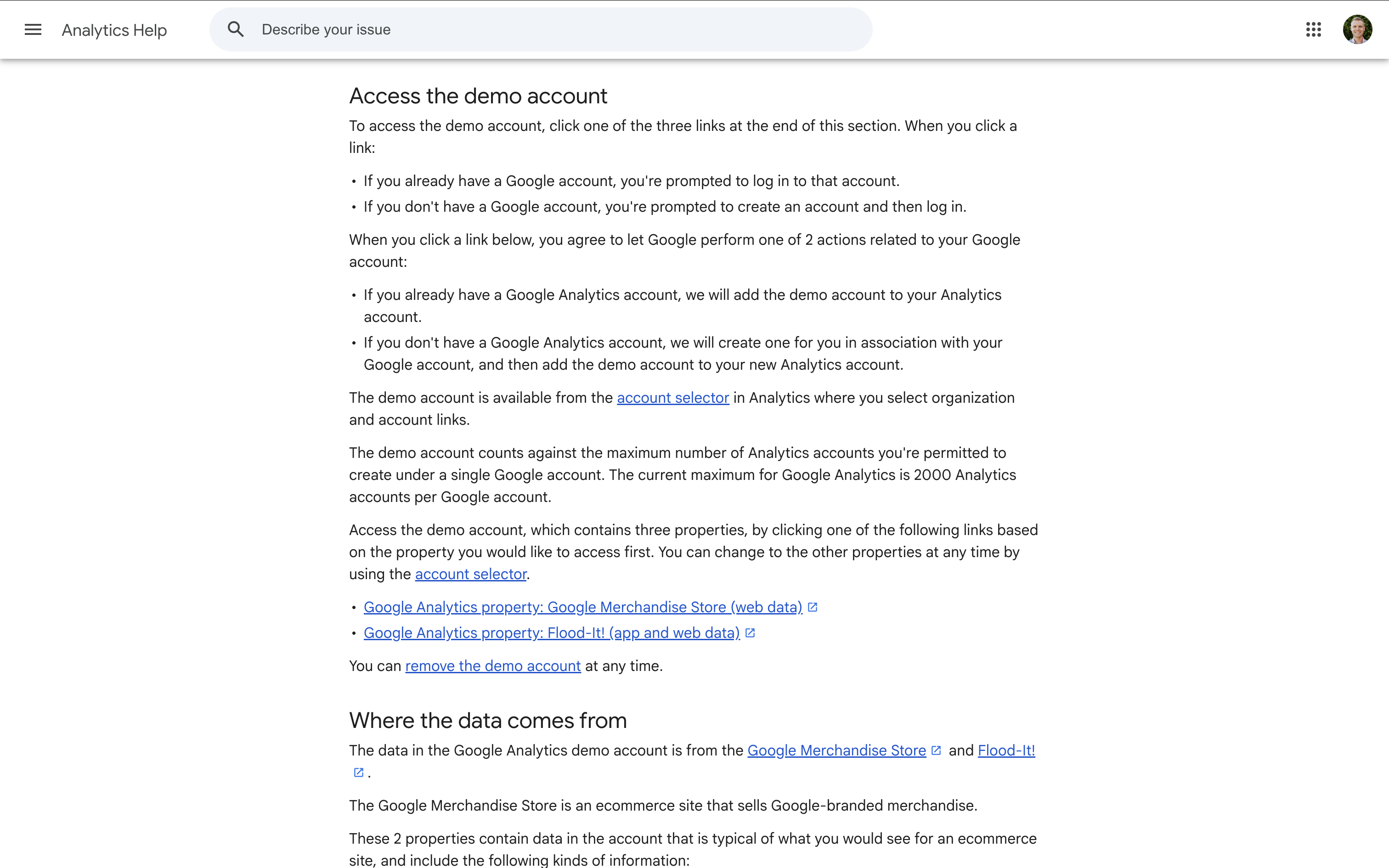
Follow these steps to make the demo property available:
- Get the links to the Google Analytics demo properties.
- Click the link to access the website demo.
- If prompted, sign in using the same Google account you'll use with Data Studio.
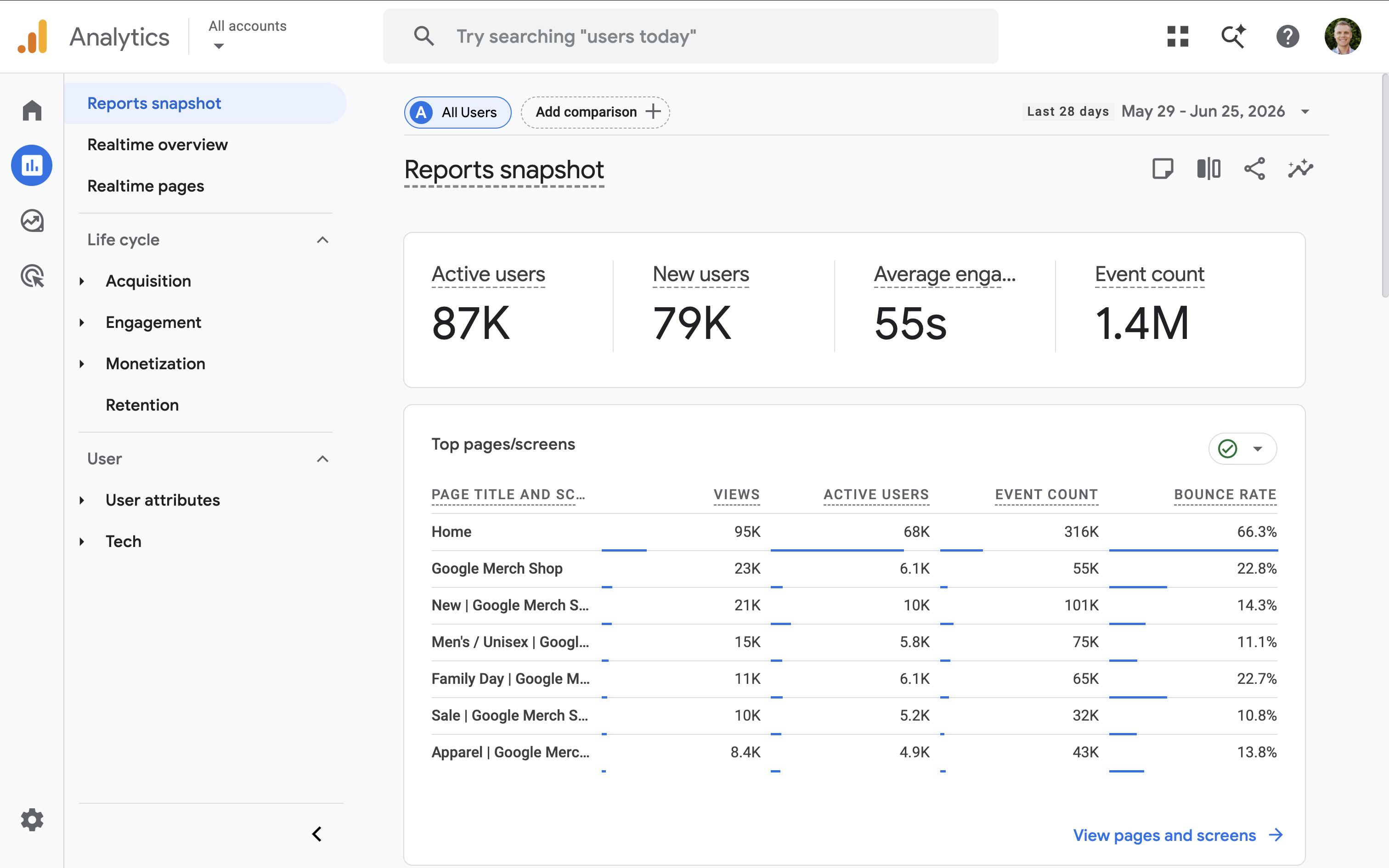
- Wait for the Google Merchandise Store demo property to open in Google Analytics.
That's it! You only need to do this once for each Google account.
Connect the demo property to Data Studio
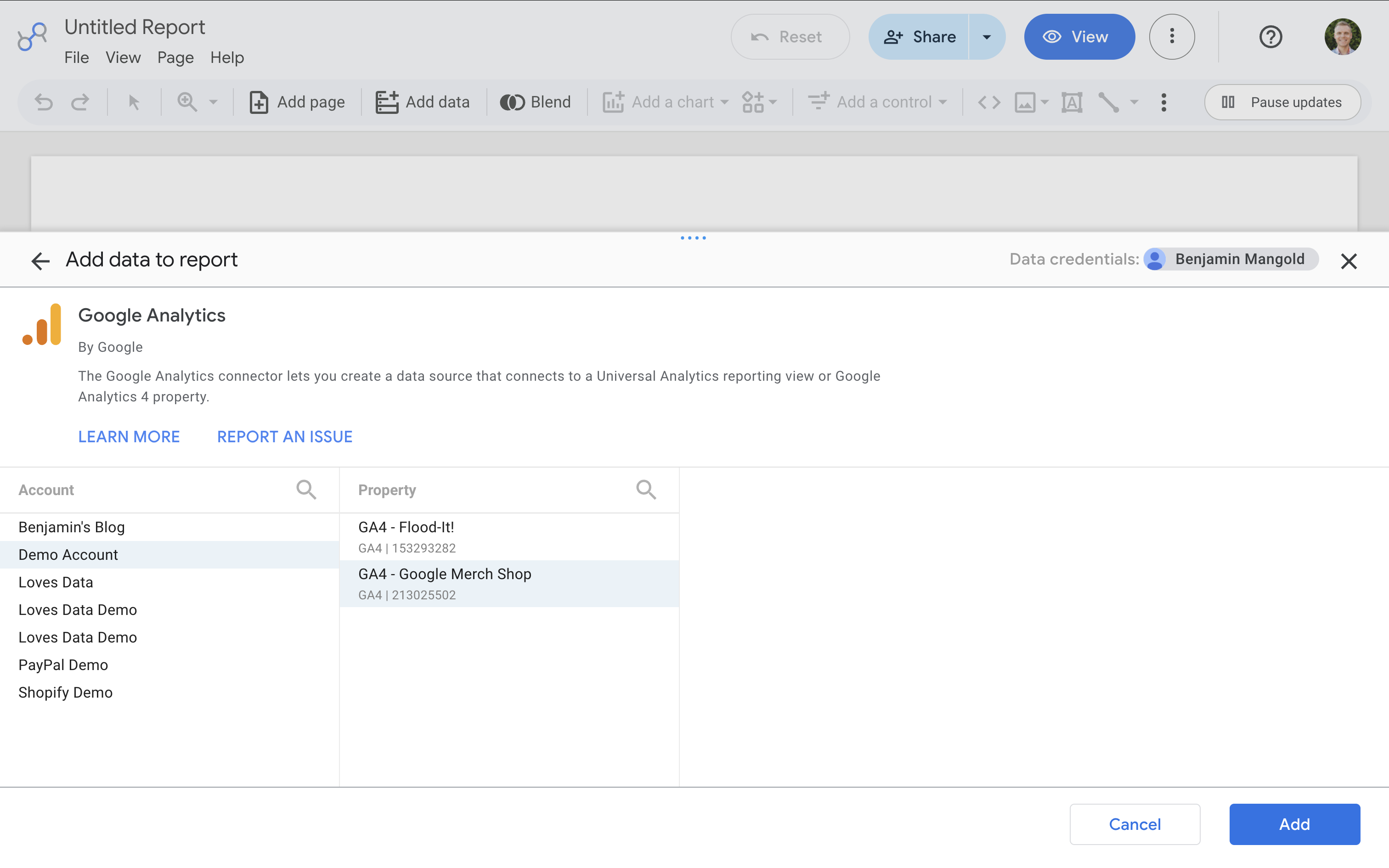
Once you've accessed the demo property, you're ready to connect it to Data Studio.
- Head to Data Studio.
- Create a new report or open an existing report.
- Select 'Add Data'.
- Choose the 'Google Analytics' connector.
- Select the account called 'Demo Account' and then choose the property for the Google Merchandise Store.
- Click 'Add' to connect the data source.
If you still can't see the demo property, try refreshing your browser or signing out and back into Data Studio. Occasionally, it can take a minute or so before the property becomes available.
Tip: Make sure your accessing Data Studio with the same Google account you used to access the Google Analytics demo property.
Understanding API quota limits
One thing to keep in mind is that the Google Analytics demo property is shared by thousands of people around the world. Because of this, it can occasionally reach its Google Analytics Data API quota.
When this happens, Data Studio might display an error instead of your report data, even though everything has been configured correctly.
Unfortunately, there isn't a way to avoid this when using the shared demo property. If the API quota has been exhausted, you'll simply need to wait until quota becomes available again.
If you encounter API quota errors, you can:
- Wait a while and refresh your report later.
- Connect your report to one of your own Google Analytics properties if you have one available.
Remember: If you're following one of my tutorials and see an API quota error in Data Studio, it means the shared demo property has simply reached its usage limit.
Final thoughts
The Google Analytics demo property is one of the best ways to learn Google Analytics and practice creating reports in Data Studio. It gives you access to real ecommerce data without needing to use your own website or business.
Just remember that you need to access the demo property in Google Analytics before it becomes available in Data Studio. And if you encounter API quota errors, don't worry, it's a limitation of the shared demo property rather than a problem with your report.
If you'd like to learn more about creating reports and dashboards, be sure to check out my Google Data Studio tutorial and Google Analytics tutorial.