
How to Track AI Traffic in GA4 (Step‑by‑Step)
 Benjamin Mangold
I get it. Keeping up with AI-driven traffic can feel a bit overwhelming. In this guide, we’ll look at how to find AI traffic in Google Analytics and create custom reports that help you understand which tools are sending people to your website.
Google Analytics now includes an ‘AI Assistant’ channel for traffic from recognized tools like ChatGPT, Gemini, and Claude. If you just want a quick overview, that’s a useful place to start. You don’t need to create anything custom to see this traffic.
But you might want to include additional sources, report on AI sources in your historical data, or create a custom report for your team. We’ll briefly cover the built-in option, then work through three custom reporting options you can choose from.
Table of Contents
- What You Can Learn From AI Traffic Reports
- Start With the Built-In AI Assistant Channel
- Create an Exploration for AI Traffic
- Create a Custom Report in the Library
- Build a Custom Channel Group for AI Traffic
- Analyze Your AI Traffic
- Put Your AI Reports to Use
What You Can Learn From AI Traffic Reports
Looking at your AI traffic separately helps you answer practical questions: Which AI tools send engaged visitors? Which pages do they land on? Are they completing key events, like making a purchase or submitting an inquiry?
The answers will depend on your website. Rather than assuming AI visitors are more valuable than visitors from other channels, you can use your reports to see how they engage with your content and whether they take the actions that matter to your business.
You can use an exploration for flexible analysis, a custom standard report for a saved view in your reporting menu, or a custom channel group to compare your chosen AI sources with other channels. You can follow whichever option suits your needs, with examples and regular expressions you can adjust for your website.
You can also watch my tutorial on reporting on AI traffic:
Start With the Built-In AI Assistant Channel
Let’s start by checking the AI traffic Google Analytics automatically identifies in your reports:
- Navigate to ‘Reports’ and select ‘Traffic acquisition’ under ‘Acquisition’.
- Ensure ‘Session default channel group’ is selected as the dimension above the table and look for ‘AI Assistant’.
- Select the plus icon next to the dimension picker and add ‘Session source / medium’ as a secondary dimension.
- Review the sources listed alongside ‘AI Assistant’ to see which tools are sending traffic.
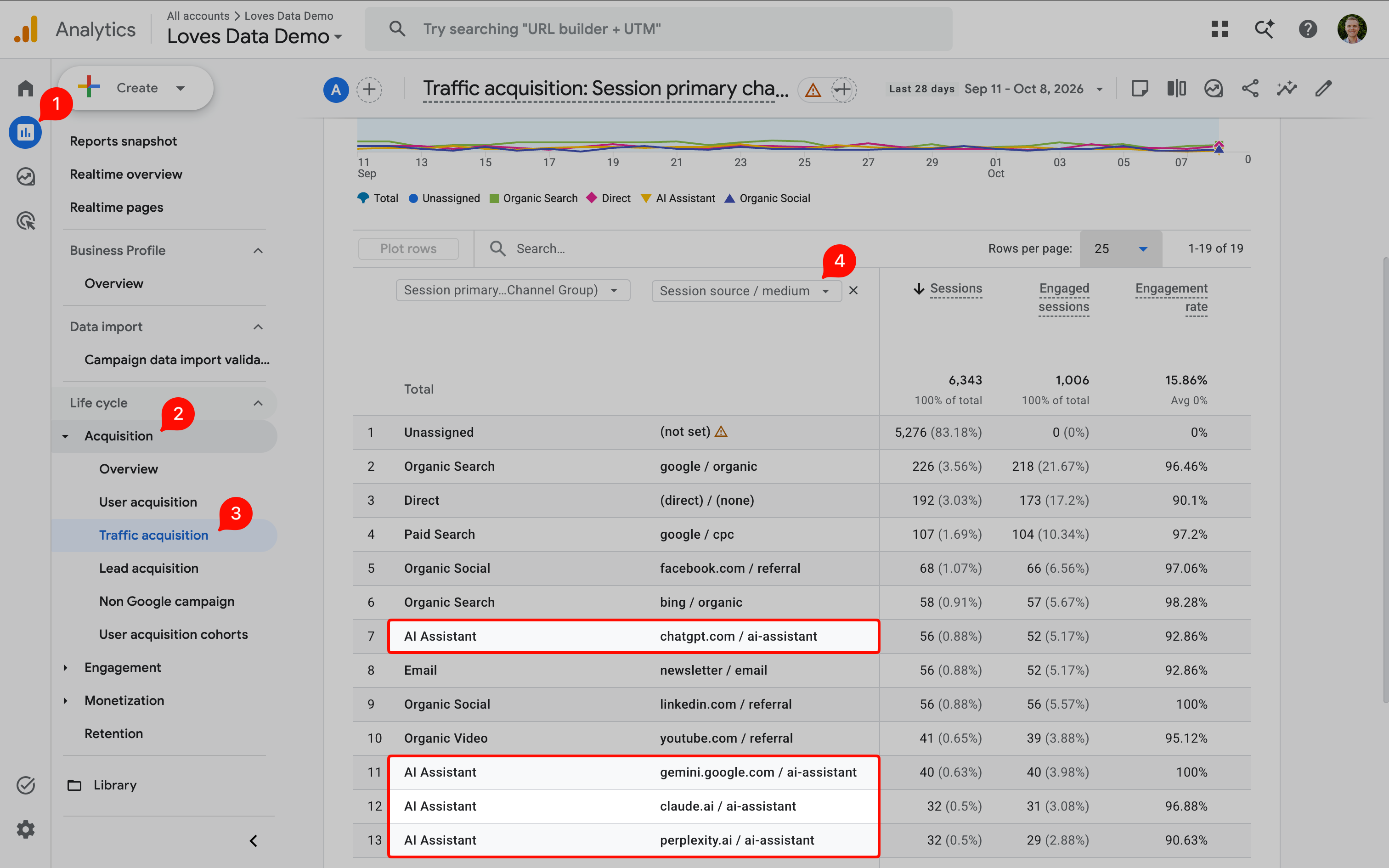
This will give you an overview of your AI traffic. Just remember, that this won’t include visits from Google’s AI Overviews or AI Mode, which are included in ‘Organic Search’.
For an in-depth explanation of what’s included, see my guide to the AI Assistant channel in Google Analytics.
If you want to include AI sources recorded in other channels or historical data, you can change the primary dimension to ‘Session source / medium’ and check the values in your report. For example, you might find chatgpt.com / ai-assistant alongside older visits recorded as chatgpt.com / referral. Use the source values you find to choose what to include in the custom options below.
Create an Exploration for AI Traffic
If you’d like to choose your own AI sources and compare their engagement or key events, an exploration gives you a flexible way to do that. Let's cover the steps to create a simple table you can save, reuse, and adjust as you find new sources.
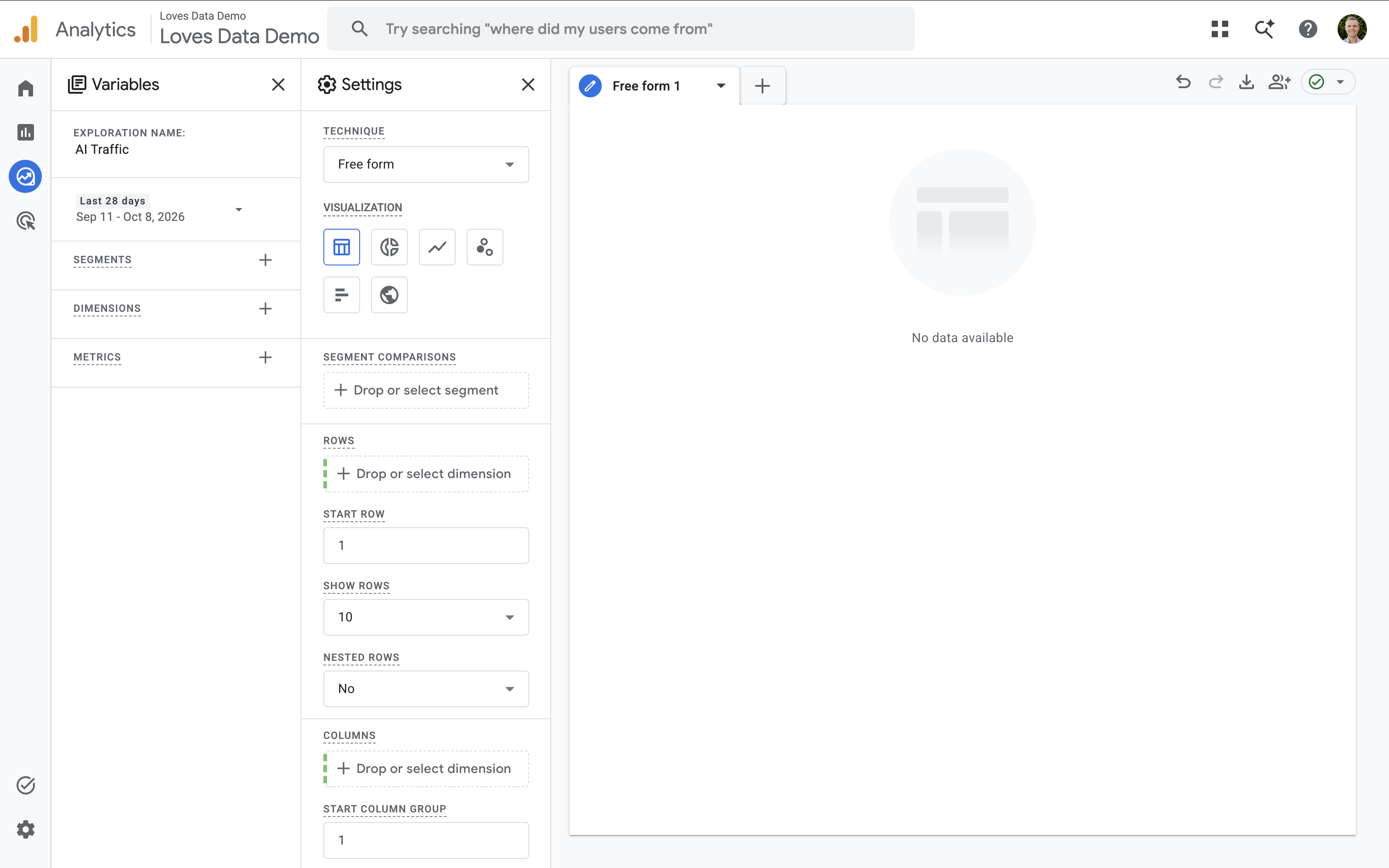
Step 1: Create a Blank Exploration
Navigate to ‘Explore’ and select ‘Blank’. Give your exploration a short, descriptive name, such as ‘AI Traffic’, and choose the date range you want to review.
Step 2: Add Dimensions and Metrics
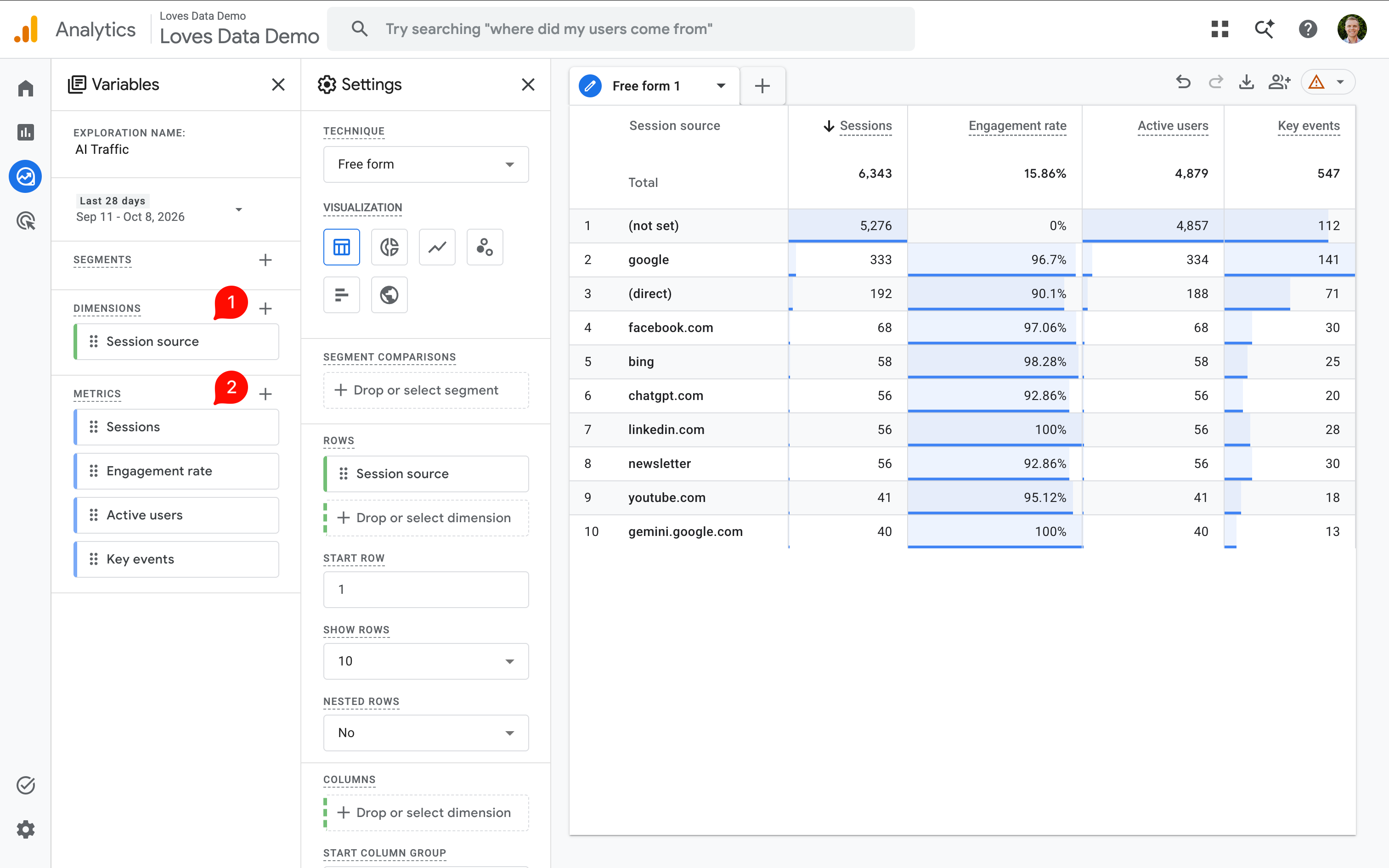
Select the plus icon next to ‘Dimensions’, choose ‘Session source’, and select ‘Import’. You can also import ‘Session source / medium’ if you want to display the medium alongside each source.
Select the plus icon next to ‘Metrics’ and import the metrics you want to review. For example, you could use ‘Sessions’, ‘Engagement rate’, ‘Active users’, and ‘Key events’.
In the ‘Settings’ column, add ‘Session source’ to ‘Rows’ and your metrics to ‘Values’. You can double-click them or drag them across from the ‘Variables’ column.
Step 3: Apply a Regular Expression Filter
A regular expression, or regex, is a pattern that lets you match several source values with one filter. This is useful when you want your report to include traffic from a selection of AI tools.
Under ‘Filters’ in the ‘Settings’ column, select ‘Session source’ and choose ‘matches regex’. Enter a pattern that matches the sources you want to include, then select ‘Apply’.
Here’s an example you can adjust:
^(chatgpt\.com|perplexity\.ai|gemini\.google\.com|claude\.ai|copilot\.microsoft\.com|deepseek\.com|grok\.com)$The vertical bars mean “or”, so the filter includes any of the listed sources. The backslashes make the periods match literal periods, while ^ and $ keep the match to the complete source value.
Use the exact values you found in your reports. For example, this pattern includes chatgpt.com, but not www.chatgpt.com. If your property records the second value, add it to your pattern.
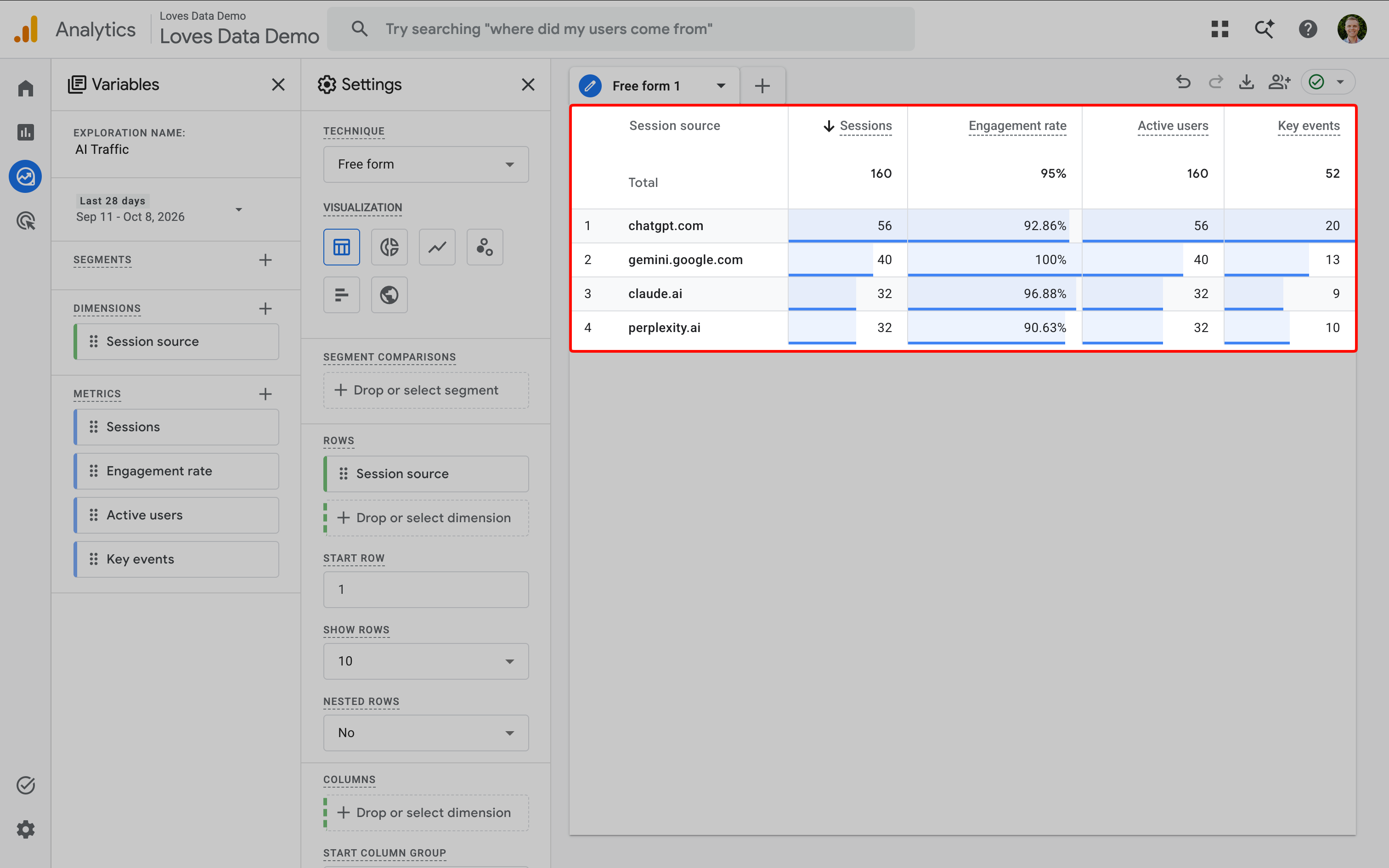
Step 4: Check and Refine Your Report
Your table should now show only sources that match your filter. Review the rows to confirm you’ve included the sources you intended.
If a source is missing, temporarily remove the filter and check its exact recorded value. Look for differences in spelling, capitalization, or subdomains, then update your pattern. For case-sensitive matching, the capitalization in your pattern needs to match your data.
If you see no data, also check the date range. Explorations can only use the event data available under your property’s data retention settings, so their historical coverage can differ from standard reports.
Create a Custom Report in the Library
If you’d like a saved view your team can find in the reporting menu, a custom standard report is a useful option. We’ll use the same source filter as the exploration, so you can review your selected AI traffic without opening ‘Explore’.
You’ll need editor or administrator permission for the property to create the report and add it to the menu.
Step 1: Open the Library
Navigate to ‘Reports’ and select ‘Library’ at the bottom of the menu.
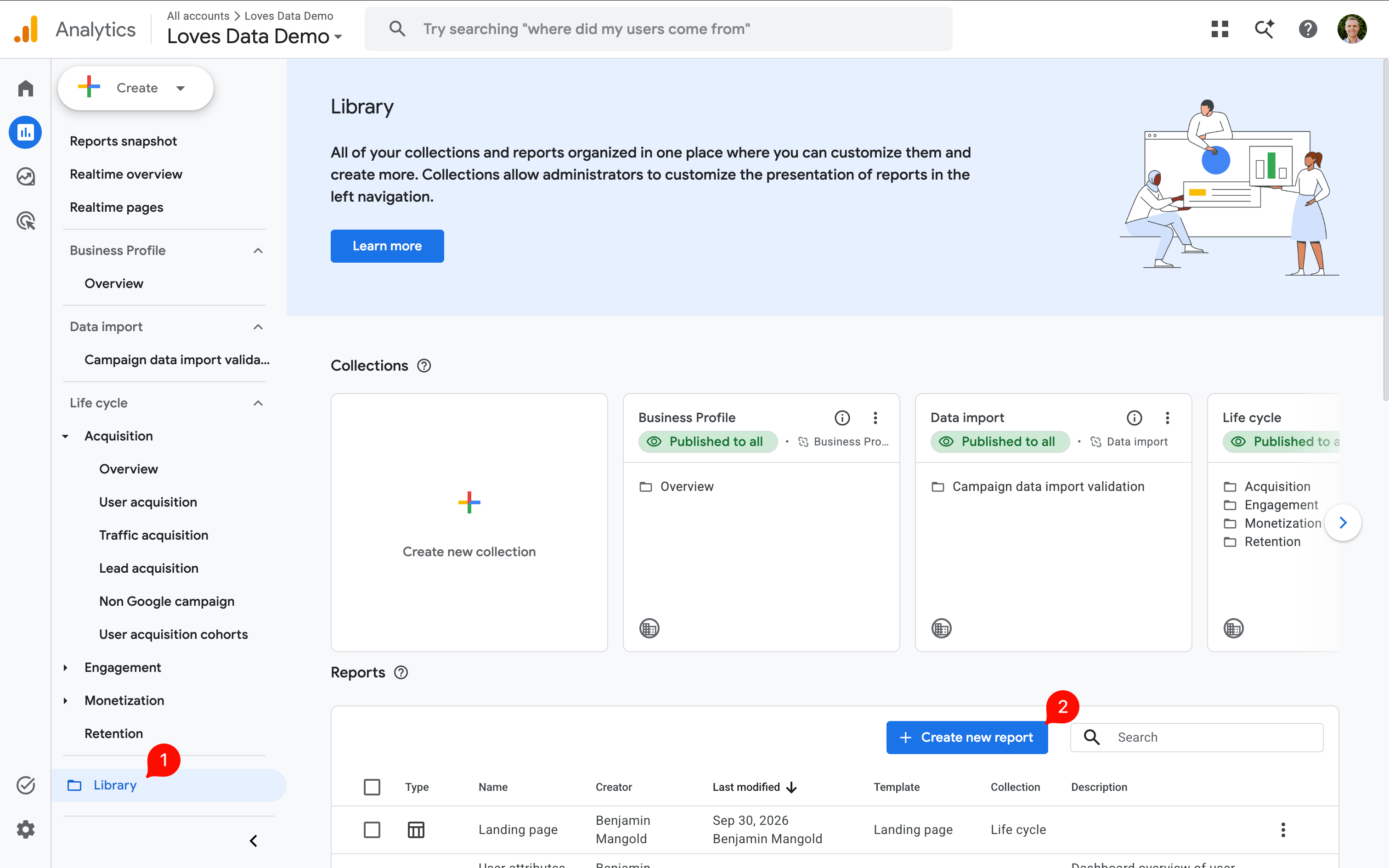
Step 2: Create a Traffic Acquisition Report
Select ‘Create new report’, then ‘Create detail report’. Choose the ‘Traffic acquisition’ template as your starting point.
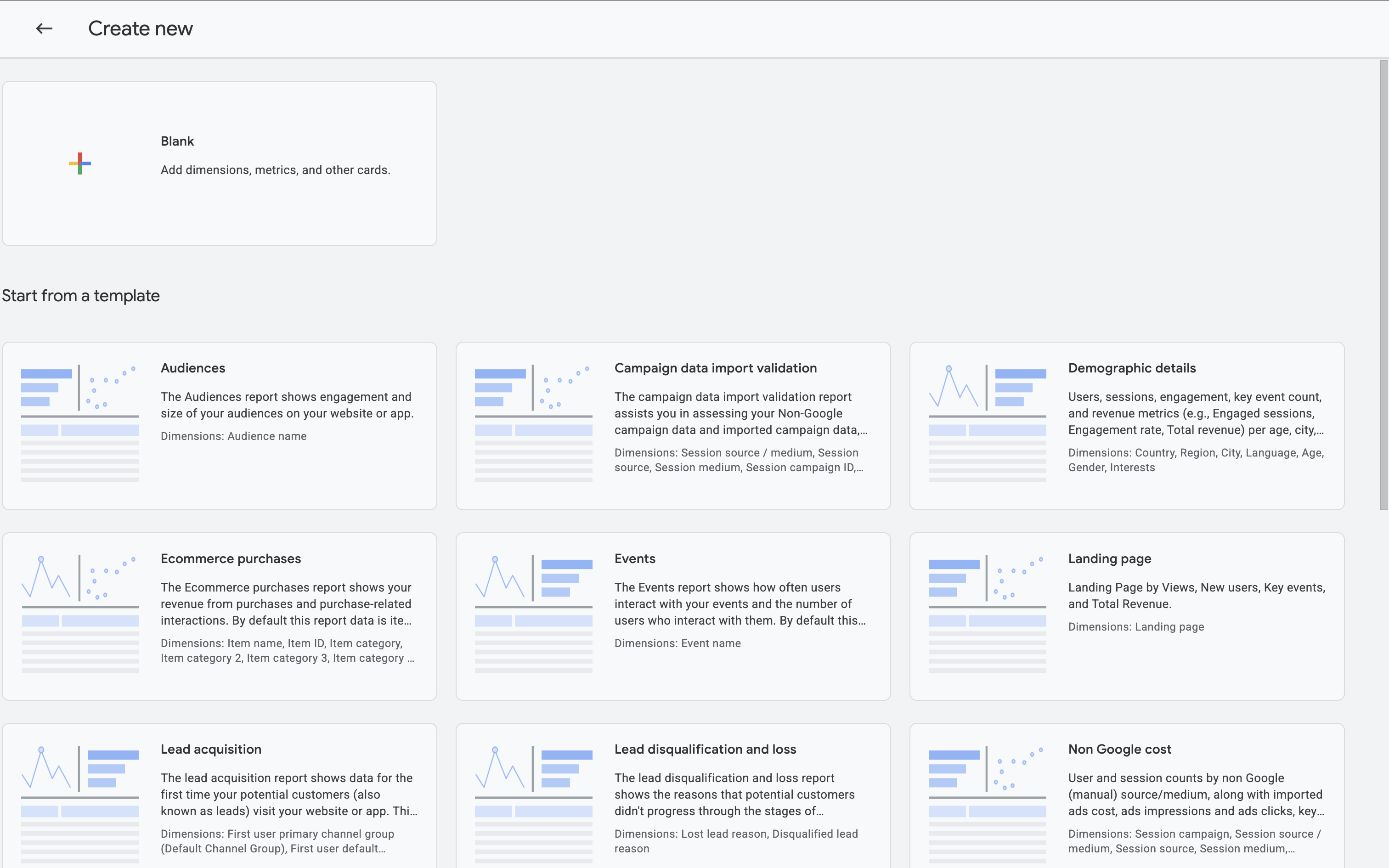
Step 3: Customize the Report and Filter
In the ‘Customize report’ panel, open ‘Dimensions’ and set ‘Session source’ as the default. You can also include ‘Session source / medium’ in the dimension picker. Review ‘Metrics’ and include the measures you need, such as sessions, engagement rate, and key events.
Add a report filter that includes ‘Session source’, choose ‘matches regex’, and paste the same pattern you used in your exploration. Apply the filter and check the preview to make sure the report includes the sources you expect.
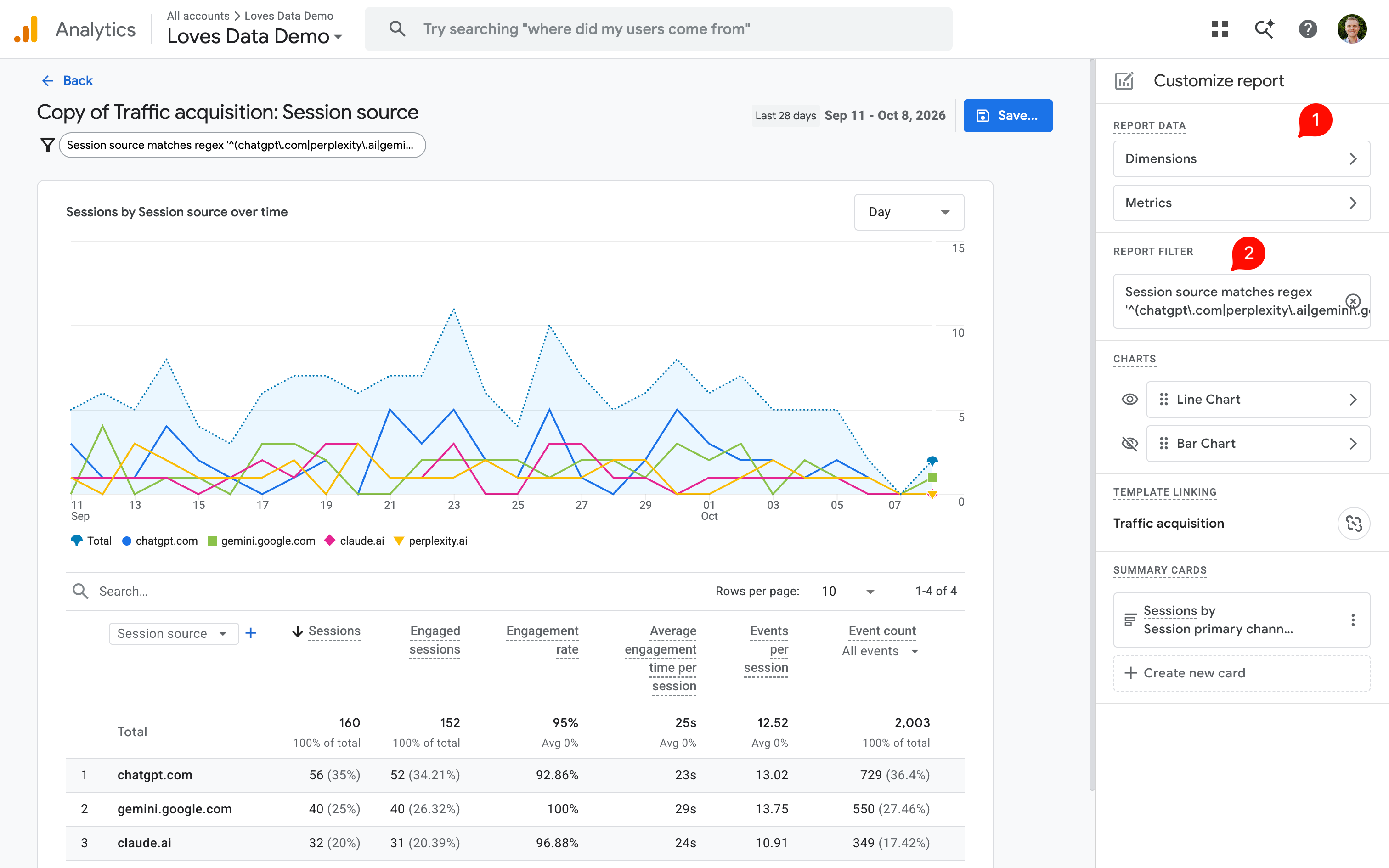
Keep the filter on ‘Session source’ even if you change the displayed dimension to ‘Session source / medium’.
Step 4: Save the Report and Add It to the Menu
Select ‘Save’ and give your report a name, such as ‘AI Traffic’.
Return to the ‘Library’ and edit the collection where you want the report to appear. Drag your new report into a topic in that collection and save your changes. If the collection is unpublished, open its three-dot menu and select ‘Publish’.
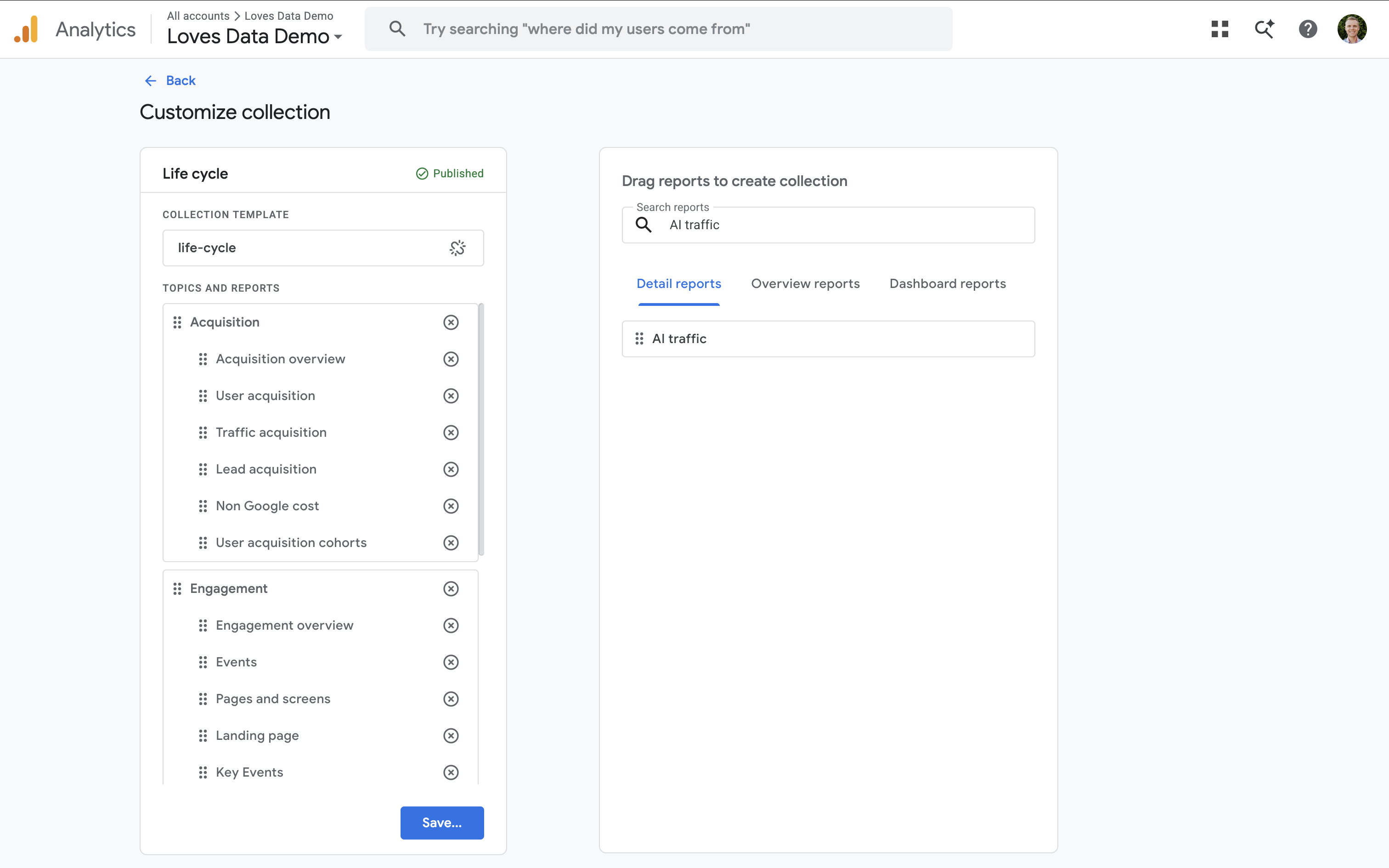
Open the report from the ‘Reports’ menu to confirm it’s available and displays your selected AI sources.
Build a Custom Channel Group for AI Traffic
If you’d like to compare your own selection of AI sources with your other marketing channels, you can create a custom channel group. For example, you could include AI sources recorded as referrals in older data.
We’ll create a separate group, so you can keep using Google Analytics’ default channel group too. You’ll need the Editor or Administrator role to complete these steps.
Step 1: Open Channel Groups
Navigate to ‘Admin’ and, under ‘Data display’, select ‘Channel groups’.
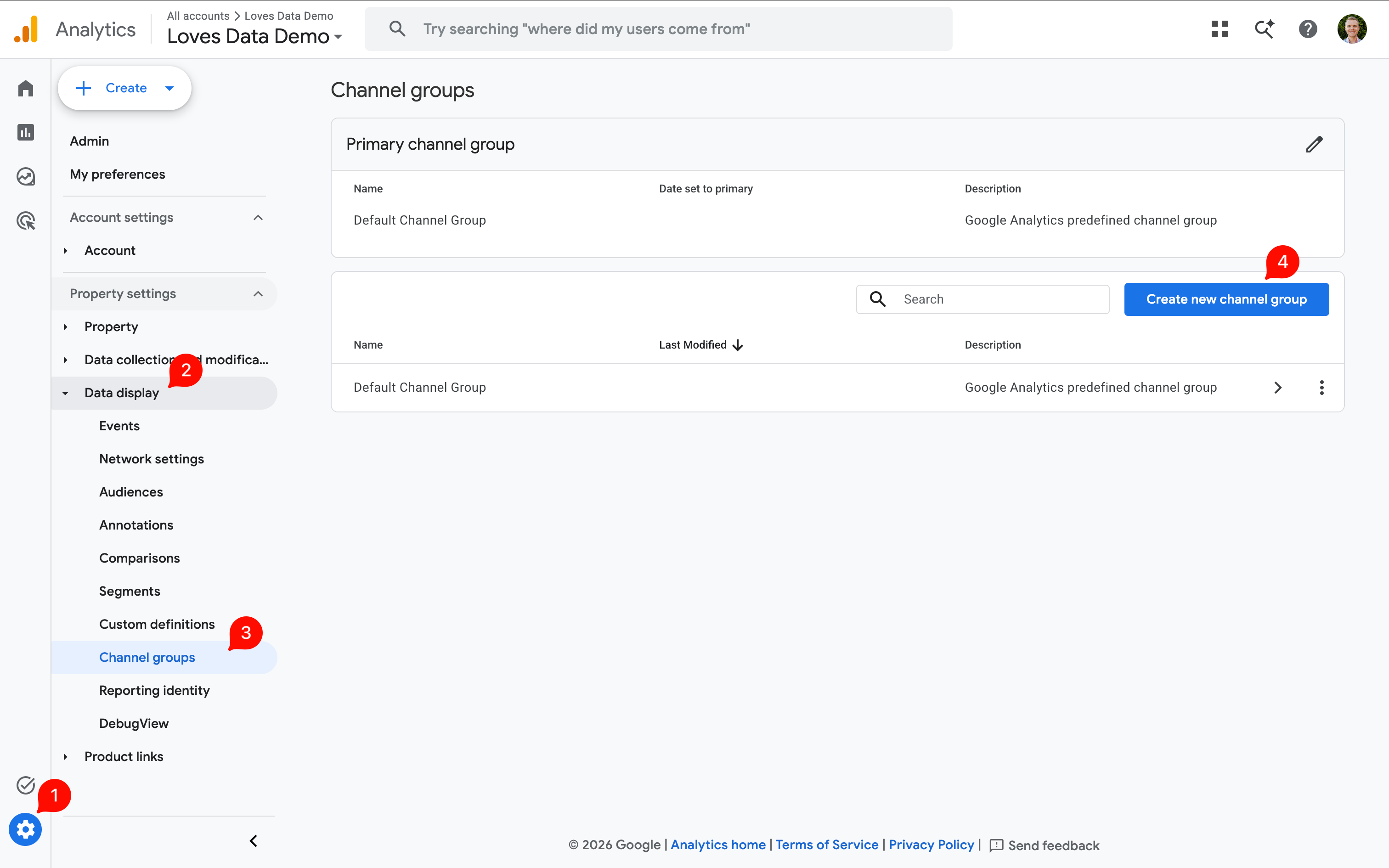
Step 2: Create a Copy of the Default Group
Select ‘Create new channel group’ to start with a copy of the default channel group. Give your group a descriptive name, such as ‘Default and AI Chatbots’.
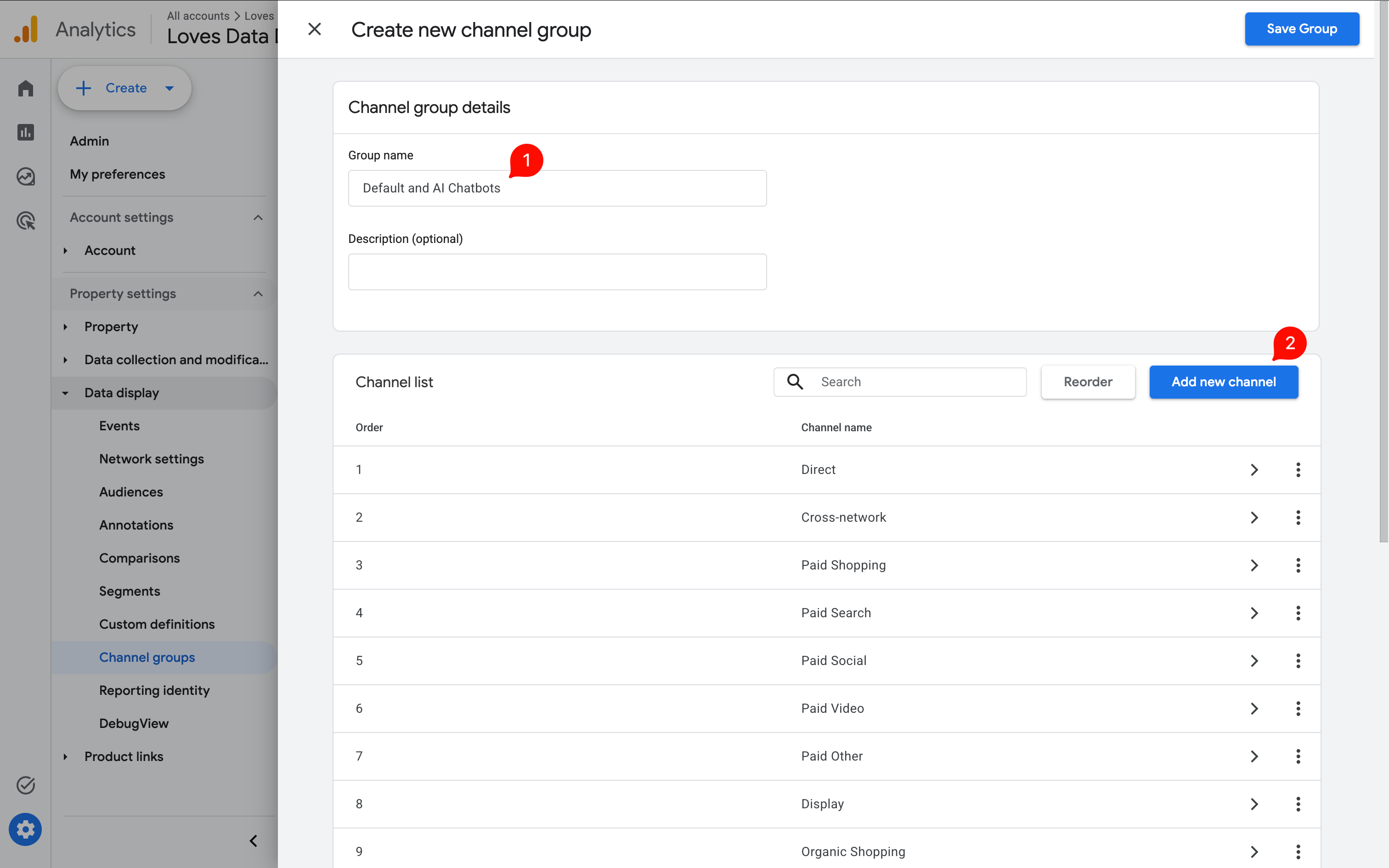
Step 3: Add Your Custom AI Channel
Select ‘Add new channel’ and name it ‘AI Chatbots’. Select ‘Add condition group’, choose ‘Source’, and use ‘matches regex’ to enter the pattern you used earlier. Save the channel.
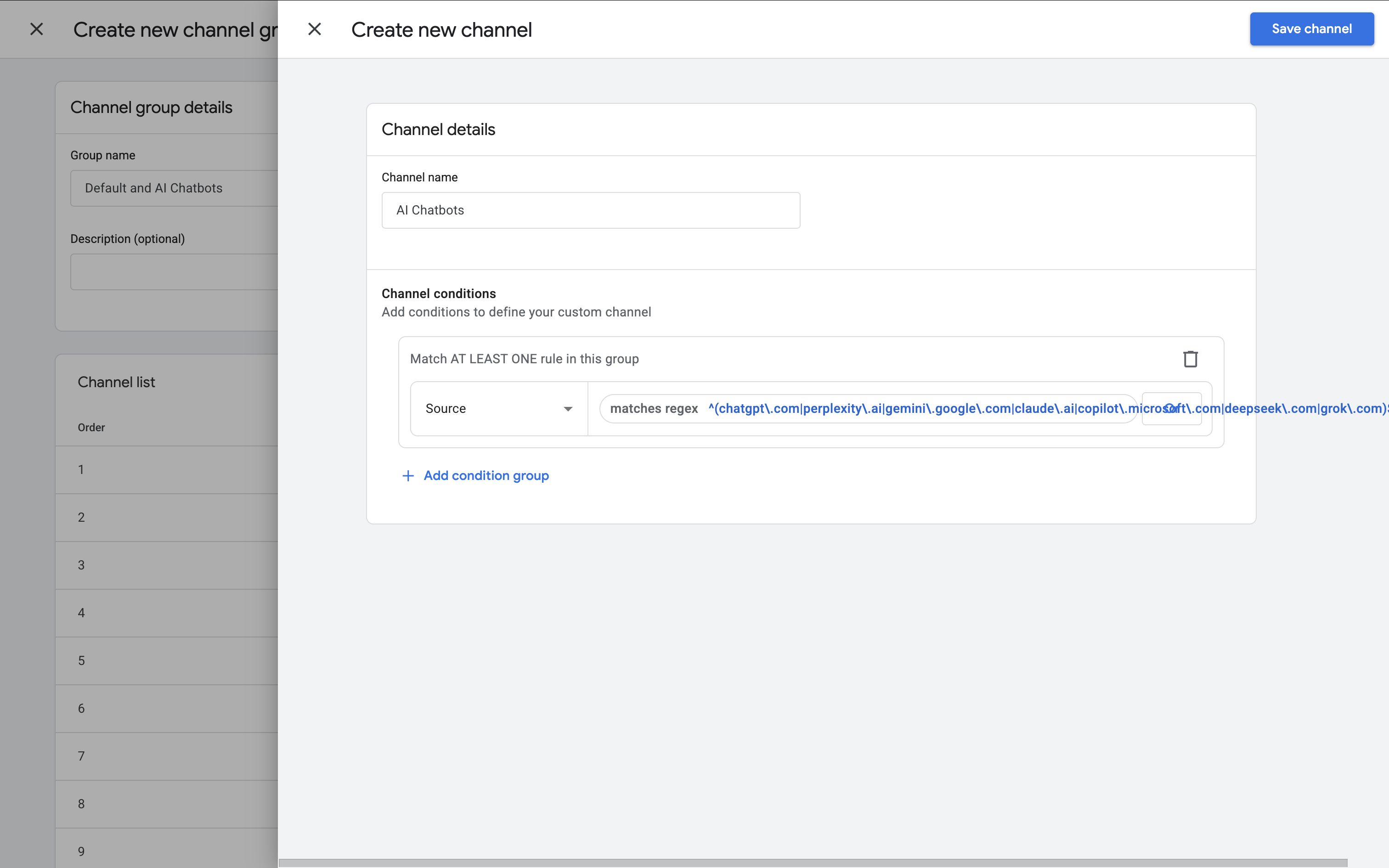
This channel uses your source list to define AI traffic. Review the list before saving it, since a visit from a company’s website isn’t necessarily a visit from its AI assistant.
Step 4: Reorder the Channels
Google Analytics checks the channels in order and uses the first one that matches. Place ‘AI Chatbots’ above other channels that could include the same traffic, including ‘AI Assistant’ and ‘Referral’.
Select ‘Reorder’, move ‘AI Chatbots’ above those channels, and select ‘Apply’.

Step 5: Save and Check Your Channel Group
Select ‘Save group’. Return to the ‘Traffic acquisition’ report and choose the session-scoped dimension for your new channel group from the dimension picker.
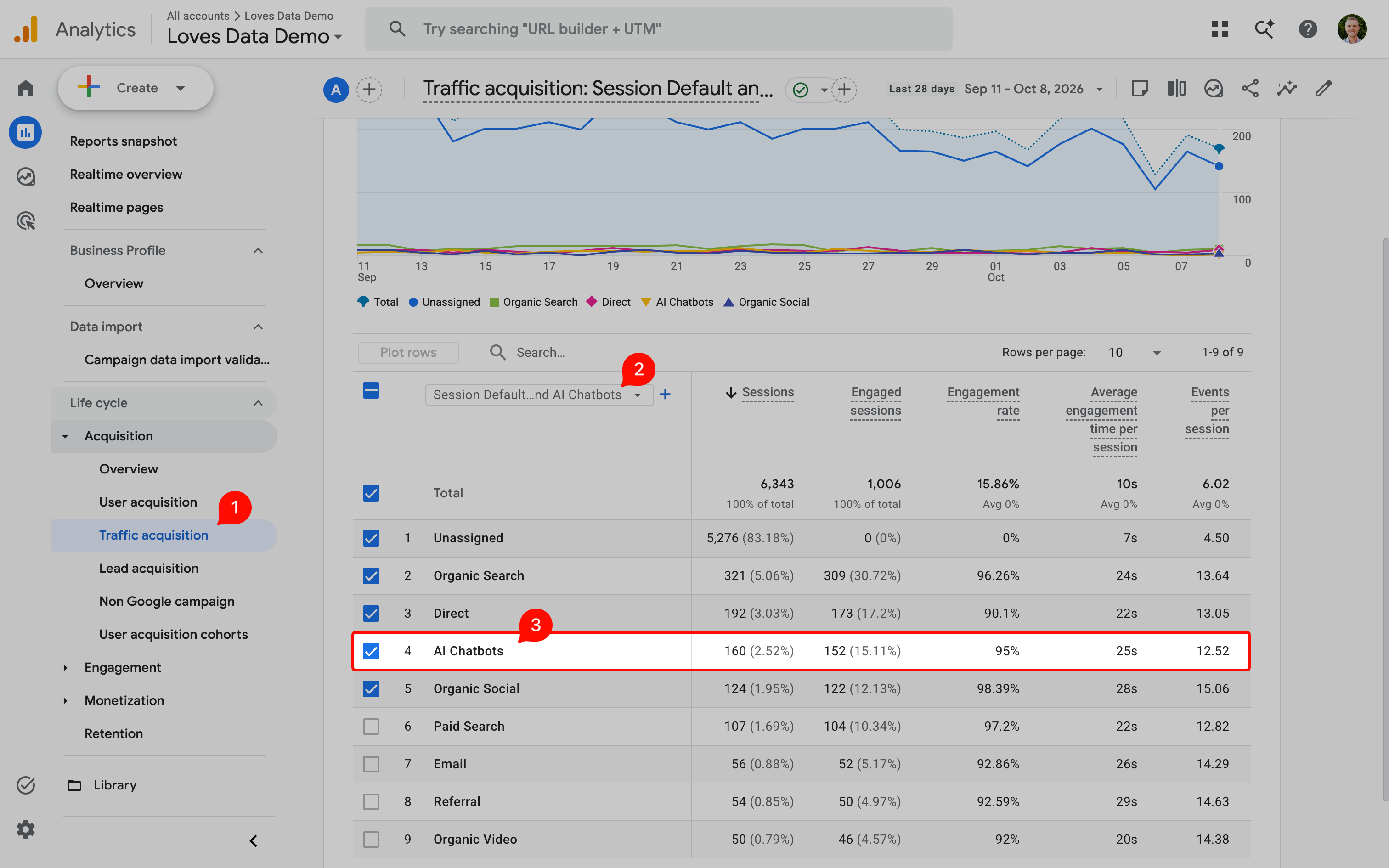
Add ‘Session source / medium’ as a secondary dimension and check the sources included in ‘AI Chatbots’. This helps you confirm that your rules are working as intended.
You can use the custom group to classify matching sources in historical report data. It works with the source values already recorded; it doesn’t recover missing AI referrers or change Google’s default channel group. Google explains how these rules work in its custom channel group documentation.
Analyze Your AI Traffic
With your reports in place, let’s look at what the data can tell you.
See Where AI Visitors Land
Review the pages receiving visits from your selected AI sources. Are people arriving on tutorials, product pages, or other content?
Open the ‘Landing page’ report and add ‘Session source / medium’ as a secondary dimension.
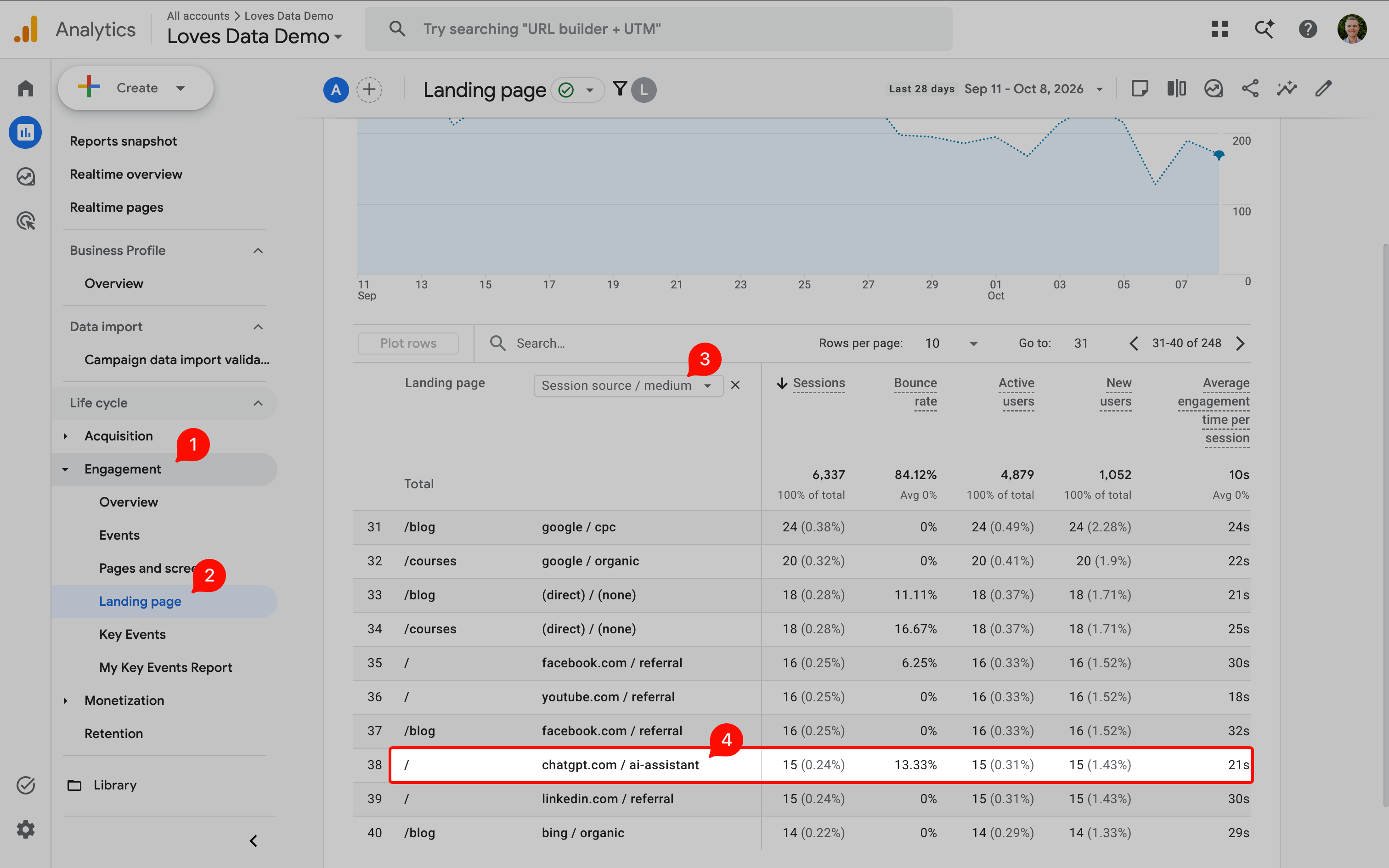
This shows which pages receive visits from that source. It doesn’t show how often an AI tool recommends a page without someone clicking through.
Use this as a starting point for reviewing those pages. Check whether the introduction answers the likely question, the next step is clear, and the content is current.
Compare Engagement and Key Events
Compare AI traffic with your other channels using engagement rate, average engagement time per session, and key event metrics.
For example, if AI visitors reach a product page but rarely complete a purchase, review the page and checkout process before deciding what to change. A report can highlight a difference, but it won’t explain the cause on its own.
When comparing outcomes, look at a rate as well as the total. ‘Session key event rate’ can help you compare the proportion of sessions that include a key event, even when channels send different amounts of traffic.
Keep Your Source List Current
AI platforms evolve, and so will the sources you see in Google Analytics. Check your source reports regularly and update your filters when you find additional sources you want to include.
If you change your definition, keep that in mind when comparing reports over time. A broader source list can change the traffic included in your analysis.
Common Mistakes to Avoid
- Using the wrong filter dimension: Apply the source-only regex to ‘Session source’, not ‘Session source / medium’.
- Matching too broadly: Use the source values you’ve reviewed. Avoid patterns that include unrelated domains or visits you don’t intend to classify as AI traffic.
- Channel ordering: Place your custom AI channel above other channels that could match the same sources, including ‘AI Assistant’ and ‘Referral’.
- Assuming the report includes every AI interaction: These reports show recorded website visits. They don’t measure mentions without clicks or identify visits whose AI source wasn’t recorded.
- Drawing conclusions from a few visits: Check the number of sessions behind a rate before treating a difference as a reliable pattern.
Put Your AI Reports to Use
You can now check which AI tools are sending people to your website and how those visitors engage with your content. Start with the ‘AI Assistant’ channel, then use the custom reporting options when you need to include additional sources or review older source data.
From there, keep things simple – review the pages AI visitors land on, their engagement, and the key events they complete. Use what you learn to decide which pages need your attention, and update your source filters as you find new AI tools in your reports.